
The Content page shows all backups in your datastore, grouped by the machine that was backed up, as in the Proxmox Backup Server interface. You will find it under My Products & Services → your Managed Proxmox Backup Server → Management → Content.
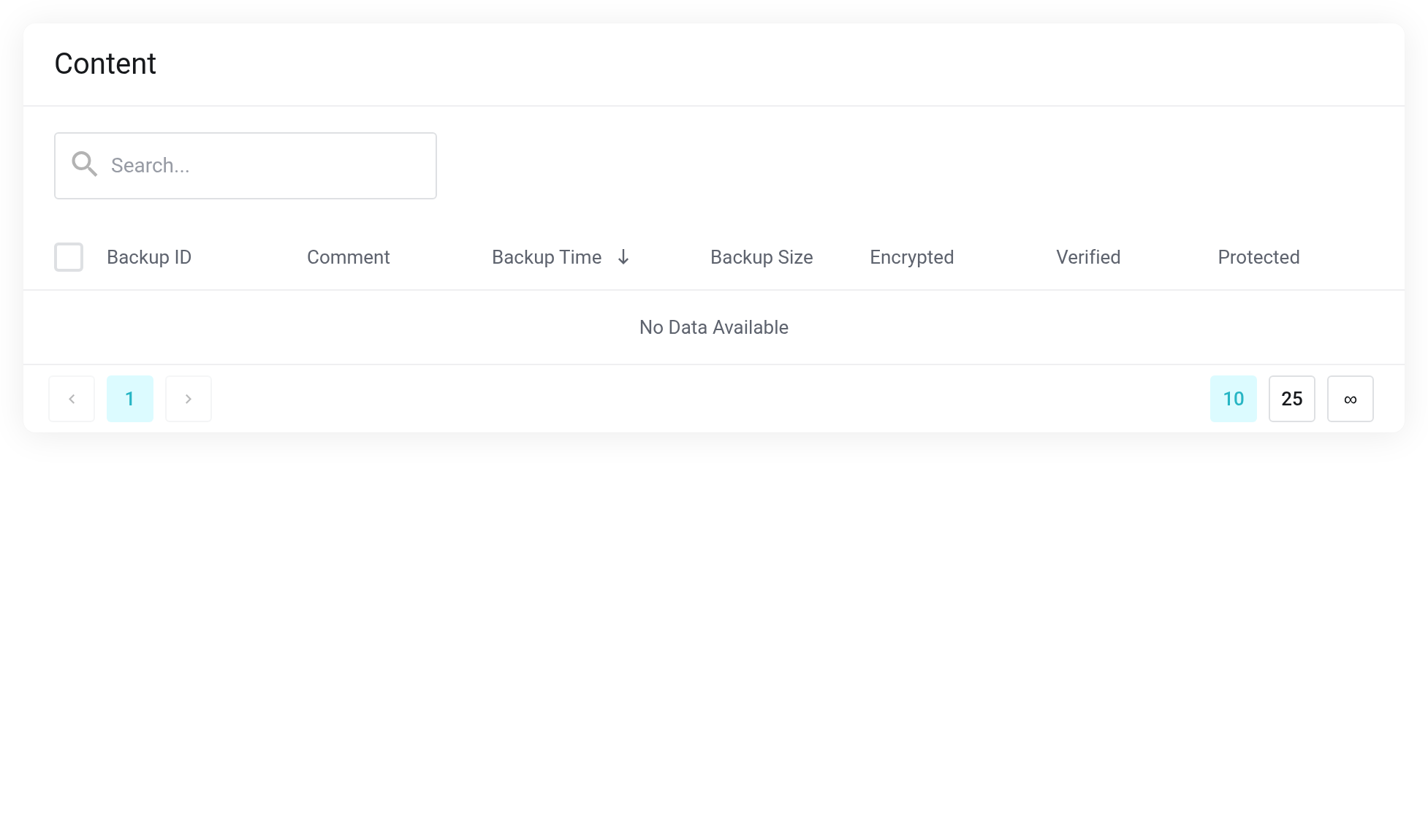
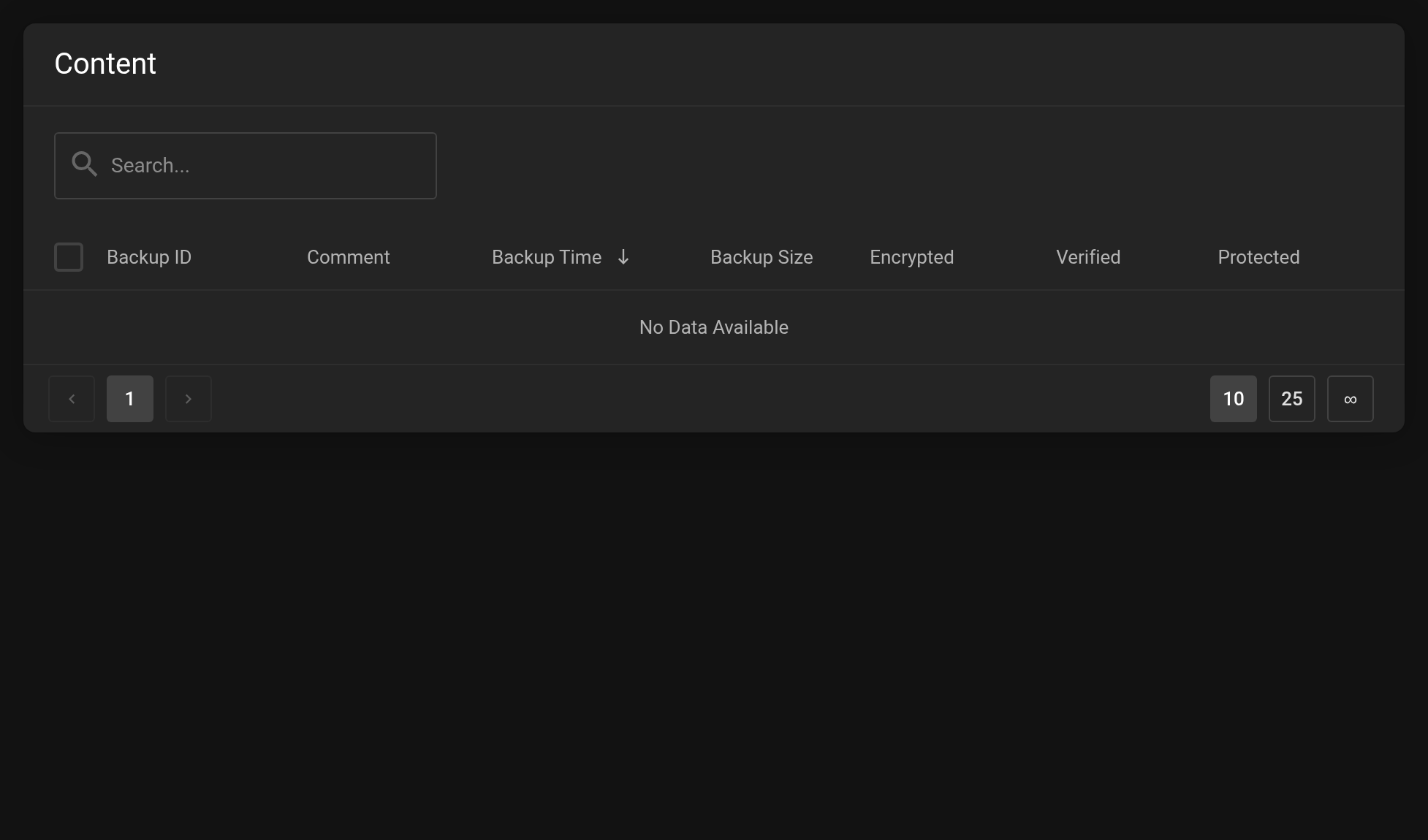 Backup groups on a grey background, their individual backups (snapshots) below.
Groups and snapshots
Every machine that is backed up forms a backup group, e.g. vm/40010 for a virtual machine or ct/41120 for a container. Clicking the group row expands its individual backups; Expand all and Collapse all open or close all groups on the page at once. The most recent group is at the top.
The columns
- Group / snapshot
- For a group the type and number of the machine, for a snapshot its time in UTC, e.g.
2026-11-05T06:52:36Z. - Comment
- The first line of the notes, usually the hostname of the machine that was backed up. For a group without notes of its own, the comment of the most recent backup is shown.
- Last backup / time
- For a group the most recent backup, for a snapshot its time in your local time.
- Count
- How many backups the group contains.
- Size
- Size before deduplication; for a group that of the most recent backup. If a snapshot shows running …, the backup has not finished yet.
- Encrypted
- Green shield: encrypted on the client side. You then need your key file to restore.
- Verified
- Green tick: checked by a verification job. On a group, a yellow tick means only some backups have been checked, a red cross that at least one check failed.
- Protected
- Switch per snapshot that exempts a backup from automatic retention.
Editing notes (comment)
The pencil icon at the end of a row opens the notes: on a snapshot the notes of that backup, on a group those of the whole group. The first line appears as the comment in the list, further lines are for your own remarks, such as “state before the upgrade to version 9”.
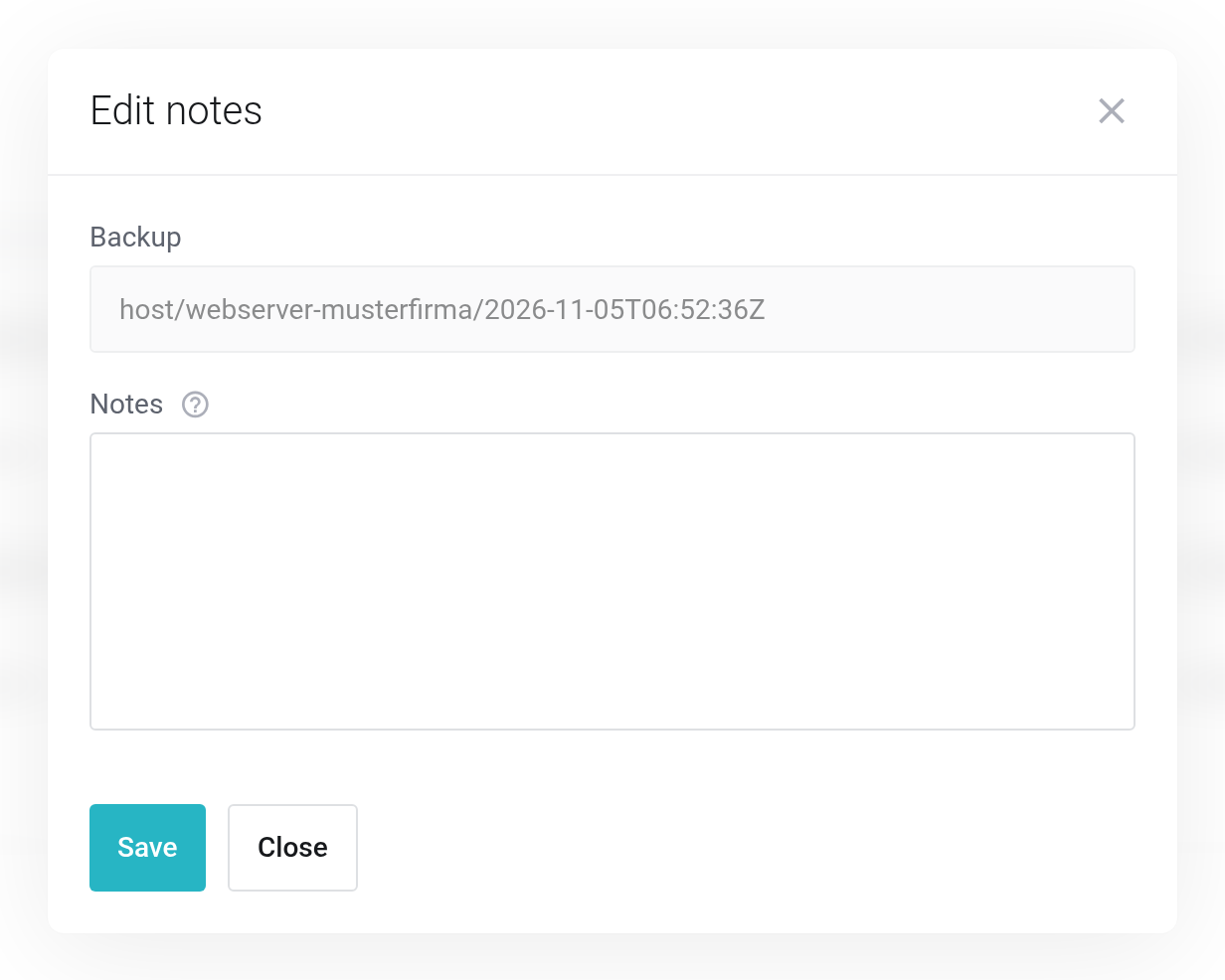
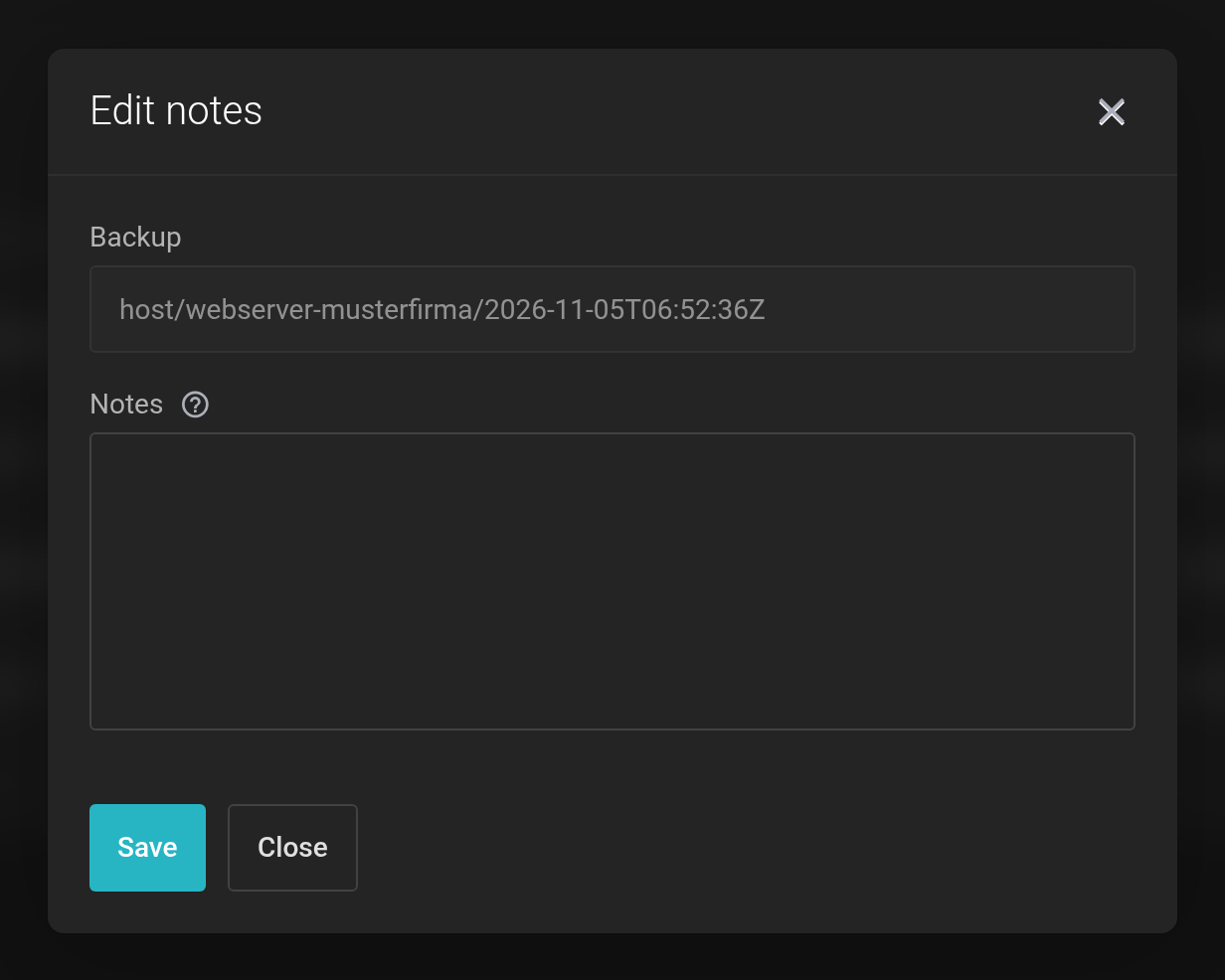 The Edit notes dialog.
Proxmox VE fills the notes at backup time from the backup job's notes template (default: the guest name). What you change here applies to this one backup or group only.
Protecting a backup
Flip the switch in the Protected column. Protected backups are skipped by the retention rule and are kept until you remove the protection.
The switch takes effect immediately and does not ask for confirmation. Protected backups take up space permanently, so check from time to time whether the protection is still needed.
Deleting backups
The bin icon at the end of a snapshot row deletes a single backup; for several, tick the boxes to the left of the snapshots and use the bulk action.
Deleting cannot be undone. A bulk deletion stops at the first error. Check in the list afterwards what was deleted. A protected backup cannot be deleted; remove the protection first.
Namespaces
Namespaces are sub-folders in your datastore. They keep backups apart, for example with one namespace per Proxmox VE cluster or site. That way identical VM numbers from different clusters do not get in each other's way. Namespaces nest up to 7 levels deep (e.g. customer/cluster1).
- Switching: pick the namespace in the Namespace field at the top right. Root (datastore) is the top level.
- Creating: Create namespace, choose the parent namespace, enter a name (letters, digits, dot, hyphen and underscore, at most 32 characters).
- Backing up into a namespace: enter the namespace on the storage in Proxmox VE, see Connecting your own Proxmox VE.
Deleting a namespace
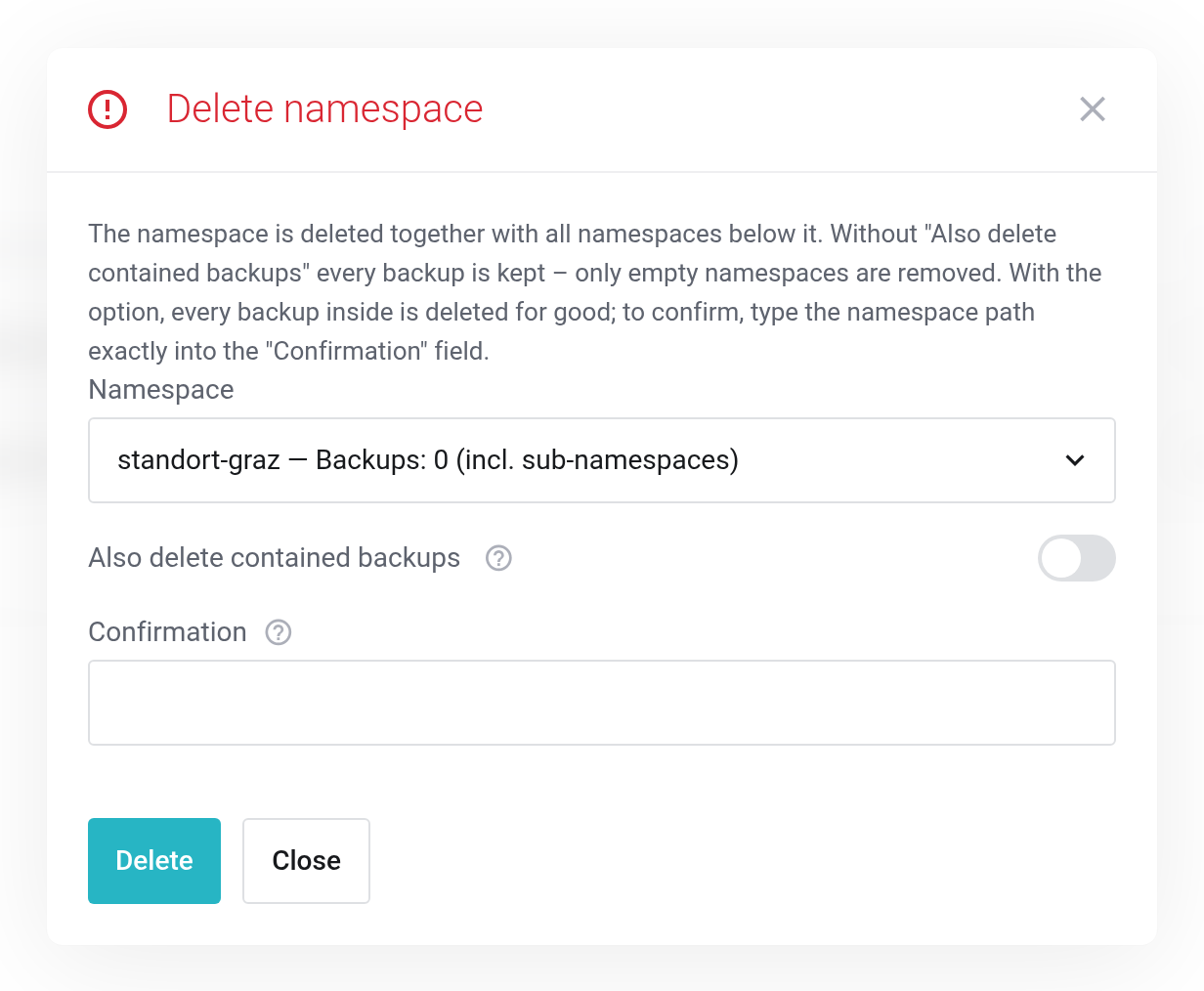
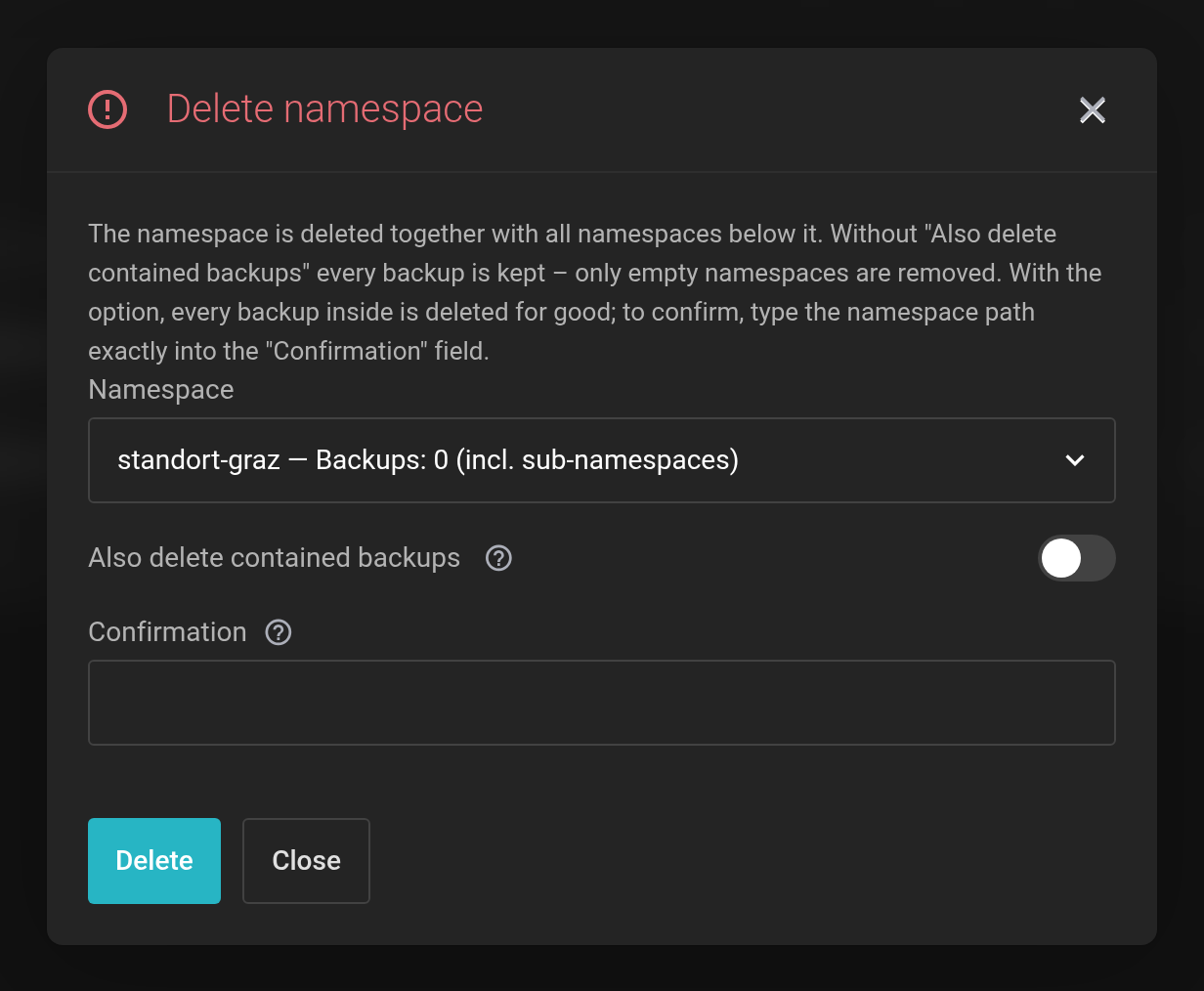 The picker shows how many backups would be affected, including all sub-namespaces.
A namespace is always deleted together with its sub-namespaces. Without the switch Also delete contained backups every backup is kept. Only empty namespaces are removed, a namespace that still holds backups stays. With the switch, every backup inside is deleted. To confirm, type the namespace path exactly into the Confirmation field.
Deleted backups cannot be recovered. Protected backups are kept even then; remove the protection first if you want to delete them as well.
Searching
The search above the table finds groups by type and number (vm/40010 or 40010) and by comment, including the comment of an individual backup. It searches the namespace currently selected.
Restoring
The icon with the circular arrows at the end of a snapshot row starts a restore into one of your Cloud or Server products, from any namespace. It only appears with an active Cloud or Server product and only works for virtual machines. The steps are described in Restoring a backup. To have this happen automatically on a schedule, create a scheduled restore.


