
The Content page shows every single backup in your datastore. You will find it under My Products & Services → your Managed Proxmox Backup Server → Management → Content.
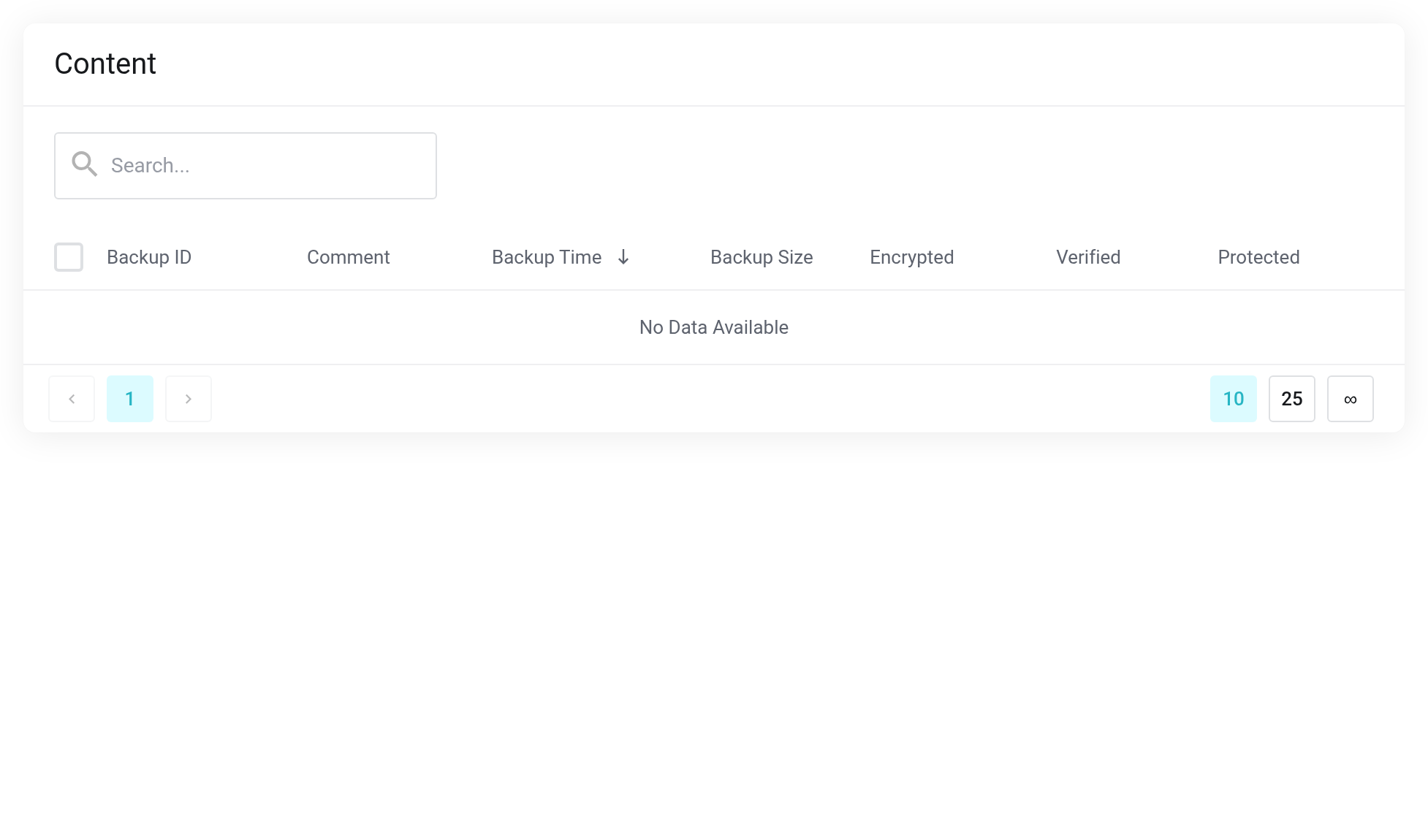
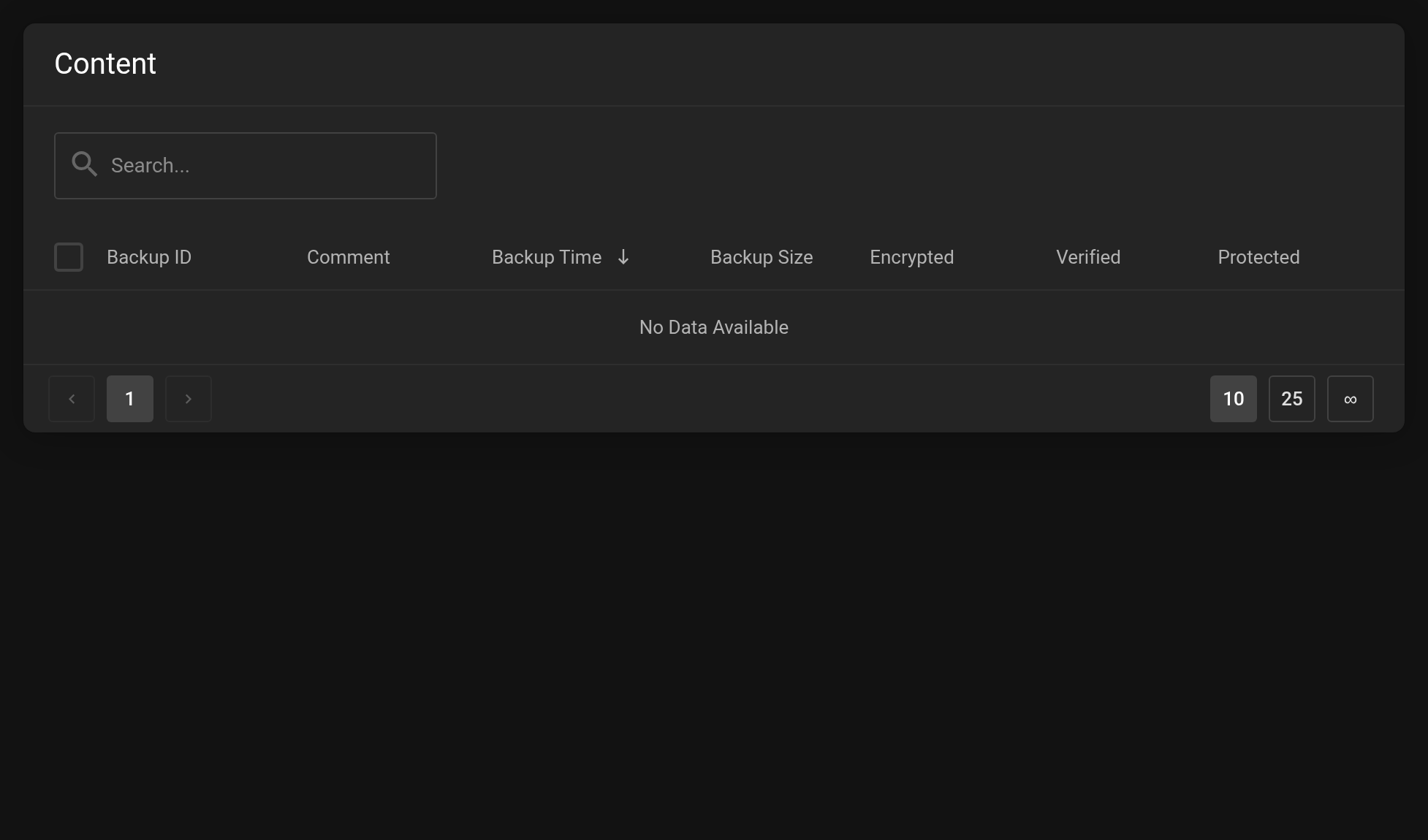 Each row is a single backup.
The columns
- Backup ID
- Type and number of the unit that was backed up, e.g.
vm/40010for a virtual machine,ct/41120for a container. - Comment
- Usually the hostname of the machine that was backed up.
- Backup Time
- Time of the backup, newest first.
- Backup Size
- Size before deduplication. Empty means the backup is still running.
- Encrypted
- Green shield: encrypted on the client side. To restore it you then need your key file.
- Verified
- Green check mark: checked by a verify job.
- Protected
- A switch that exempts a backup from automatic retention.
Protecting a backup
Flip the switch in the Protected column. Protected backups are skipped by the retention policy and are kept until you remove the protection.
The switch takes effect immediately and does not ask for confirmation. Protected backups occupy space permanently — check from time to time whether the protection is still needed.
Deleting backups
Use the trash can icon at the end of the row to delete a single backup; for several, select the check boxes on the left and use the bulk action.
Deleting cannot be undone. In a bulk deletion the process stops at the first error — check the result in the list afterward. A protected backup cannot be deleted; remove the protection first.
Searching
The search above the table works on the plain number: vm/40010 returns no match, 40010 finds the backup. You can search by comment as usual.
Restoring
The icon with the circular arrows at the end of the row starts the restore into one of your Cloud or Server products. It appears only with an active Cloud or Server product and only for virtual machines. The procedure: Restoring a backup.