You do not need to set anything up for webmail: open a browser, sign in, done.
Signing in
Open https://zimbra.mydc.at/ — or the Go To Webmail tile in the Client Area.
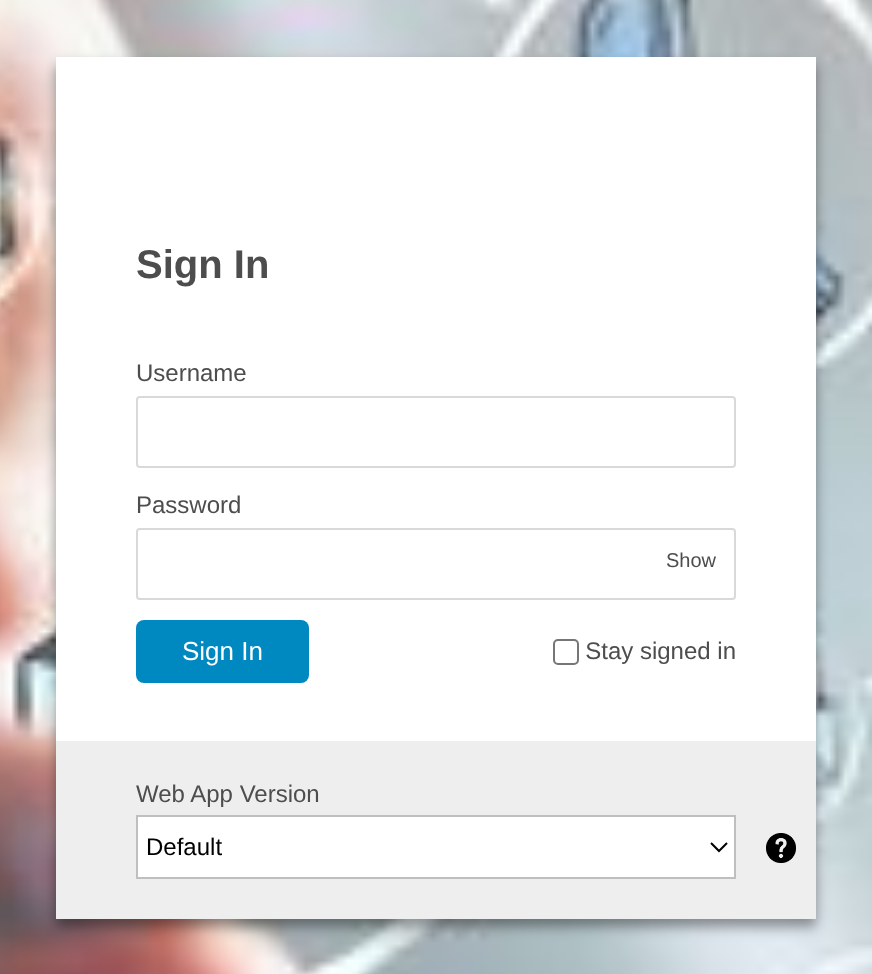 For Username, enter your full email address.
The Username is the full email address, not just the part before it. Do not select Stay signed in on devices that are not your own.
Two interfaces
| Web App Version | What it is for |
|---|---|
| Default (modern) | Uncluttered and fast — for reading and writing day to day. |
| Advanced (classic) | All settings: filter rules, sharing, out-of-office reply, signatures. Directly via zimbra.mydc.at/?client=advanced. |
Rule of thumb: the modern interface for working, the classic interface for settings. The settings apply to both.
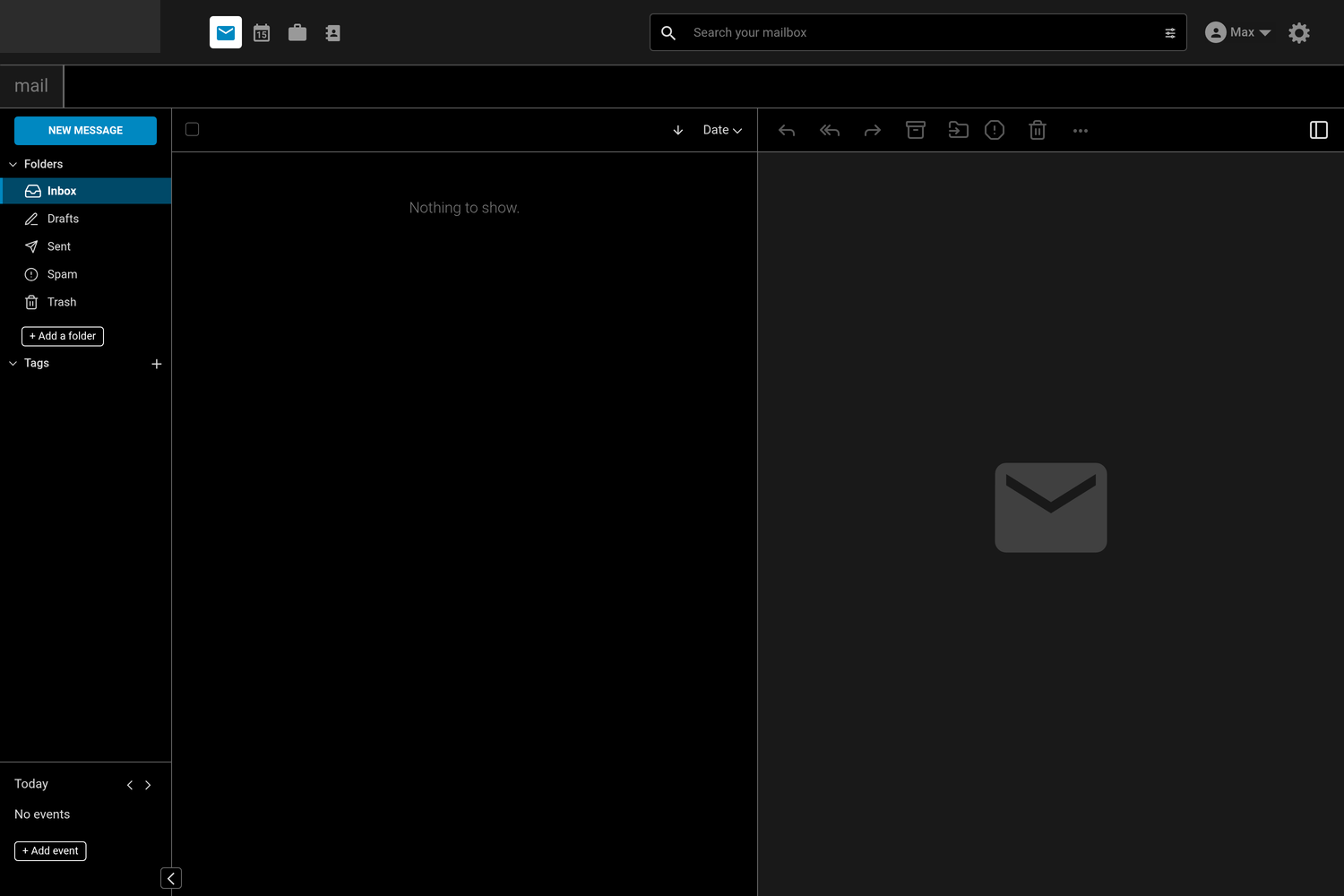 At the top left, the icons switch between Mail, Calendar, Briefcase and Contacts.
Your name in the top right takes you to Change Password and to signing out — see Changing your password.
Interface language
The web interface starts in English. You will find the language setting in the classic interface under Preferences → General in the Language section; save with Save.
If sign-in fails
- “Invalid username or password”
- In most cases you entered only the part before the
@. You set a new password under E-Mail Accounts. - “Your account has been disabled”
- The mailbox has a status other than Active in the Client Area.