
You back up virtual machines that run with us straight into your Managed Proxmox Backup Server, with no detour. Neither a public IP address nor a firewall rule is needed.
Requirement: the backup server and the cloud or server product belong to the same client account and are both active. Your datastore then appears automatically in the Backup Target field.
Creating the backup job
My Products & Services → your Private Cloud Computing – Platform product → Backup Jobs on the left → Create Backup Job.
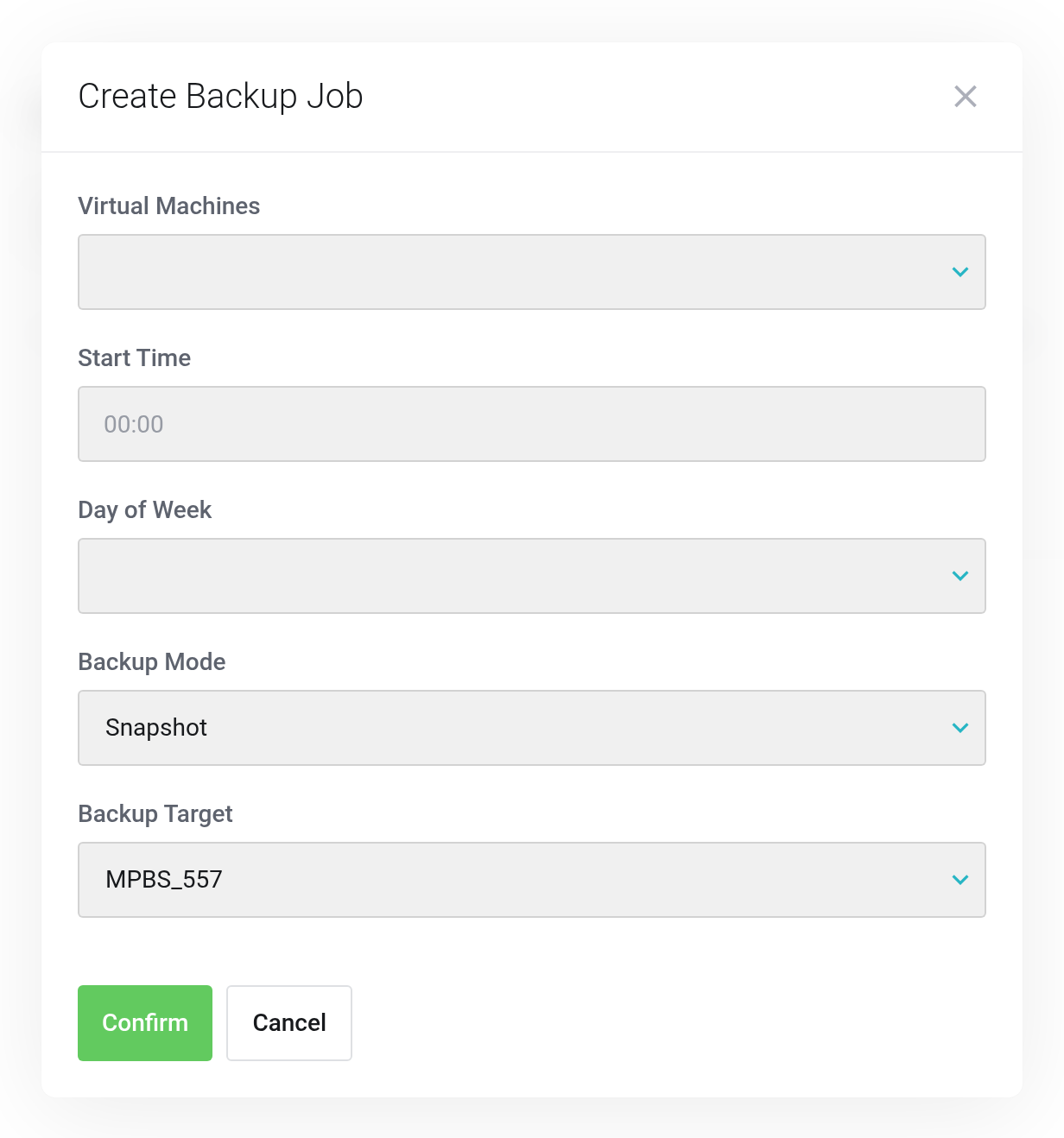
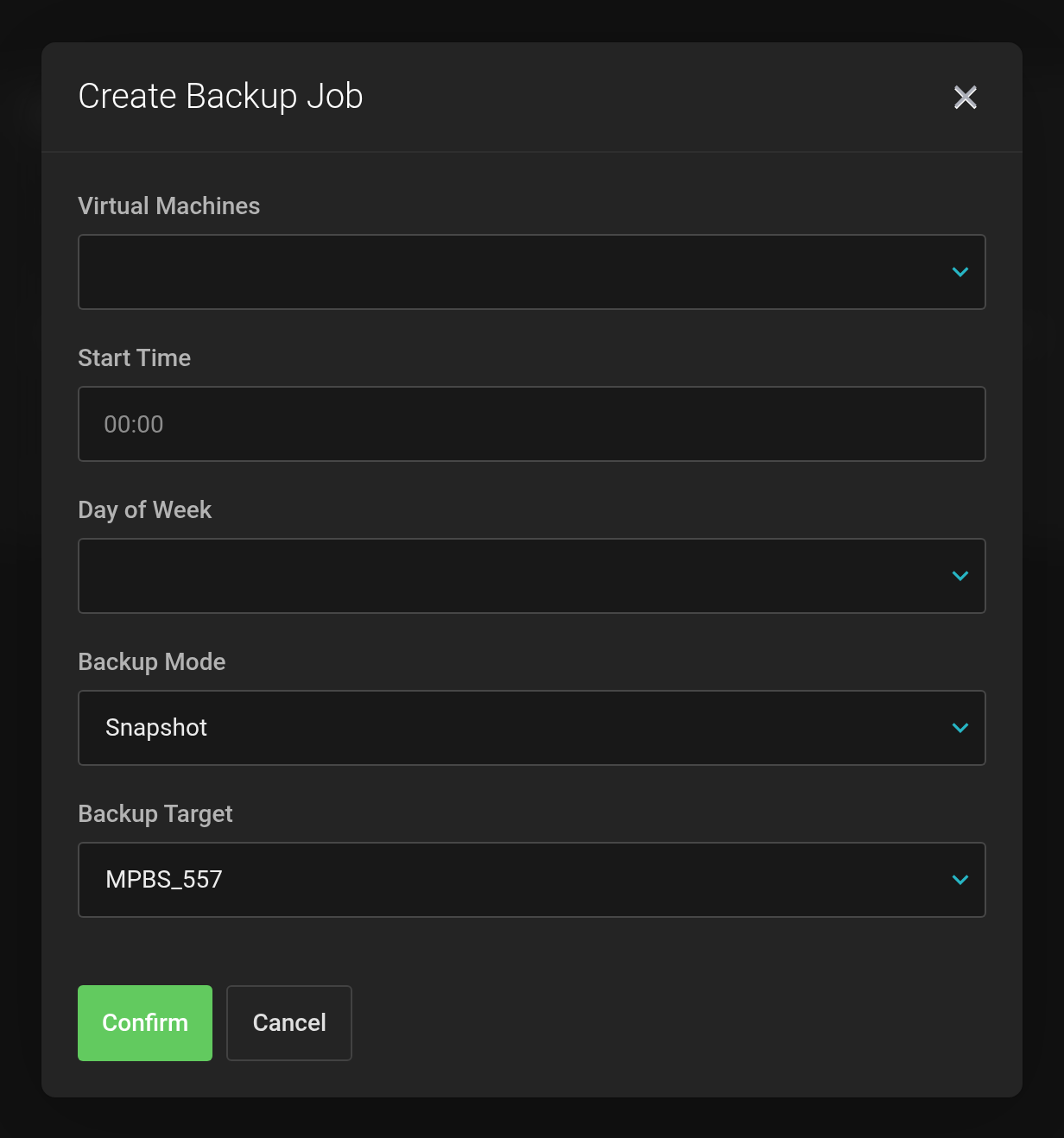 The Backup Target field holds your own datastore.
- Virtual Machines
- Which VMs are backed up. You can select more than one.
- Start Time
- A time outside your peak load hours.
- Day of Week
- Which days the job runs on.
- Backup Mode
- Snapshot backs up the running VM without stopping it.
- Backup Target
- Your datastore
MPBS_<service ID>— this is where the connection to the backup server is made.
Confirm creates the job. From the next run onward, the backups appear under Content.
Server products (VPS)
There the same Backup Jobs entry leads to the same dialog. In addition, there is a Backups page with the existing backups of that server.
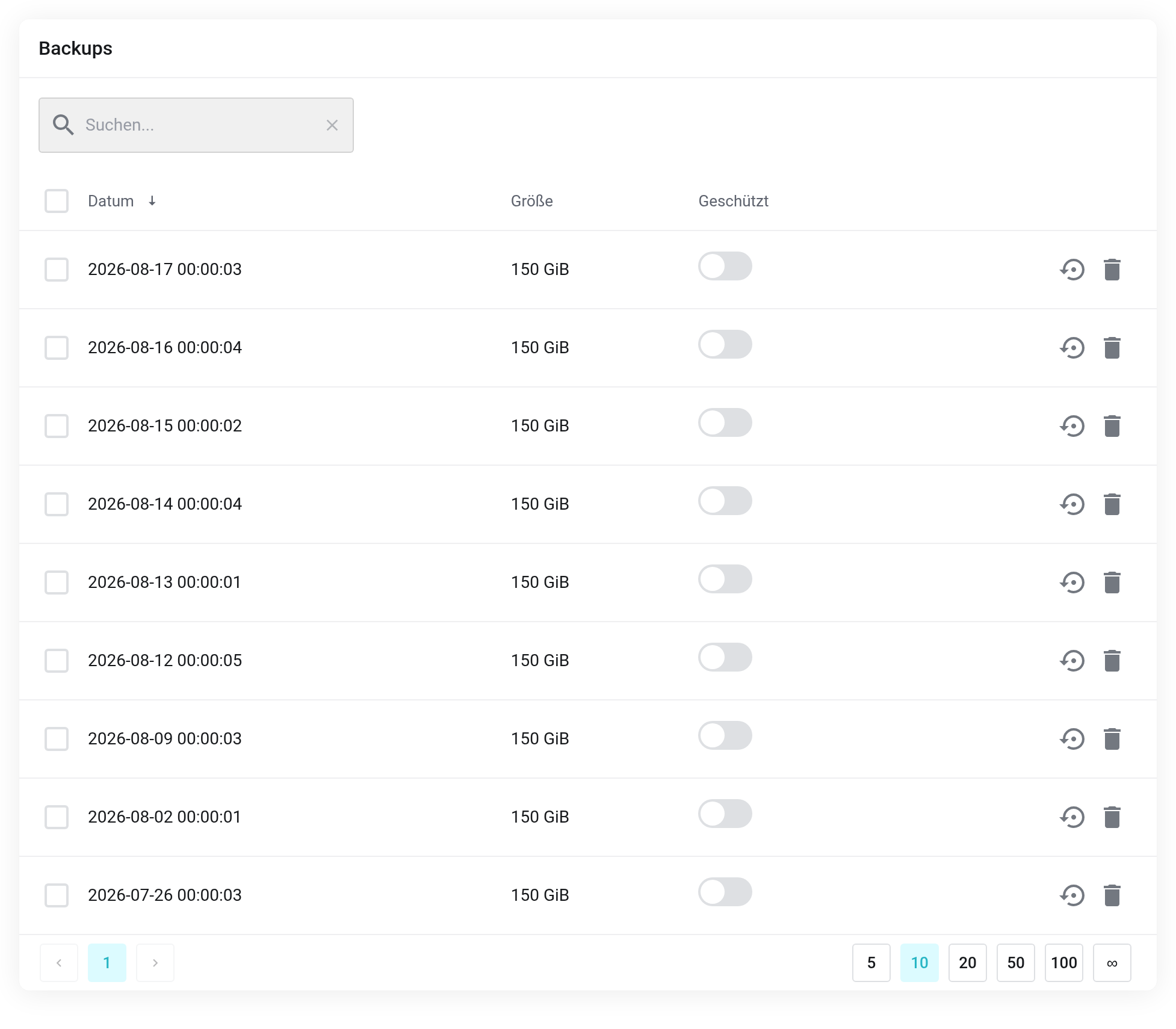
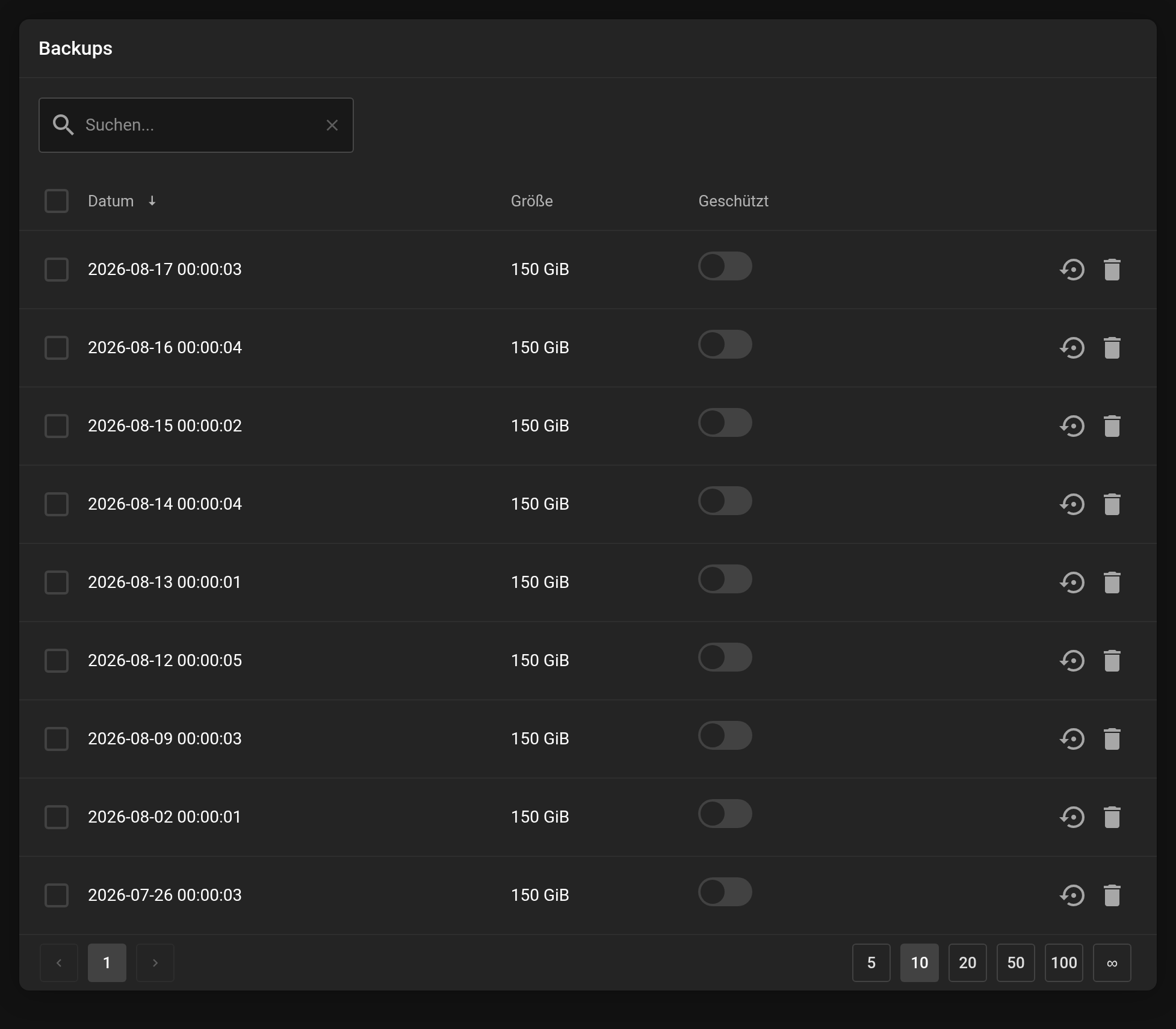 The Backups page of a server product.
How long backups are kept is not decided by the backup job, but by the retention policy of your datastore — see Retention-Settings.