
There are two ways to change the password of a mailbox: by the person using it in webmail, or by you in the Client Area — there even without knowing the old password.
Changing it yourself: in webmail
- Sign in at zimbra.mydc.at.
- Click your own name in the top right.
- Select Change Password and enter the new password twice.
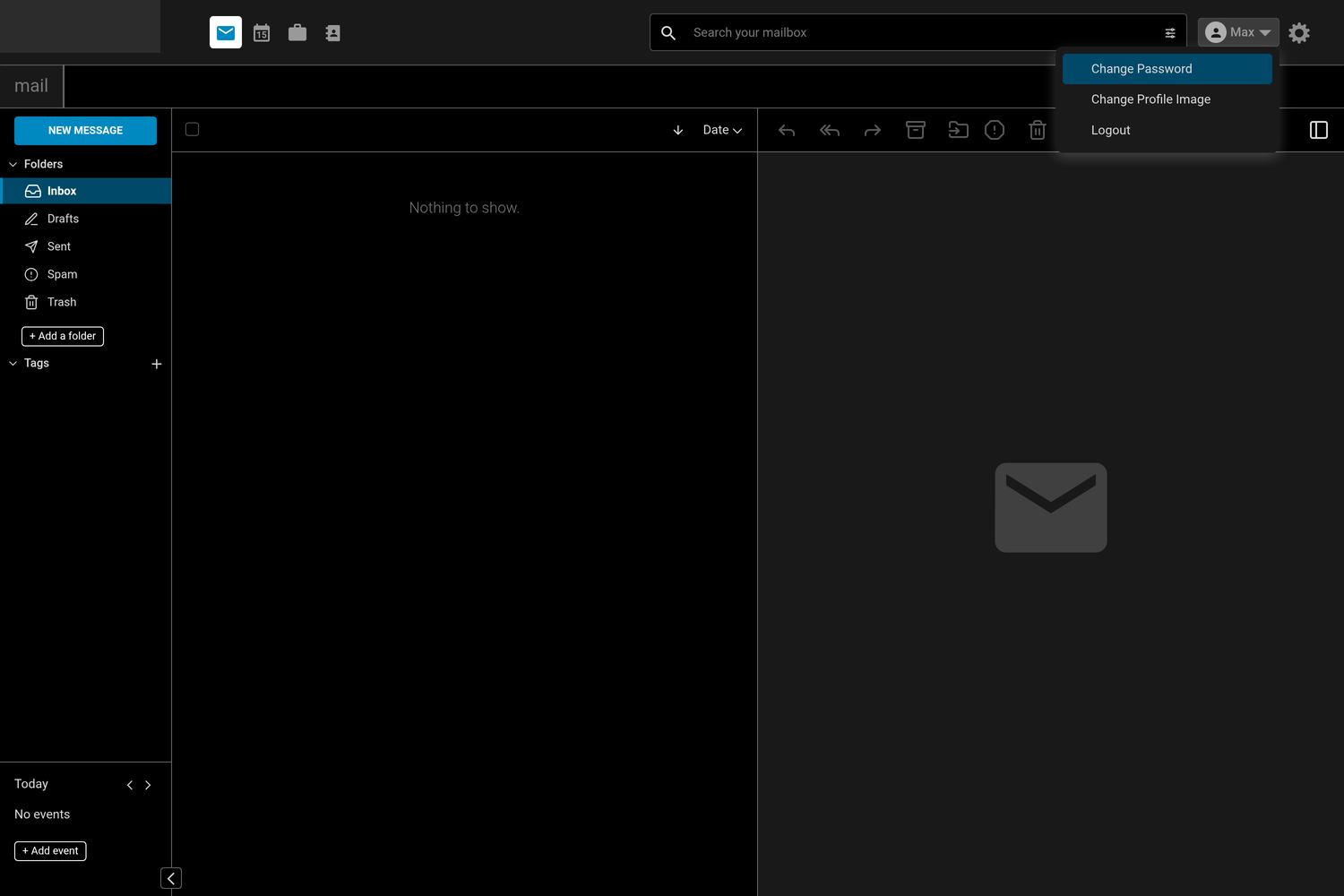 The menu behind your name contains Change Password.
Afterwards, update the new password in all the programs and mobile devices you have set up — otherwise they keep trying to sign in with the old one.
Resetting it: in the Client Area
- My Products & Services → your Managed Zimbra Hosting → E-Mail Accounts.
- Click the edit icon on the mailbox you want.
- Set a new password or have one created with Generate.
- Set Force Password Change if the person concerned is to set a password of their own at the first sign-in.
Do not pass passwords on by email. Use a second channel. In combination with Force Password Change, the password you hand over is valid only once.
Two-factor authentication
All plans support signing in with a second factor: in addition to the password, a one-time code from an authenticator app is required. You set this up in the classic web interface under Preferences → Accounts.
Older email programs cannot handle one-time codes; for those, Zimbra offers app-specific passwords that you assign per device and can revoke individually.
If a mailbox has been compromised
Signs are unknown entries in the Sent folder or complaints from recipients.
- Reset the password in the Client Area immediately — this also ends existing sessions.
- Check the filter rules under Preferences → Filters: attackers often set up forwarding there.
- Check forwarding under Preferences → Mail.
- Get in touch with us — we will check the log to see where the access came from.