
You manage all records of your domain under Management. Changes are active on both name servers immediately; until they are visible worldwide it takes up to 24 hours, depending on the time to live (TTL) of the record.
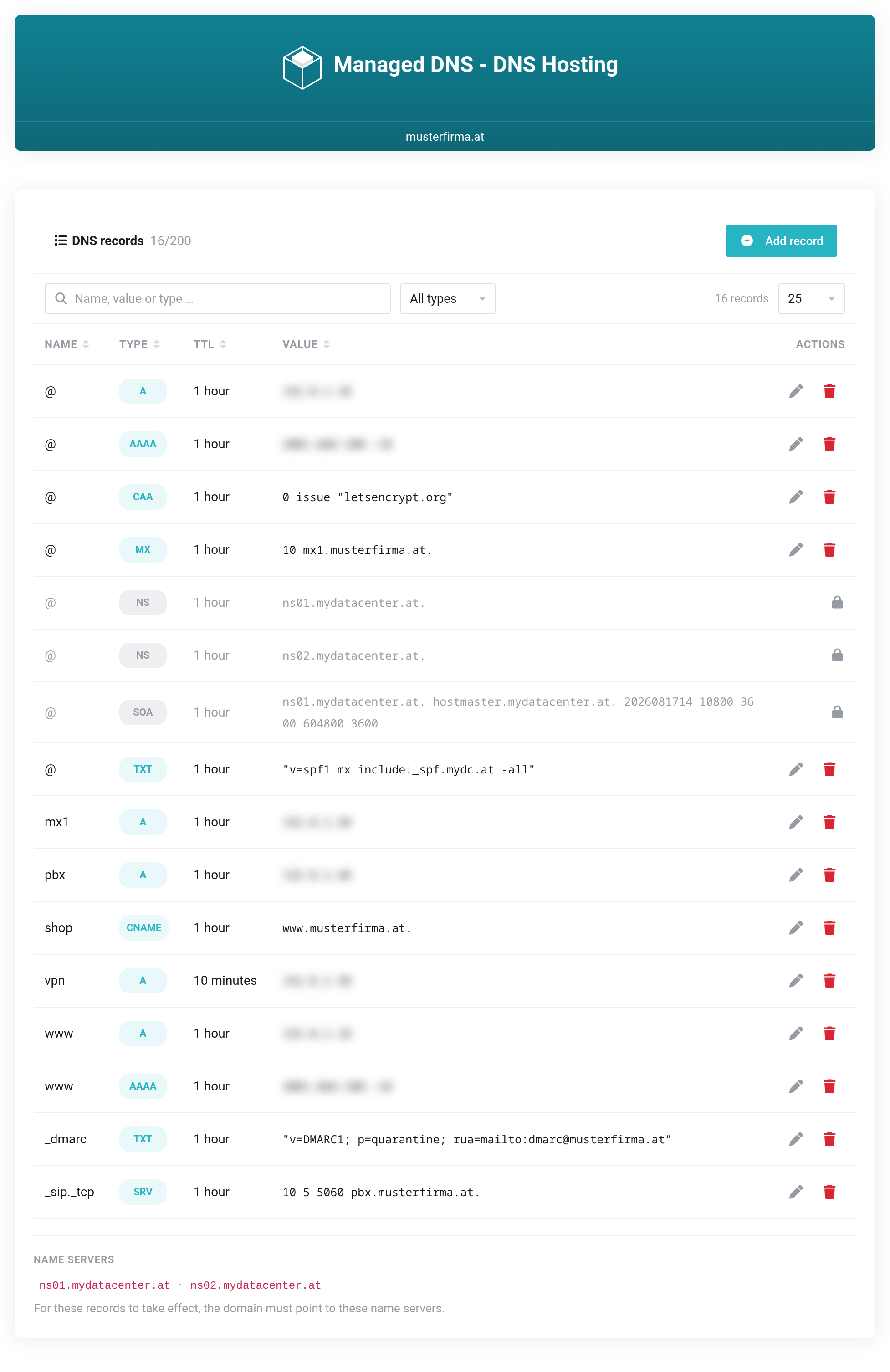
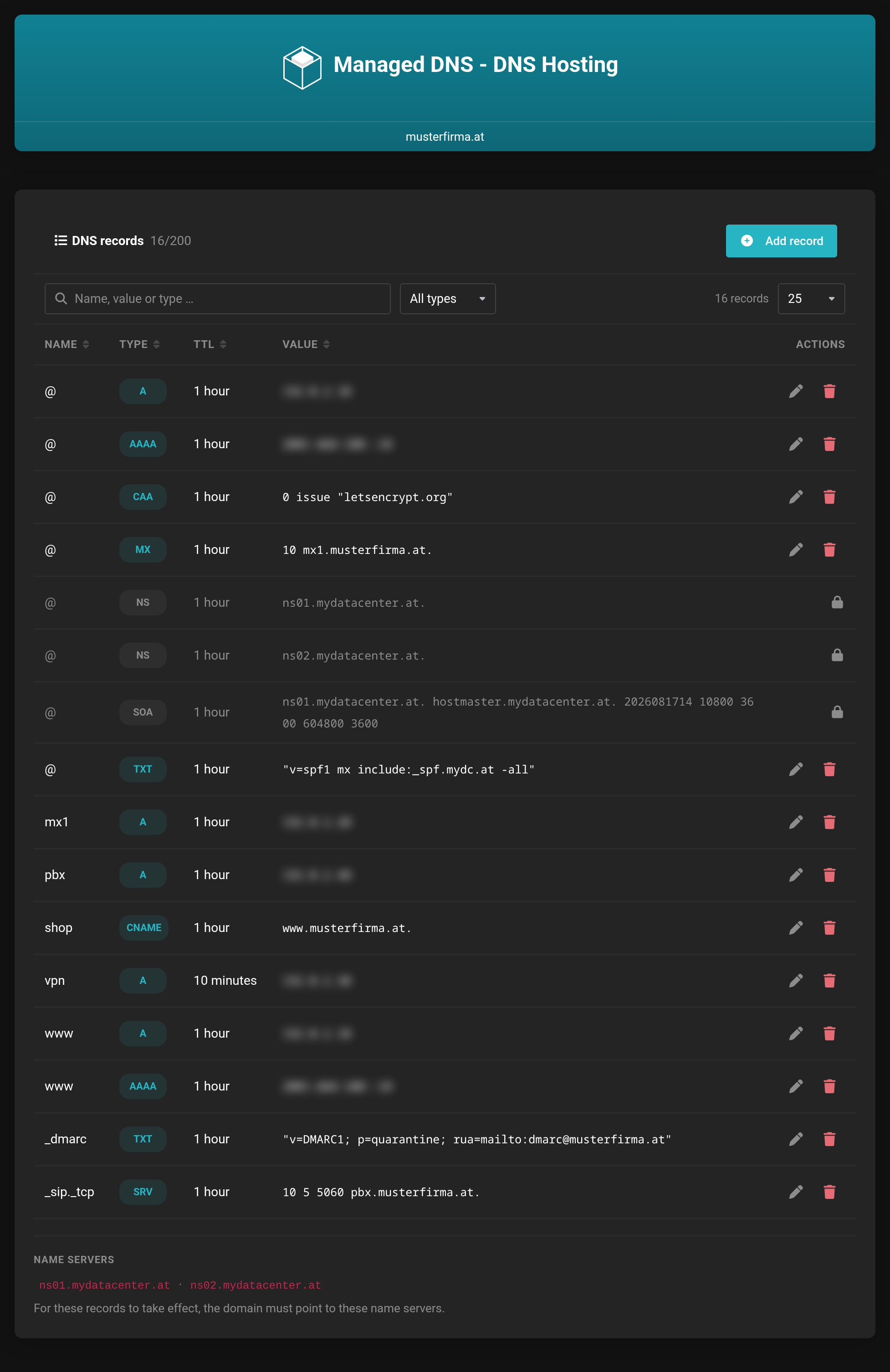 The record list with search, filter and sortable columns.
Creating a record
Add record opens an input form. Name, Type and TTL are in the first row; which fields appear below them depends on the type you choose.
- Name
- Empty or
@stands for the domain itself, otherwise the part in front of it —www, for example. The domain is appended automatically. - Type
- Determines what the record stands for. See the table further down.
- TTL
- How long other servers may cache the answer. Shorter means: changes take effect faster, but there are more queries.
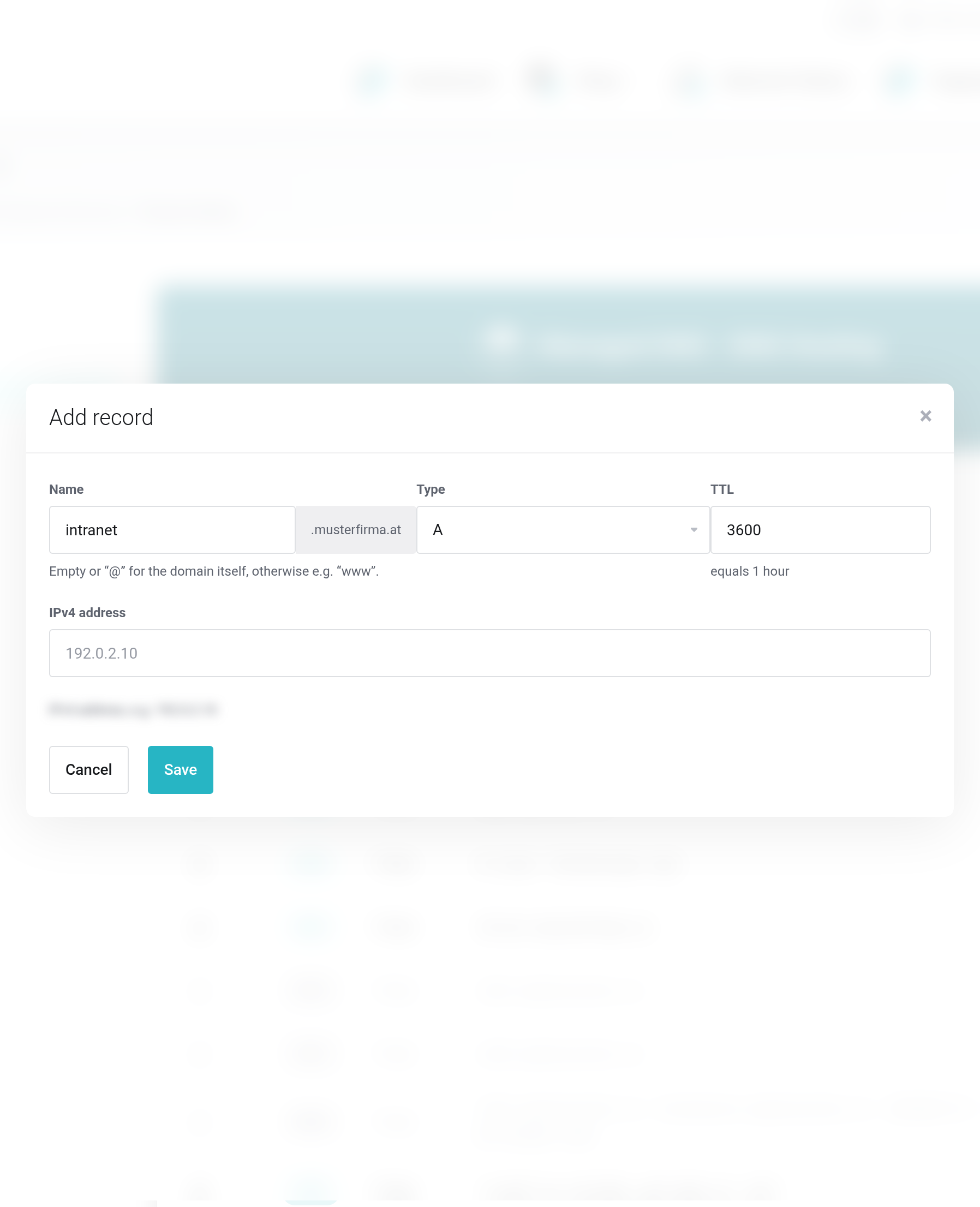
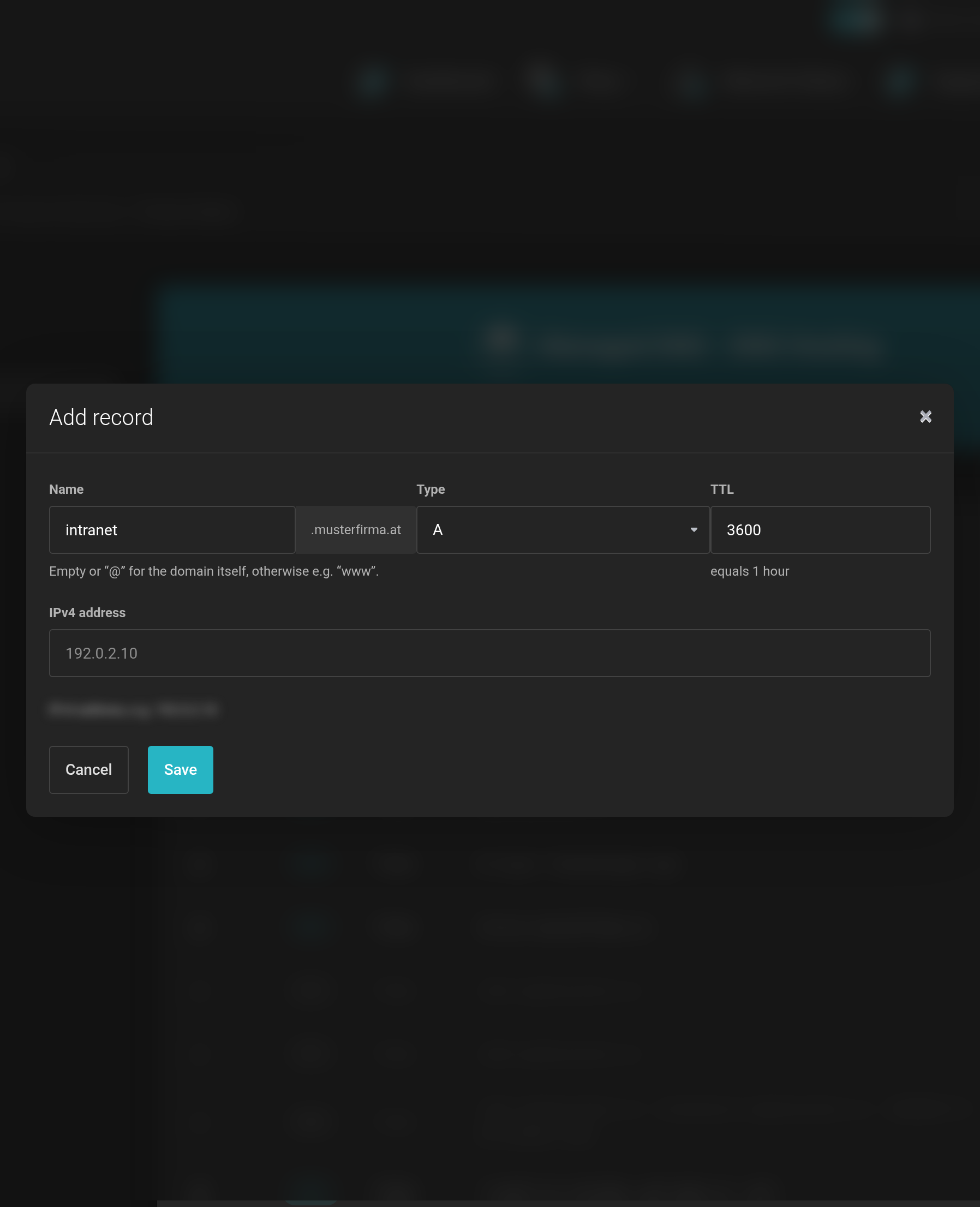 Name, Type and TTL — below them the fields of the type you chose.
The fields depend on the type
Technically, a DNS record is a single string whose structure depends on the type. So that you do not have to remember this structure, the form asks for the parts one by one. For an SRV record, for example, Priority, Weight, Port and Target instead of 10 5 5060 pbx.example.at. in one piece.
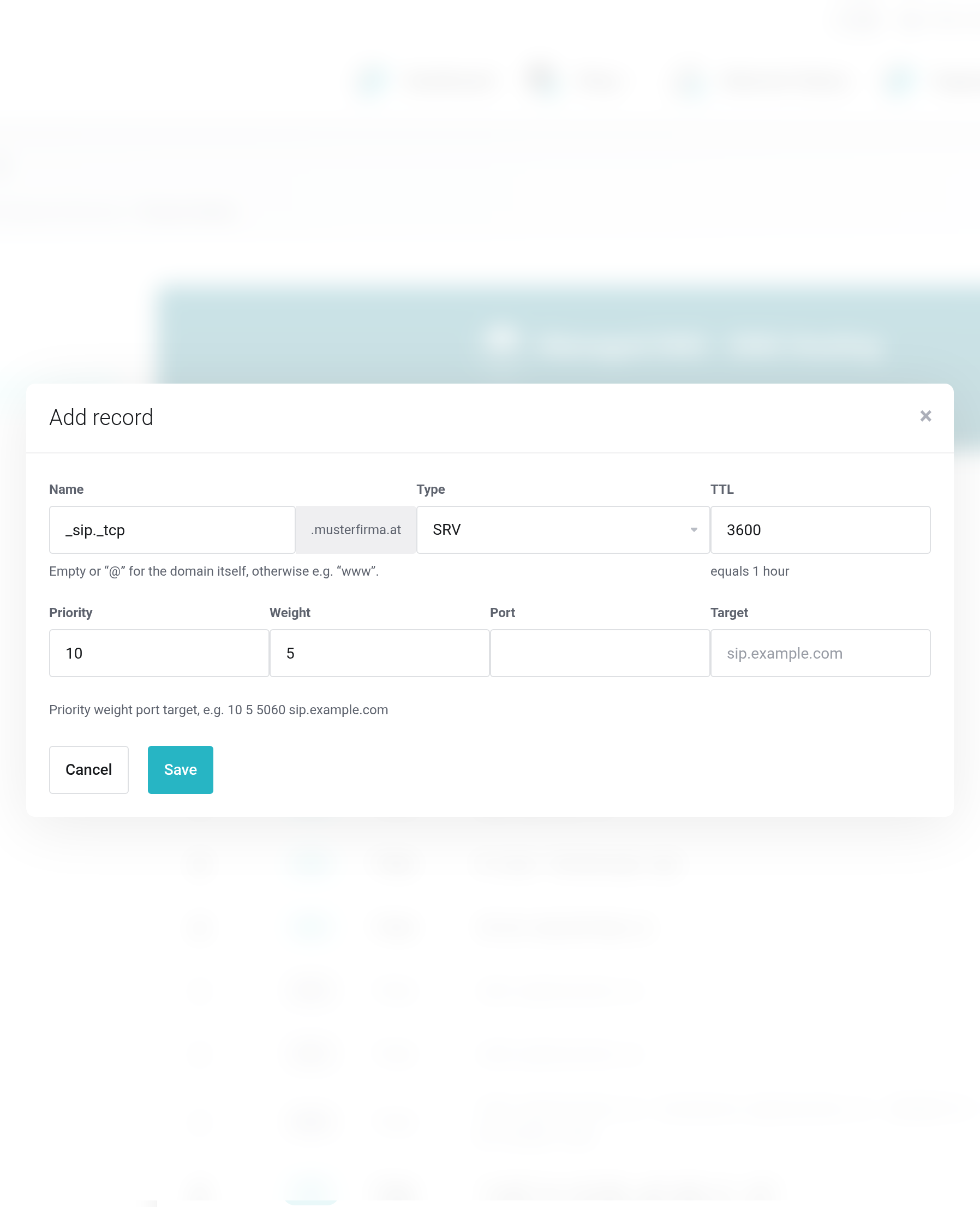
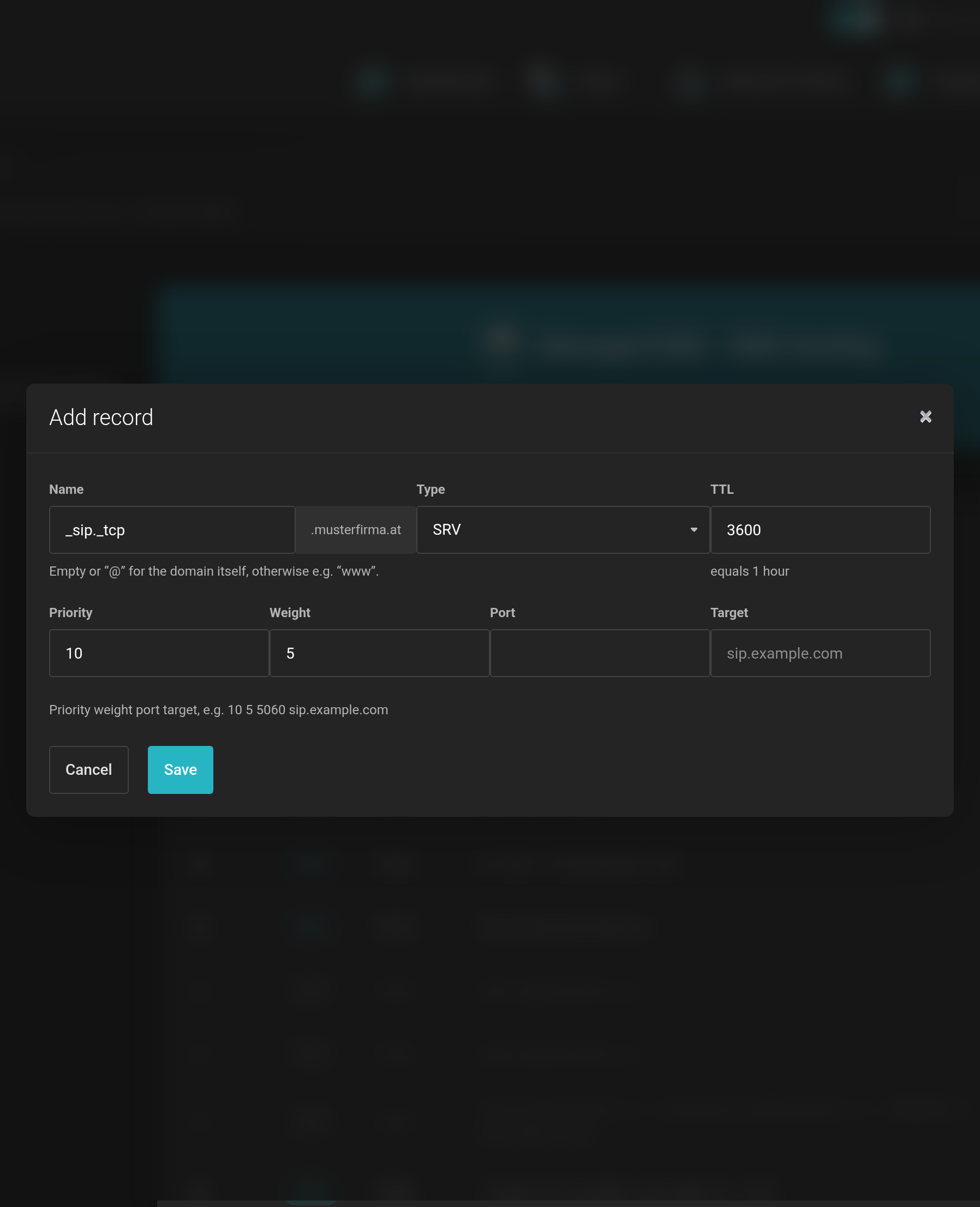 SRV: Priority, Weight, Port and Target as separate fields.
| Type | What it is for |
|---|---|
| A / AAAA | Points a name to an IPv4 or IPv6 address. |
| CNAME | Points a name to another name. Not allowed at the apex (@) and not alongside other records of the same name. |
| MX | Mail server of your domain, with a priority — the lower value is tried first. |
| TXT | Free text. Common for SPF, DKIM and DMARC. |
| SRV | Service with a port, for telephony for example. |
| CAA | Defines which Certificate Authority (CA) may issue for your domain. |
Which types are available to you depends on your plan.
Finding something among many records
You can search the list, filter it by type and sort it by any column; with many records it is split across pages. The search covers Name, Type and Value — searching for mx therefore also finds a record that points to a mail server.
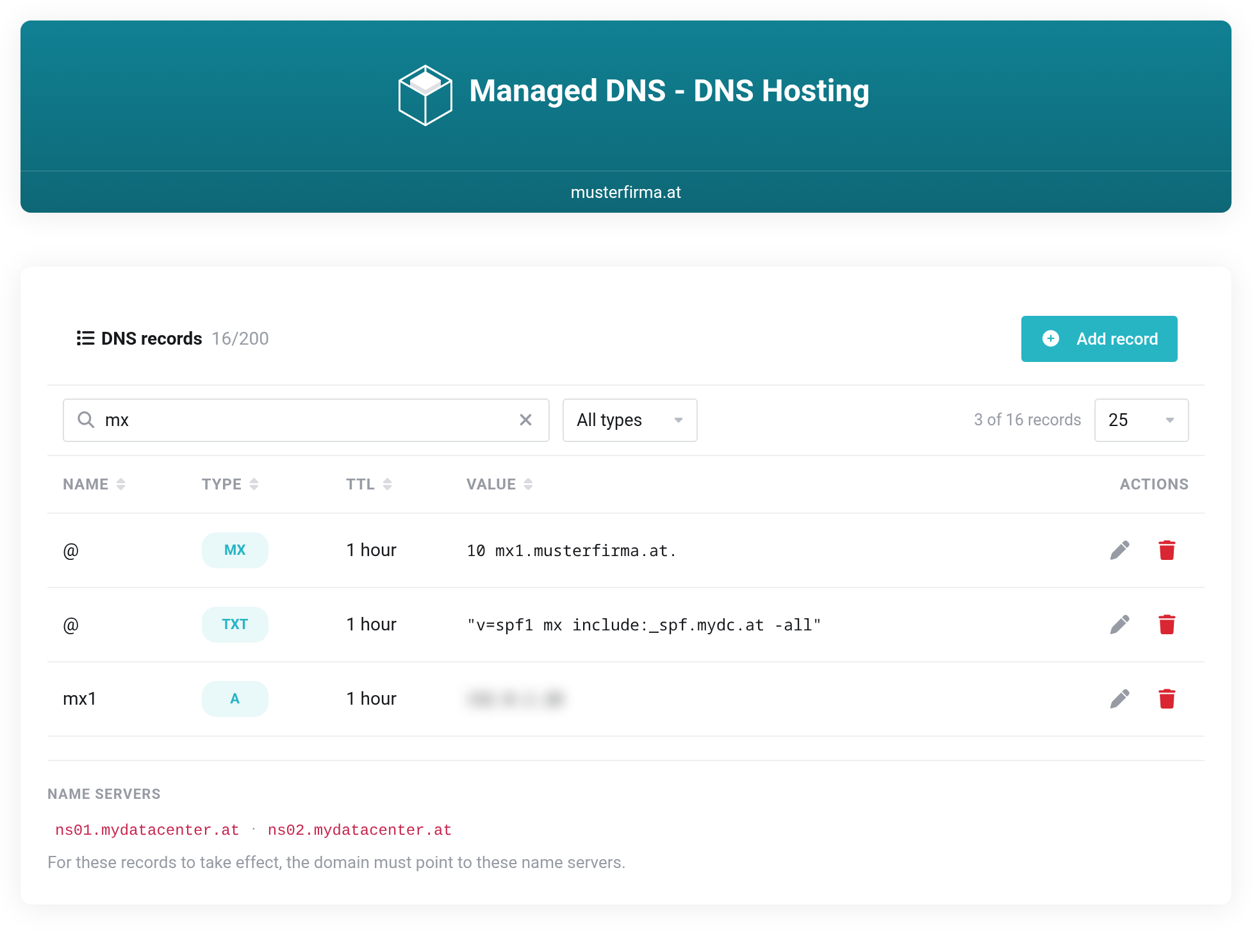
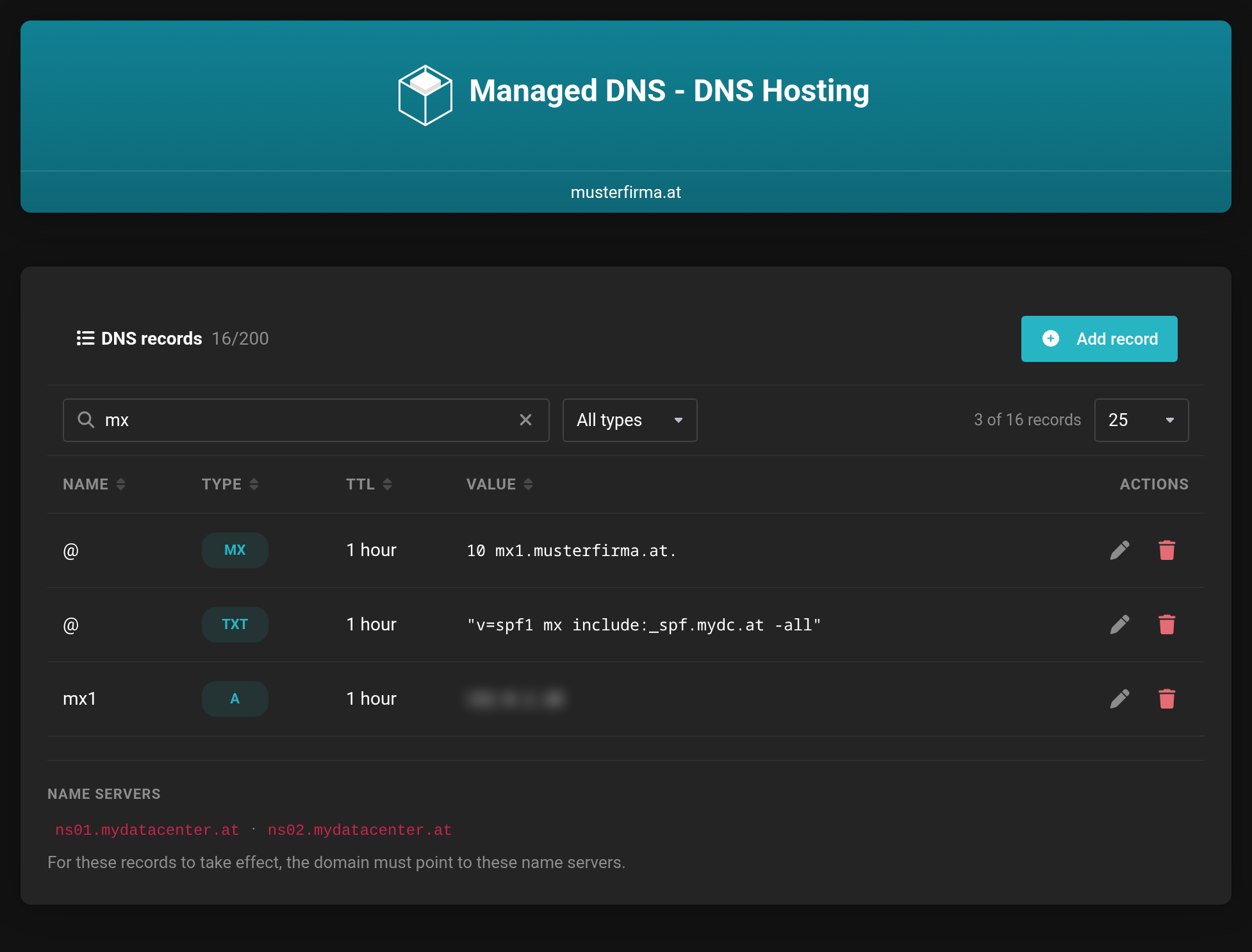 Search across Name, Type and Value.
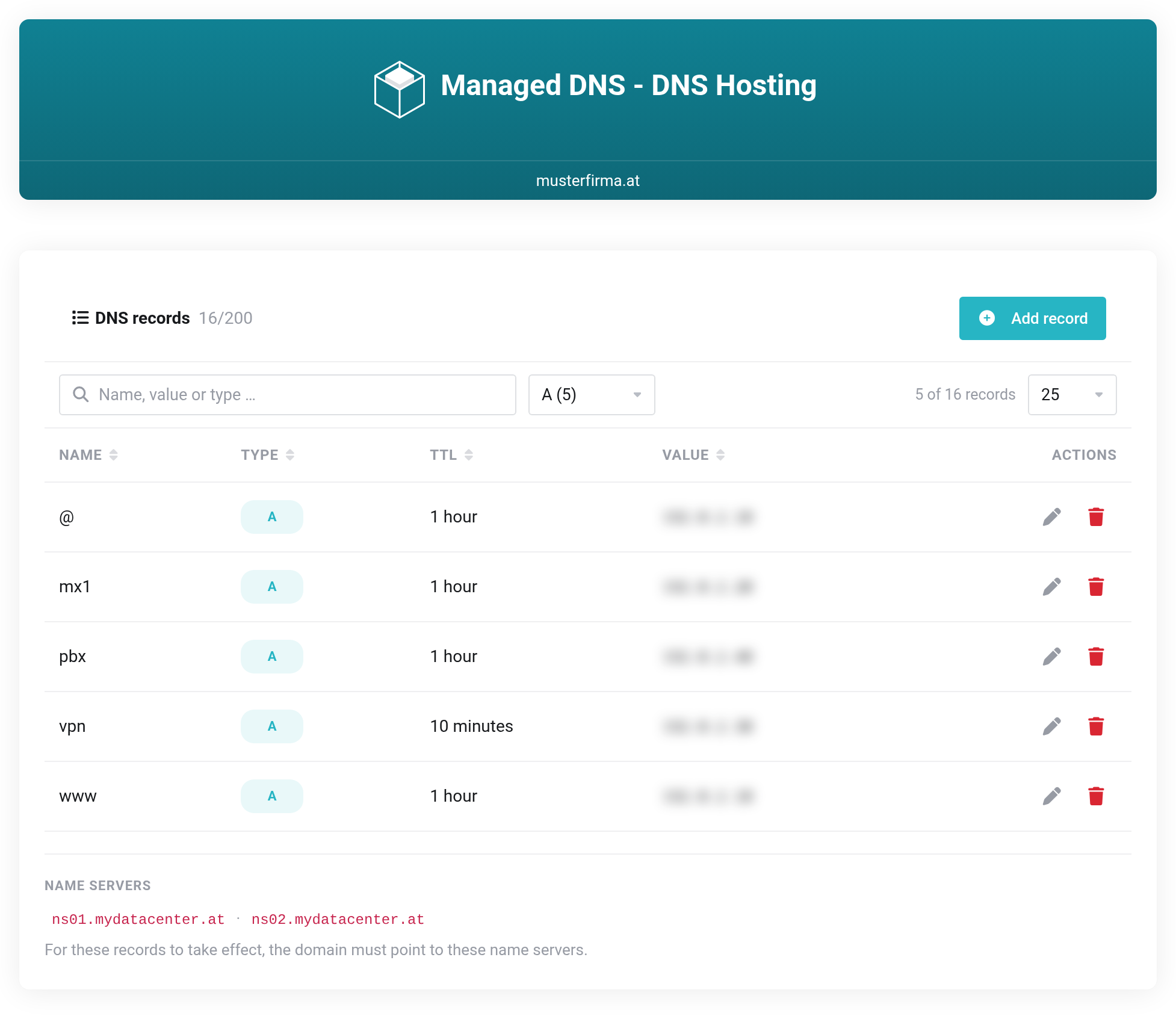
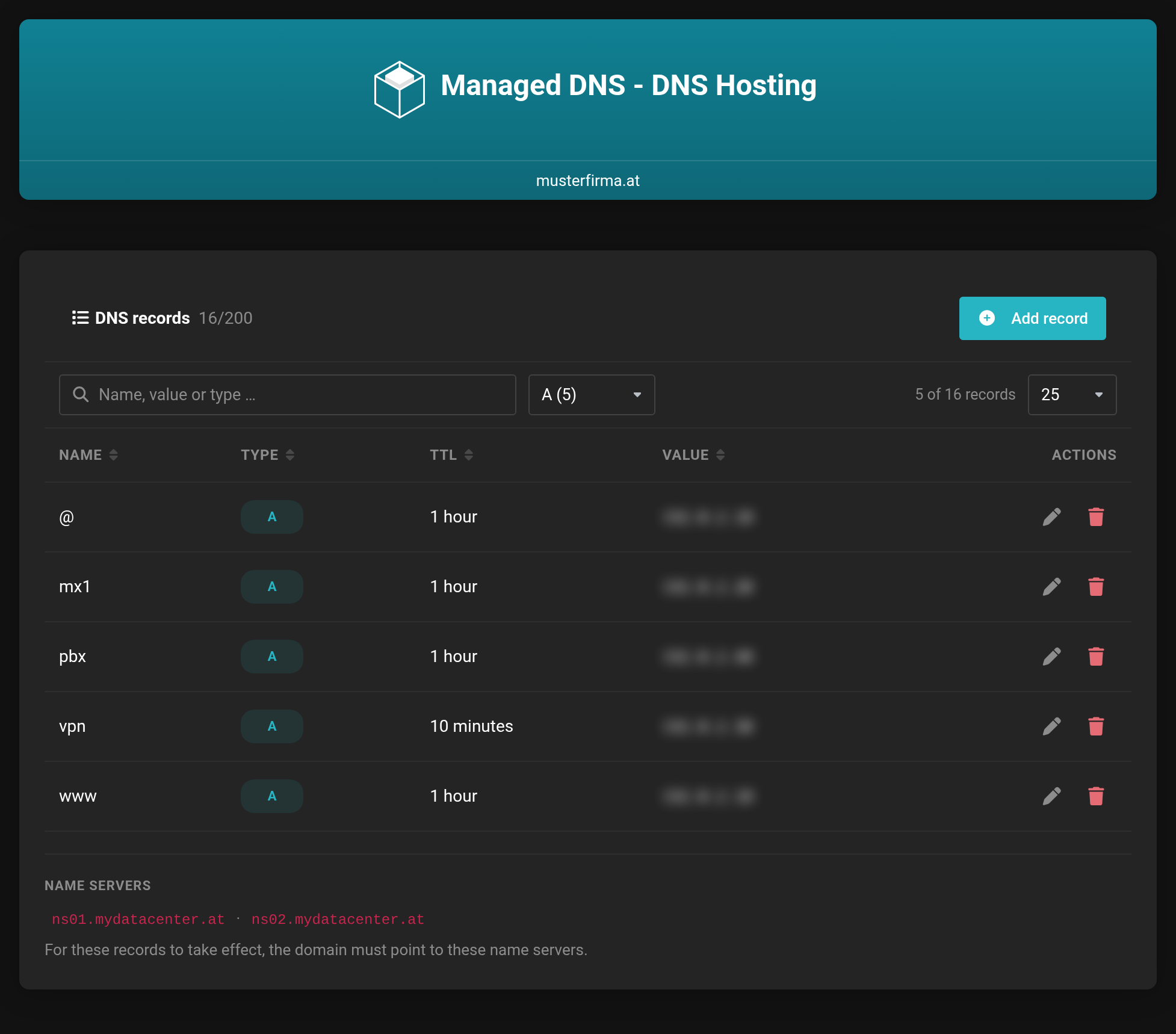 The type filter shows how many records exist for each type.
Editing and deleting
You edit or delete a record with the icons at the end of the row. Deleting asks for confirmation first, and the change takes effect immediately. Every change is logged and appears on the Information page under Recent activity — with the value before and after the change.
Records with a lock icon are the ones we manage for you: the zone header (SOA) and the name servers of your domain. You can read why in Limits and troubleshooting.