
Every virtual machine sits behind a firewall that you control in the Client Area — regardless of what is configured in the operating system itself. You reach it in the management view of the VM under Firewall.
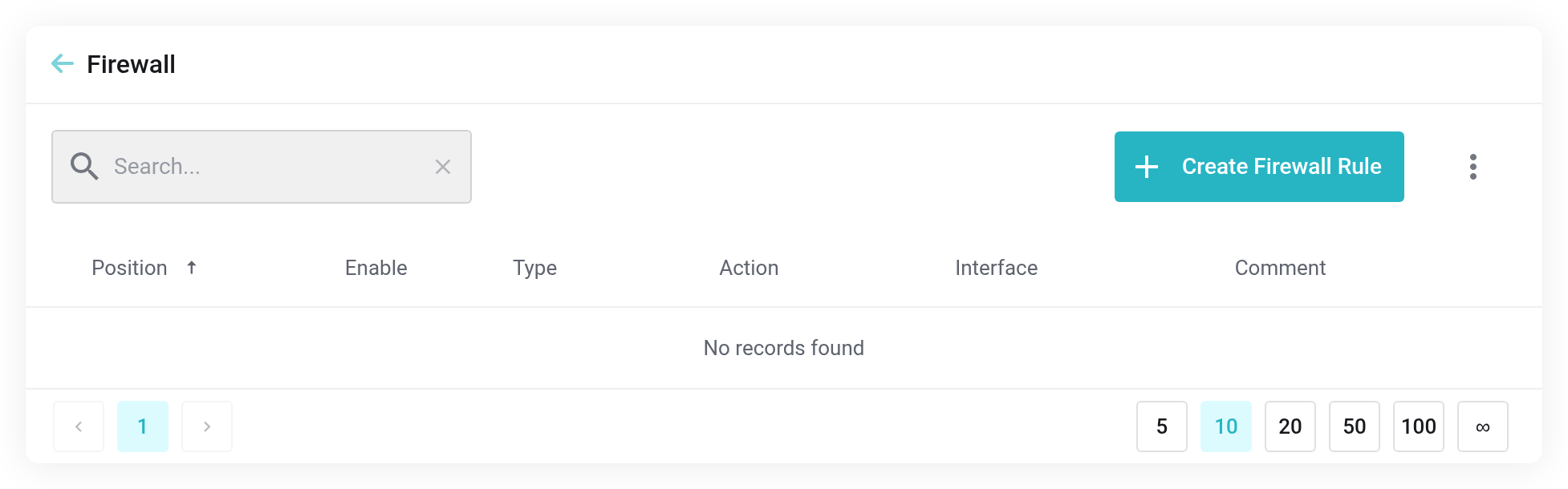
 Rule table with Position, Type, Action, Interface and Comment.
Creating rules
Use Create Firewall Rule to create a rule:
- Type
- Either in or out.
- Action
- ACCEPT or DROP.
- Interface
- Which network interface the rule applies to.
- Position
- The order — rules are checked from top to bottom, and the first match wins.
- Comment
- What the rule is for. Without a comment, nobody will remember a year from now why it exists.
Under Firewall Options you turn the firewall of the VM on and off as a whole and set the default policy.
Do not lock yourself out. If you set the default policy to “DROP”, you first need a rule that allows your own access — SSH on port 22 or the web interface of your appliance. If access stays closed anyway, you can still reach the VM through the VNC Console.
Securing in the right order
Secure a new VM before you connect it to the internet — especially with appliances that have well-known default logins. In practice this means: set the rules first, and only then assign the public address or start the initial setup.