
Your Managed Proxmox Backup Server can warn you by email when a sync job or a verify job fails, when storage is running low or when it grows faster than usual. That way you notice a problem before you need a backup.
Where to find the notifications
My Products & Services → your Managed Proxmox Backup Server → Management → Notifications.
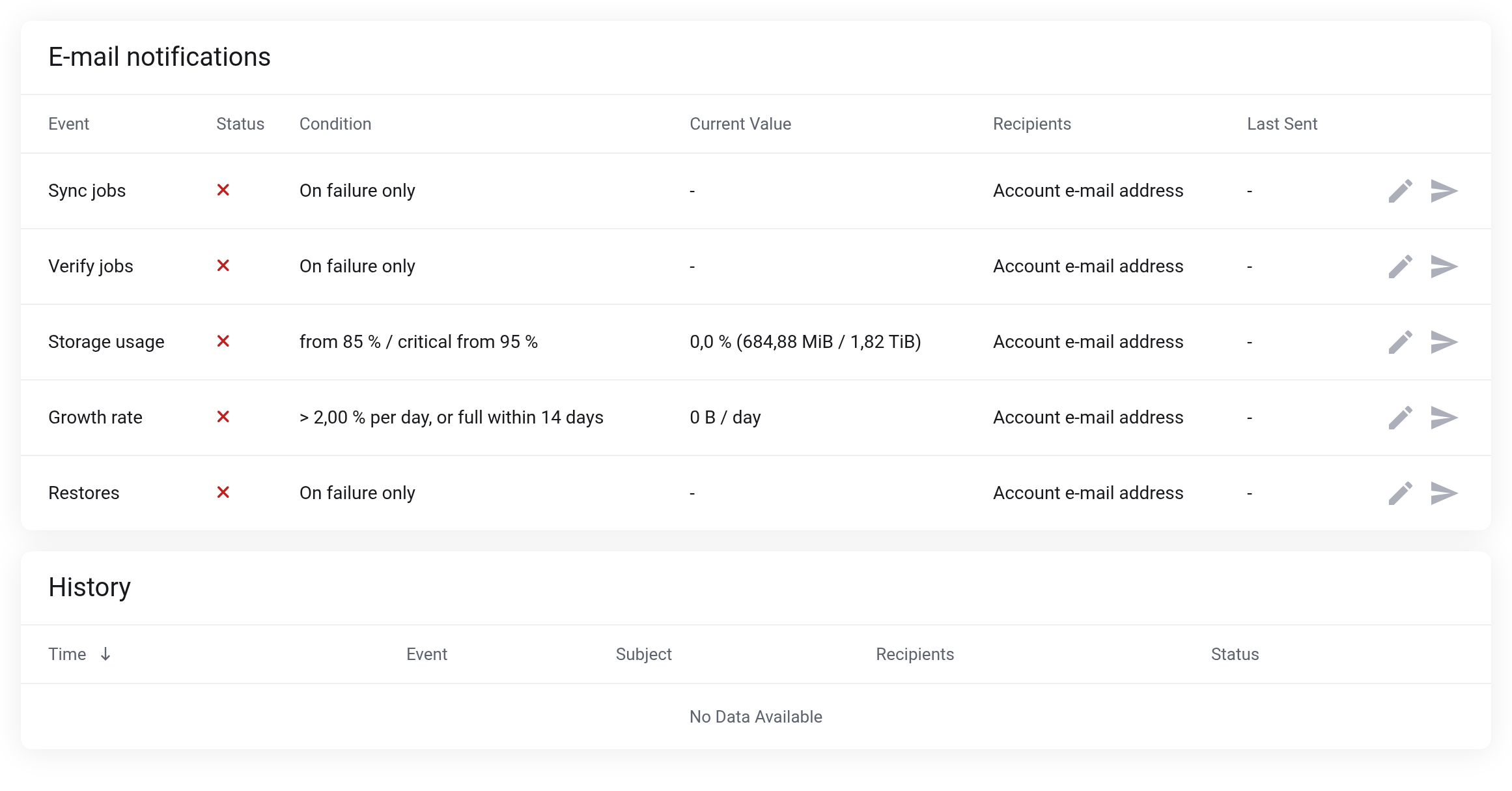
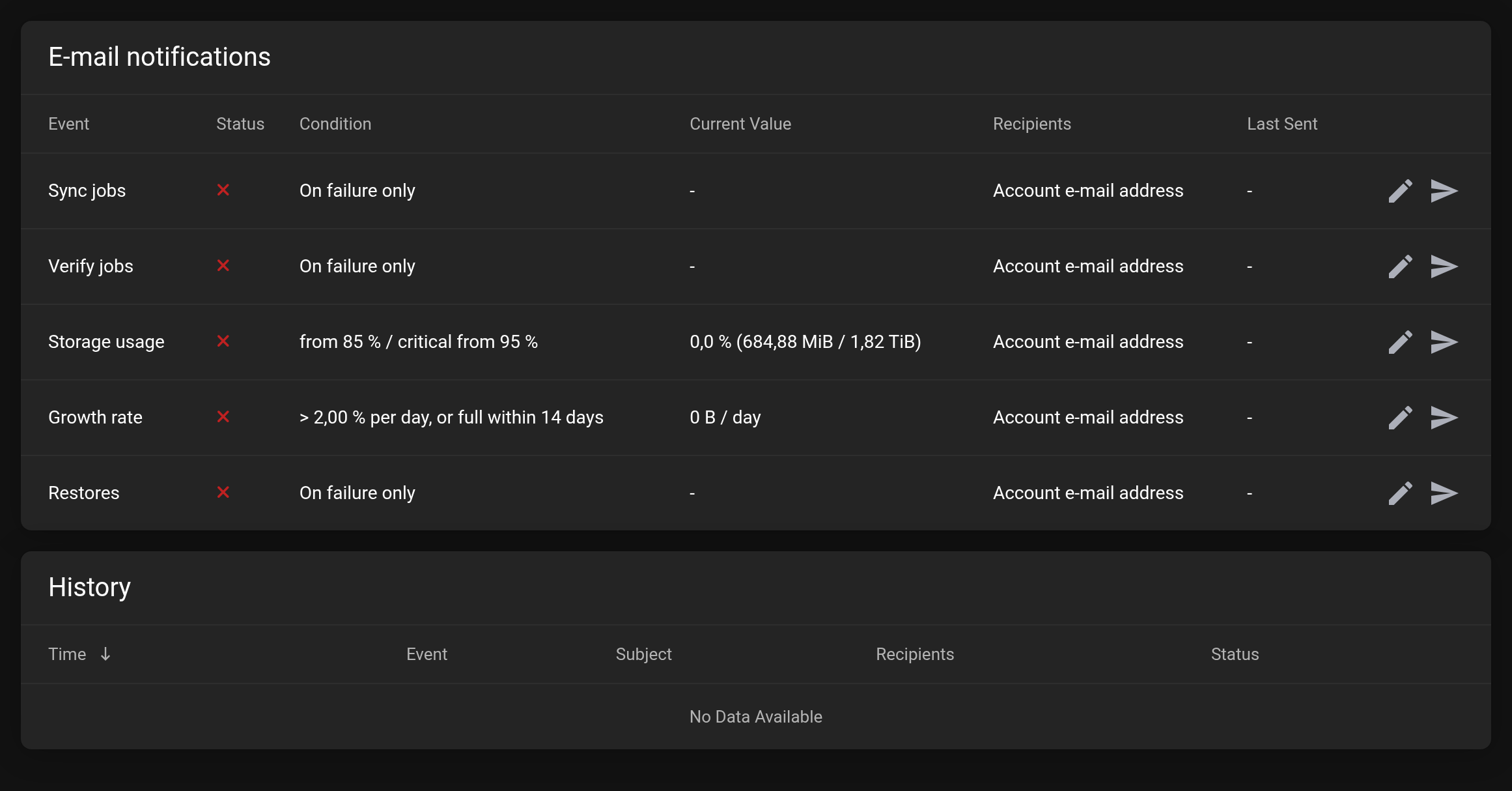 The rules at the top, the history of sent messages below.
All notifications start out switched off. You only get emails once you switch a notification on yourself. The red cross in the Status column means: switched off.
The events
| Event | When you get an email | Default |
|---|---|---|
| Sync jobs | when a sync job has finished | on failure only |
| Verify jobs | when a verify job has finished | on failure only |
| Storage usage | when your datastore reaches a certain fill level | warning from 85 %, critical from 95 % |
| Growth rate | when your datastore grows unusually fast or would soon be full | more than 2 % per day, or full within 14 days |
| Restores | when a scheduled restore has finished | on failure only |
The Current value column shows the latest measurement, for example the usage in percent. For the growth rate it says not enough history yet until enough measurements have been collected.
Switching a notification on
- In the row of the event, click the pencil icon Edit.
- Switch on Notification enabled.
- Adjust the condition if needed (see below).
- Enter further email addresses under Additional recipients if you like.
- Click Save.
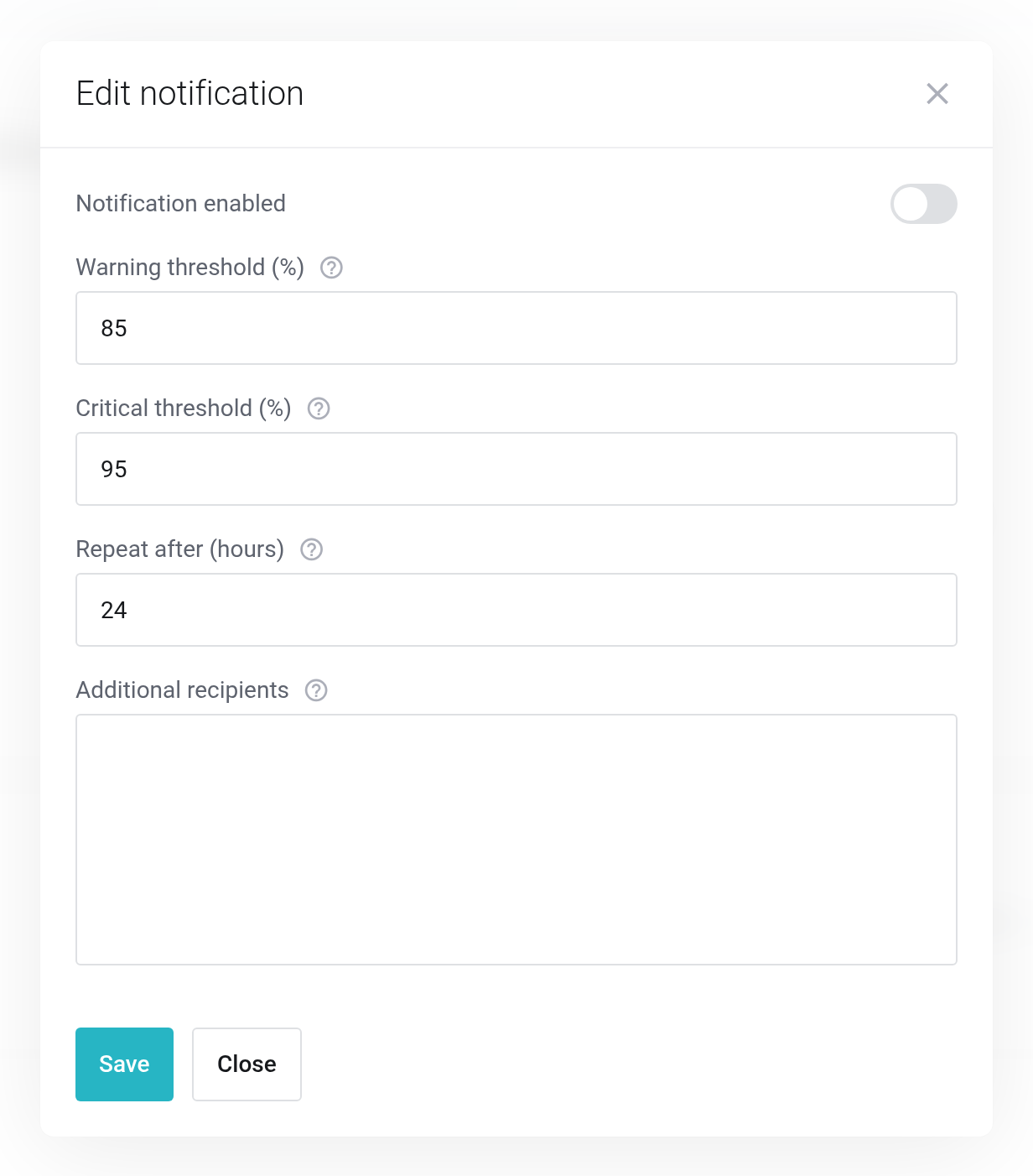
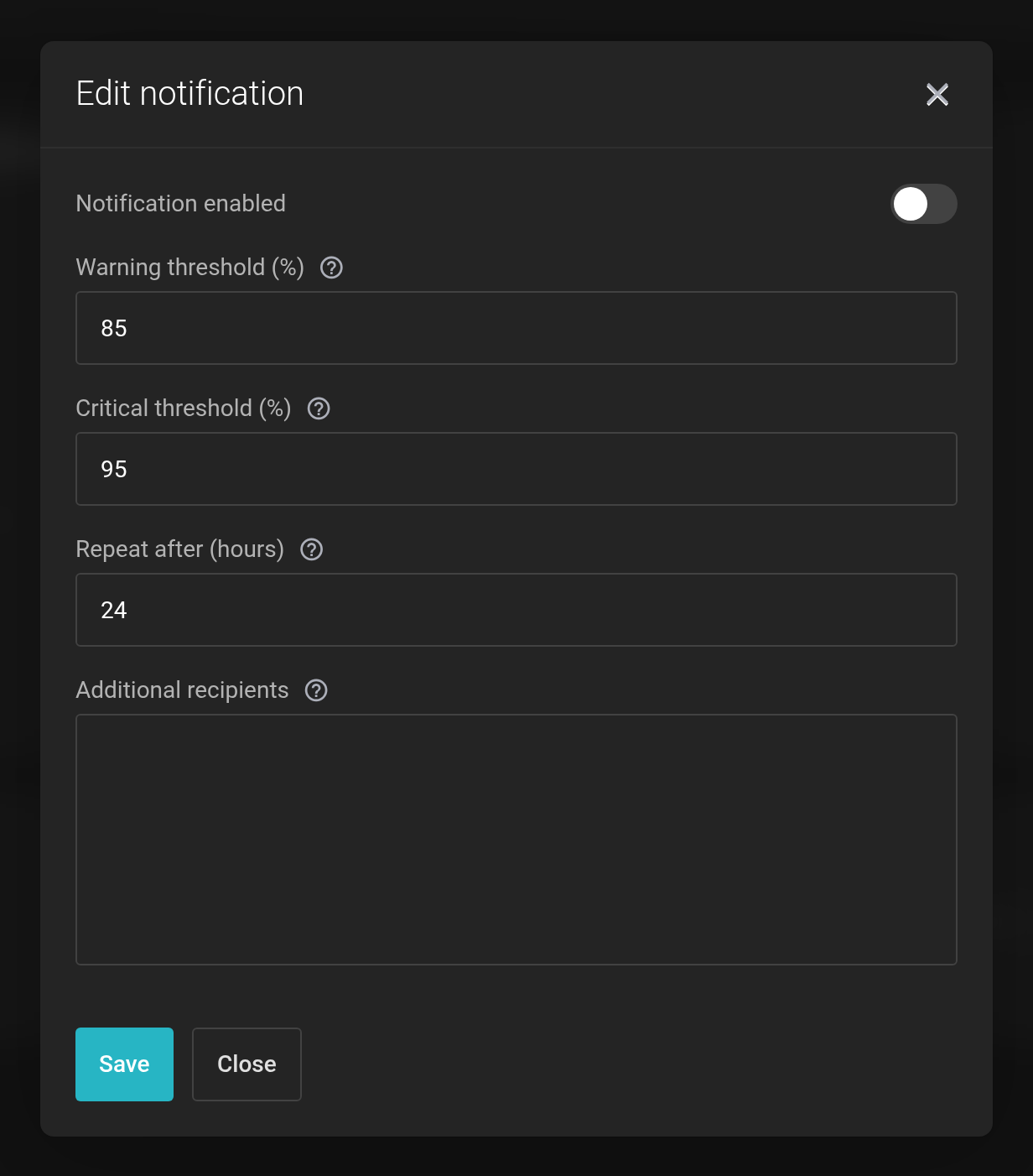 The dialog for storage usage.
The settings in the dialog
Which fields the dialog shows depends on the event.
Sync jobs, verify jobs and restores
- When to notify
- On failure only or On every run. “On every run” is useful if you want every success in your mailbox as proof.
Storage usage
- Warning threshold (%)
- From this fill level on you get a warning.
- Critical threshold (%)
- From this fill level on the alert counts as critical. The value must be at least as high as the warning threshold.
- Repeat after (hours)
- The same alert does not come again within this period, unless the situation gets worse. If the usage moves from “warning” to “critical”, you get a new email right away.
Growth rate
- Observation window (days)
- The period over which we calculate how fast your datastore grows.
- Growth per day (%)
- Alert when the datastore grows by more than this share of its total size per day.
- Forecast warning (days)
- Alert when the datastore would be full within this many days at the current rate.
0turns this forecast off. - Repeat after (hours)
- The time before the same alert comes again.
Who gets the emails
- The email address of your client account gets every notification. You cannot switch that off.
- Under Additional recipients you can enter up to ten more addresses, separated by commas — for example the address of your IT department.
- If an address appears twice, the email still arrives only once.
Testing and checking
With the paper-plane icon Send test mail you send a sample notification to the configured recipients. This lets you check that the email arrives and does not end up in the spam folder.
The History table lists the most recent notifications with time, subject, recipients and status. If an entry shows the status Sent but the email is missing, look in the spam folder first.
A notification only reports what happens after you switch it on. An error that occurred before does not trigger an email any more. That way you do not get a flood of old alerts when you switch it on.


