
You order the Managed Proxmox Backup Server in the Store under Managed Proxmox Backup Server. In the order form you choose storage and bandwidth and fill in two required fields. The service is set up right after you order.
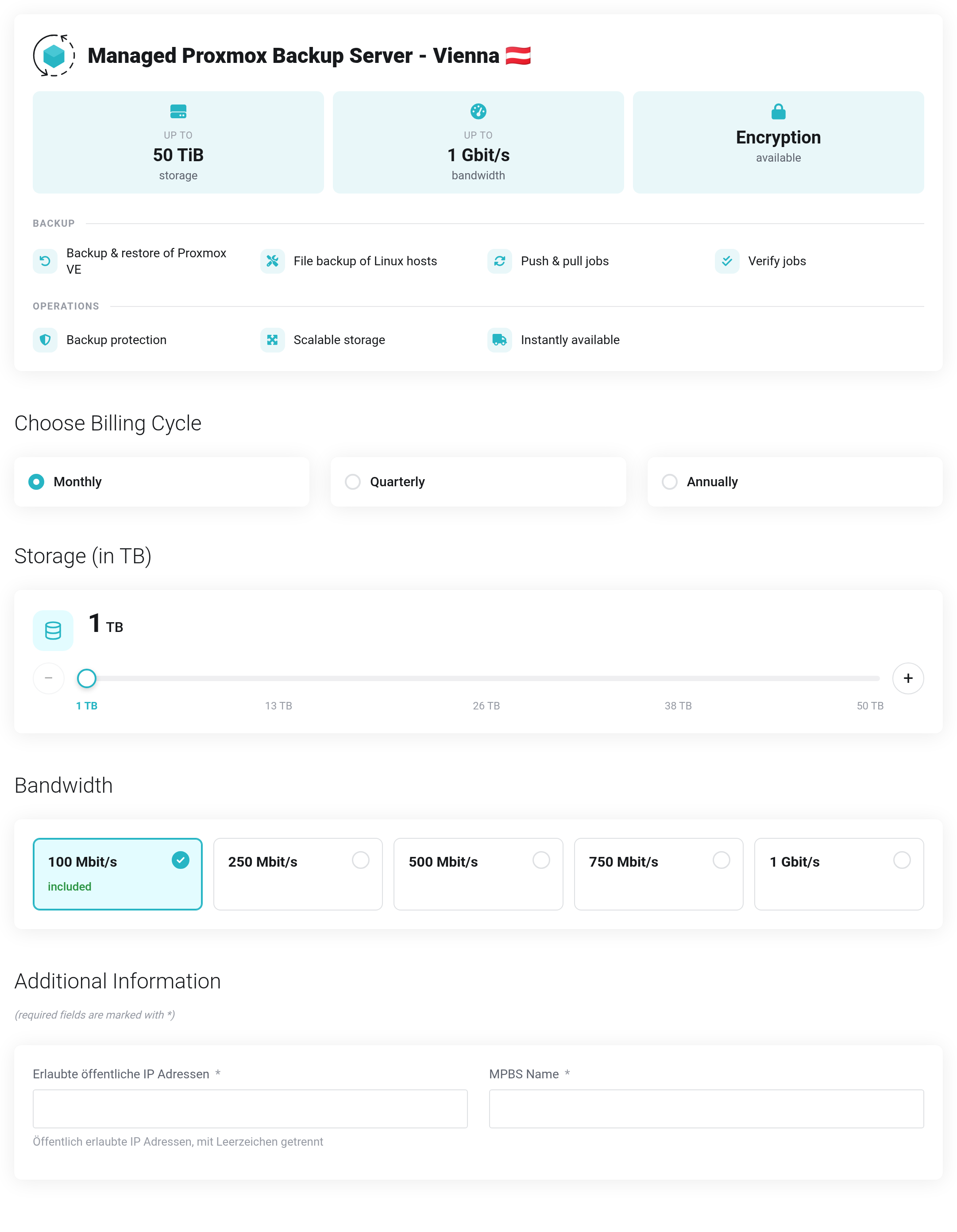
 The order form. Prices are hidden in this picture.
How to order
- Choose the billing cycle: monthly, quarterly or annually.
- Under Storage (in TB), use the slider to set the size of your datastore (1 to 50 TB in steps of 1 TB). − and + change the value by 1 TB each.
- Under Bandwidth, click a tile to choose the transfer rate to your datastore: 100 Mbit/s, 250 Mbit/s, 500 Mbit/s, 750 Mbit/s or 1 Gbit/s.
- Fill in the two required fields under Additional Information (see below).
- Click Continue and complete the order in the cart.
You can change storage and bandwidth at any time later (see below).
The required fields
- MPBS Name
-
A name that lets you recognize the service, for example
backup-viennaorpbs.company.com. It becomes the name of the service and appears in the cart and in your product overview.Only letters without accents, digits, dots and hyphens are allowed. The name must start and end with a letter or a digit. The field does not accept other characters, such as spaces or underscores.
- Erlaubte öffentliche IP Adressen (allowed public IP addresses)
-
The public addresses that are allowed to access your datastore, for example the address of your own Proxmox VE. Separate multiple addresses with a space, not with a comma:
203.0.113.10 203.0.113.11If you only back up from our cloud, enter an address anyway, such as the one of your office.
If one of your IP addresses changes later, please get in touch with us.
Error message in the order form
- "MPBS Name: Only letters (no accents), digits, dots and hyphens are allowed …"
- The name contains a character that is not allowed, or it starts or ends with a dot or a hyphen. Change it, for example to
backup-viennainstead ofBackup Vienna.
What is set up automatically
Right after you order, we set up:
- a dedicated datastore
MPBS_<service ID>with the capacity you ordered, - a dedicated access user as a PBS API token,
- a default retention policy: 6 daily, 4 weekly, 11 monthly and 1 yearly backup,
- a daily Garbage Collection,
- access for your IP addresses and the bandwidth limit.
A verify job and email notifications are not created automatically. We recommend both: set up a verify job and switch on notifications.
Changing storage or bandwidth
In the Client Area under Actions → Upgrade/Downgrade Options. An increase takes effect immediately. For a decrease, the space in use must be below the new limit.


