
With a Location and a Sync Job you pair your Managed Proxmox Backup Server with a second Proxmox Backup Server — for example the one in your own server room.
A sync job copies between two Proxmox Backup Servers. For backups from the cloud, use the backup job in the Cloud product.
Step 1: Creating access on your own server
- Sign in to your Proxmox Backup Server.
- Configuration → Access Control → User Management → Add: create a user and set a password.
- Permissions tab → Add → User Permission: set the path to your datastore, role at least DatastoreReader.
- Make a note of the fingerprint: Datastore → the datastore you want → Summary → Show Connection Information.
For the pull direction, your server has to be reachable on TCP port 8007 from our address. You will find the address in the Connection Information, in the IP addresses field.
Step 2: Creating the Location
Management → Remotes → New Location.
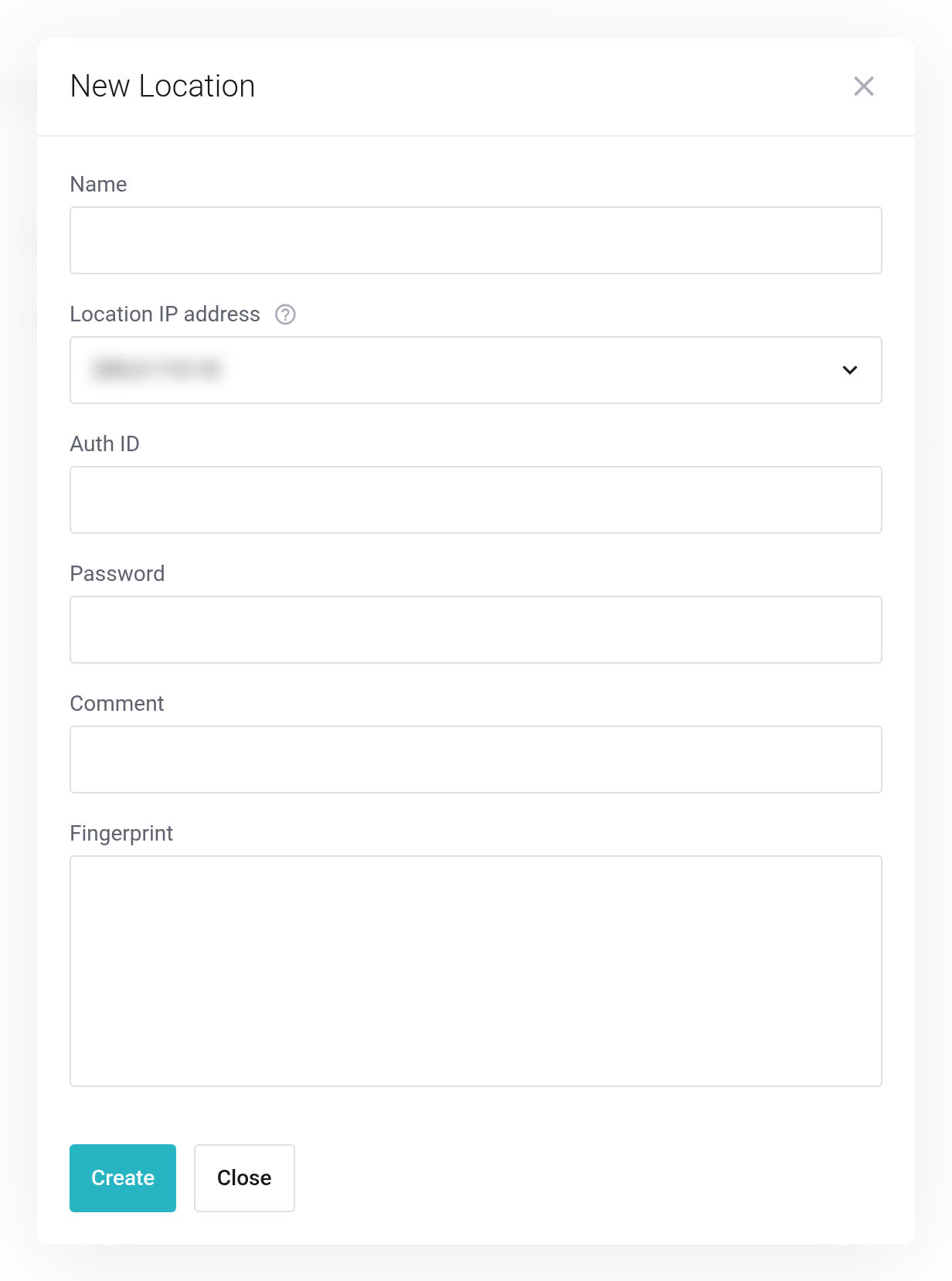
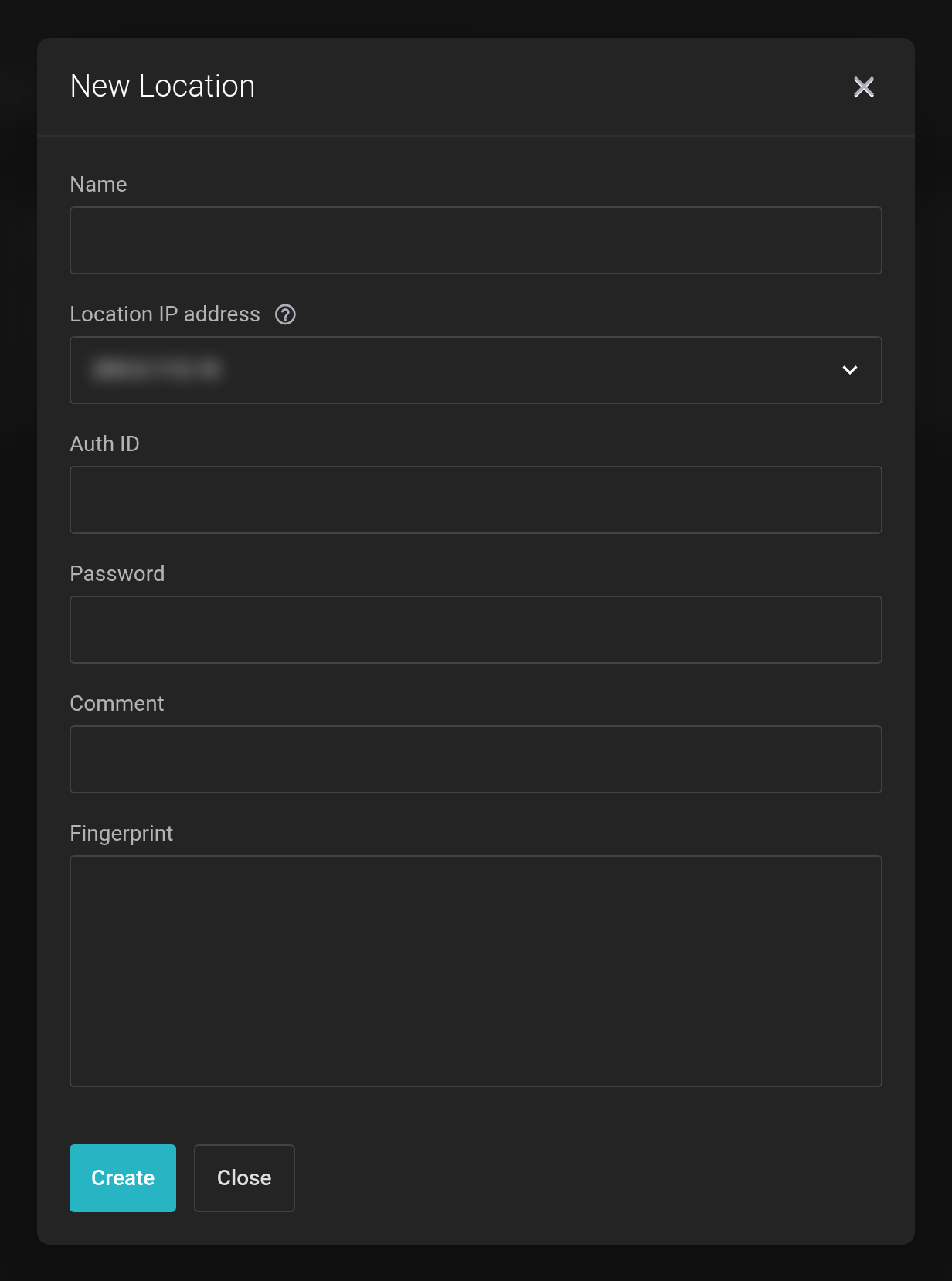 The New Location dialog.
- Name
- Required field, at most 14 characters, letters, digits and underscore only. No hyphen, no period. Example:
hq_wien. - Location IP address
- Choose from the addresses you provided when ordering.
- Auth ID
- The user from step 1 in the format
benutzer@pbsorbenutzer@pam. An API token is appended with an exclamation mark:sync@pbs!mydc. - Password
- Password or token secret. Leave it empty when editing to keep it.
- Fingerprint
- Required field, exactly 32 two-digit hex values separated by colons.
Step 3: Creating the Sync Job
Management → Sync-Jobs → New Sync Job.
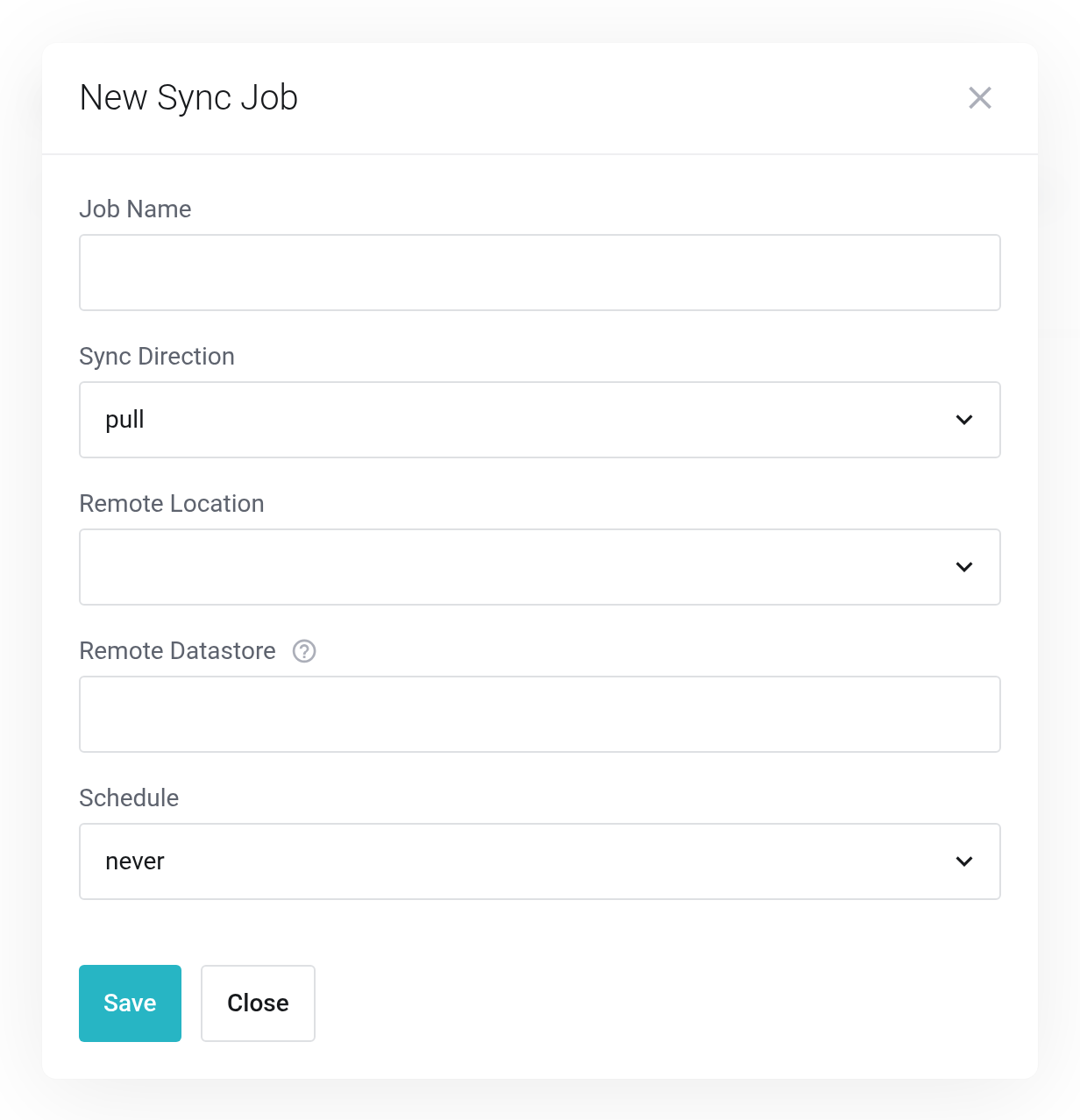
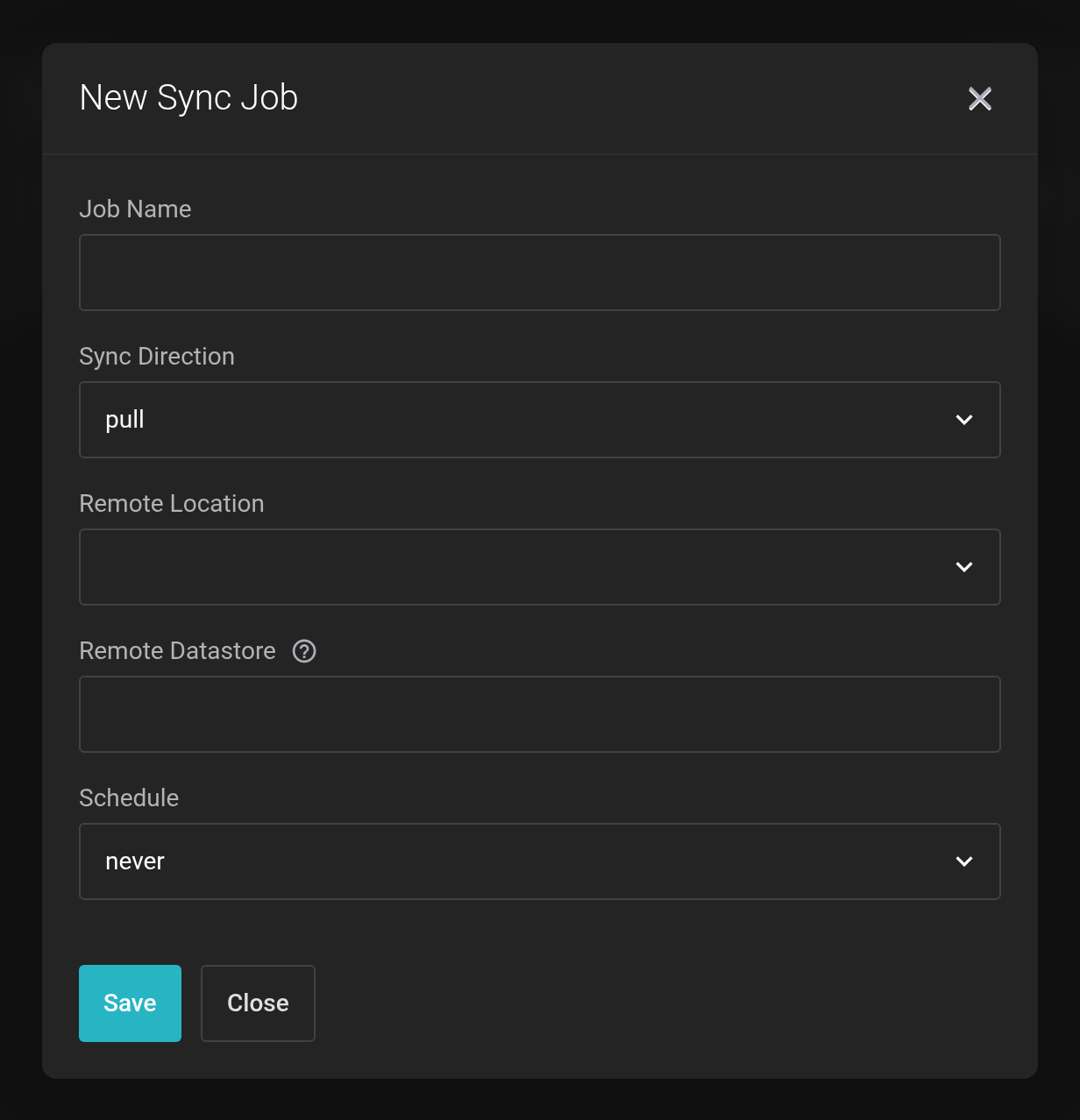 The New Sync Job dialog.
- Job Name
- Required field, at most 16 characters, letters, digits, underscore and period — no hyphen.
- Sync Direction
- pull fetches backups from your server to us, push sends them from us to your server.
- Remote Location
- The location you created in step 2.
- Remote Datastore
- Name of the datastore on the remote server.
- Schedule
- never, hourly, daily, weekly, monthly or yearly. never removes the schedule; you can still start the job by hand.
When you save, the location is checked live. No connection to remote possible! means: address, port, credentials or fingerprint are wrong. Remote datastore not found! means: the connection works, but the datastore name does not exist there.
Running the job
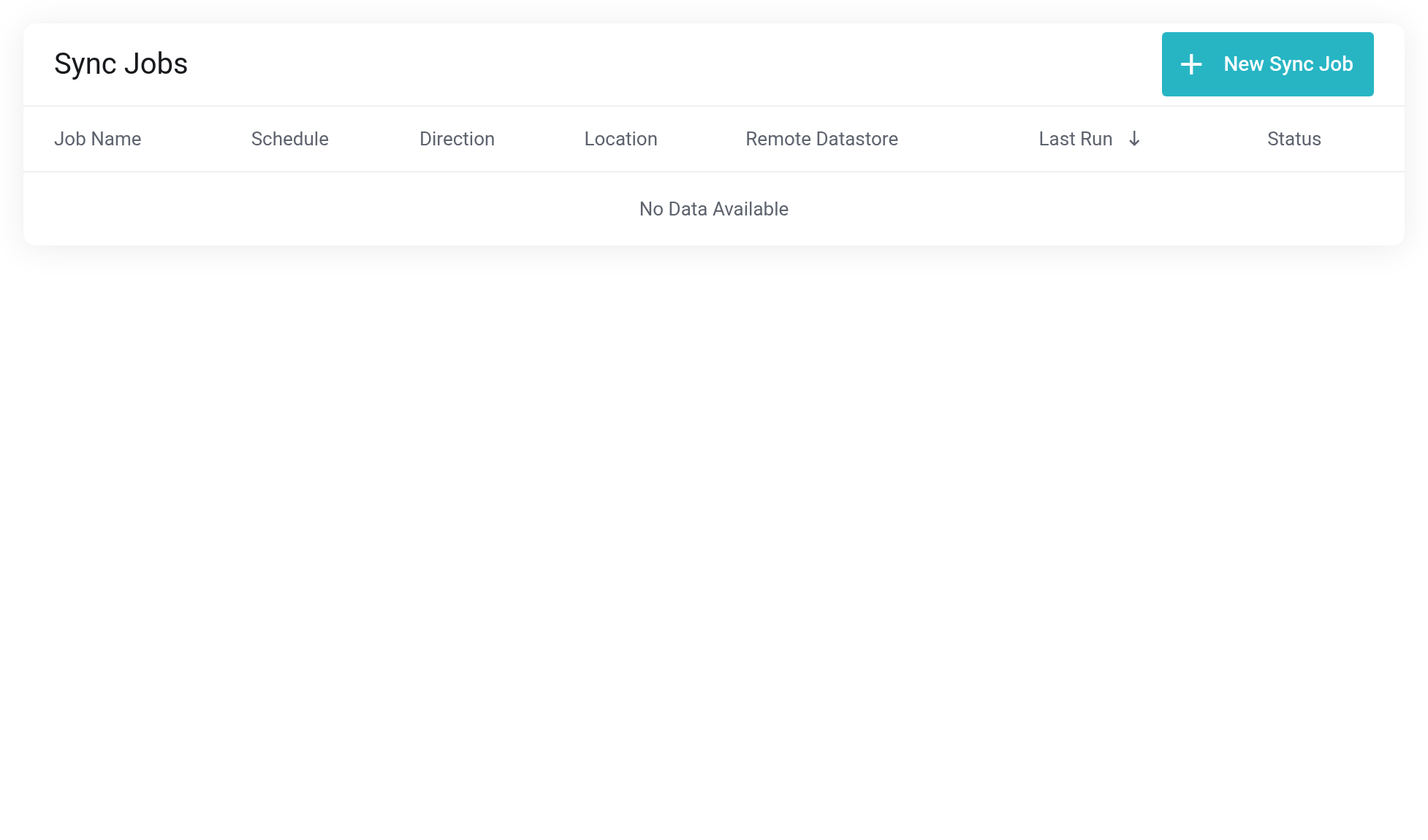
 The overview of the Sync Jobs.
At the end of the row: Run Sync Job now (for the first run, as a check), Stop Sync Job, Show latest job log, Edit Sync Job and Delete Sync Job. For a push job, the Location column shows the value myDC — that is your datastore with us.
When cleaning up, delete the job first, then the location. A location that a job still points to cannot be removed.
The first run transfers everything you have stored and can take hours, depending on the amount of data. After that, only new data is transferred.