
From the Client Area you restore the backup of a virtual machine directly into one of your Cloud or Server products.
Requirements
- An active Private Cloud Computing – Platform or – Server product.
- The backup is a virtual machine (KVM), that is, a Backup ID of the form
vm/…. Containers and host file backups cannot be restored this way. - For encrypted backups: your PBS key file.
Step 1: Select the backup
Open Management → Content and click the circular-arrows icon at the end of the row you want.
Step 2: Choose the target
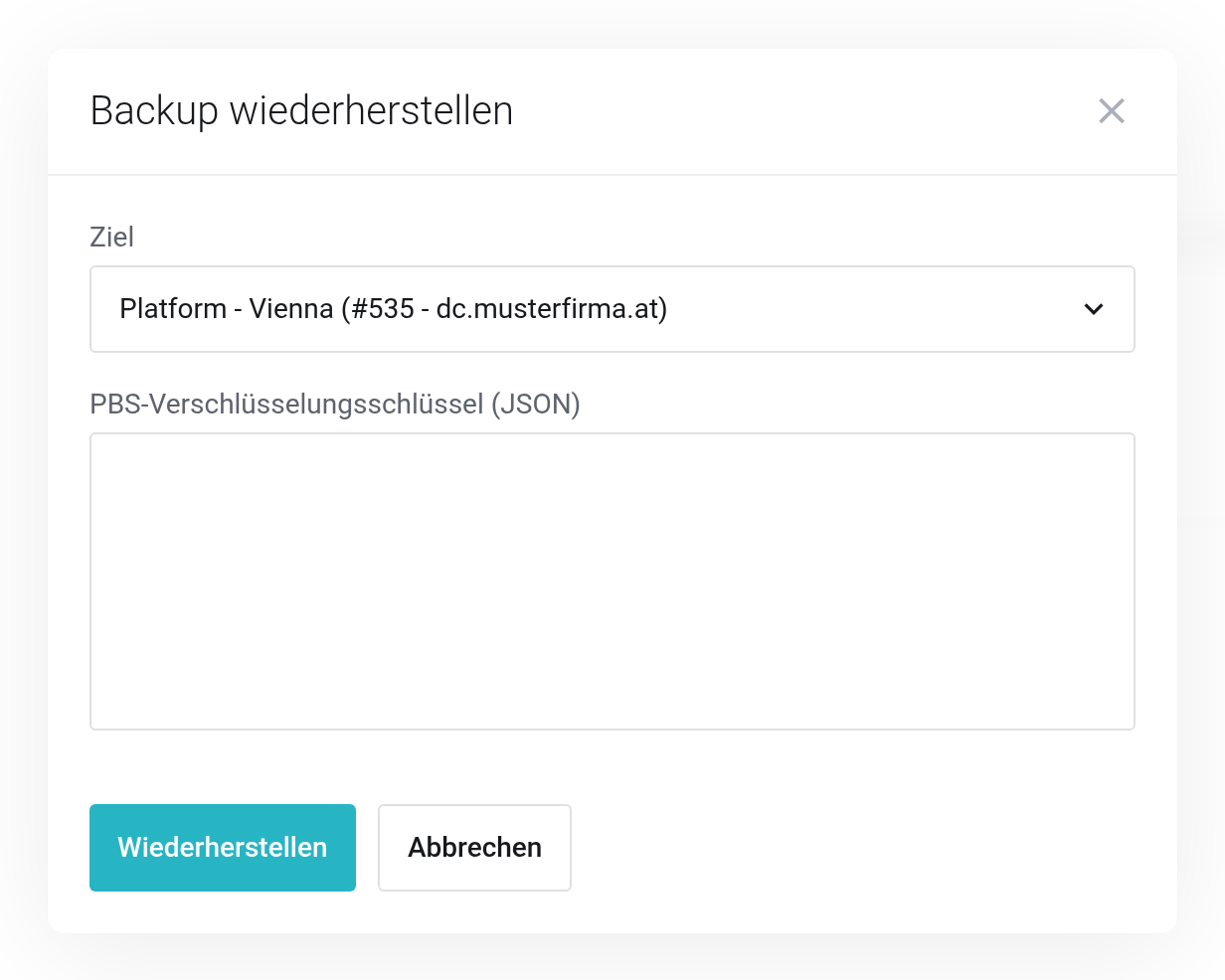
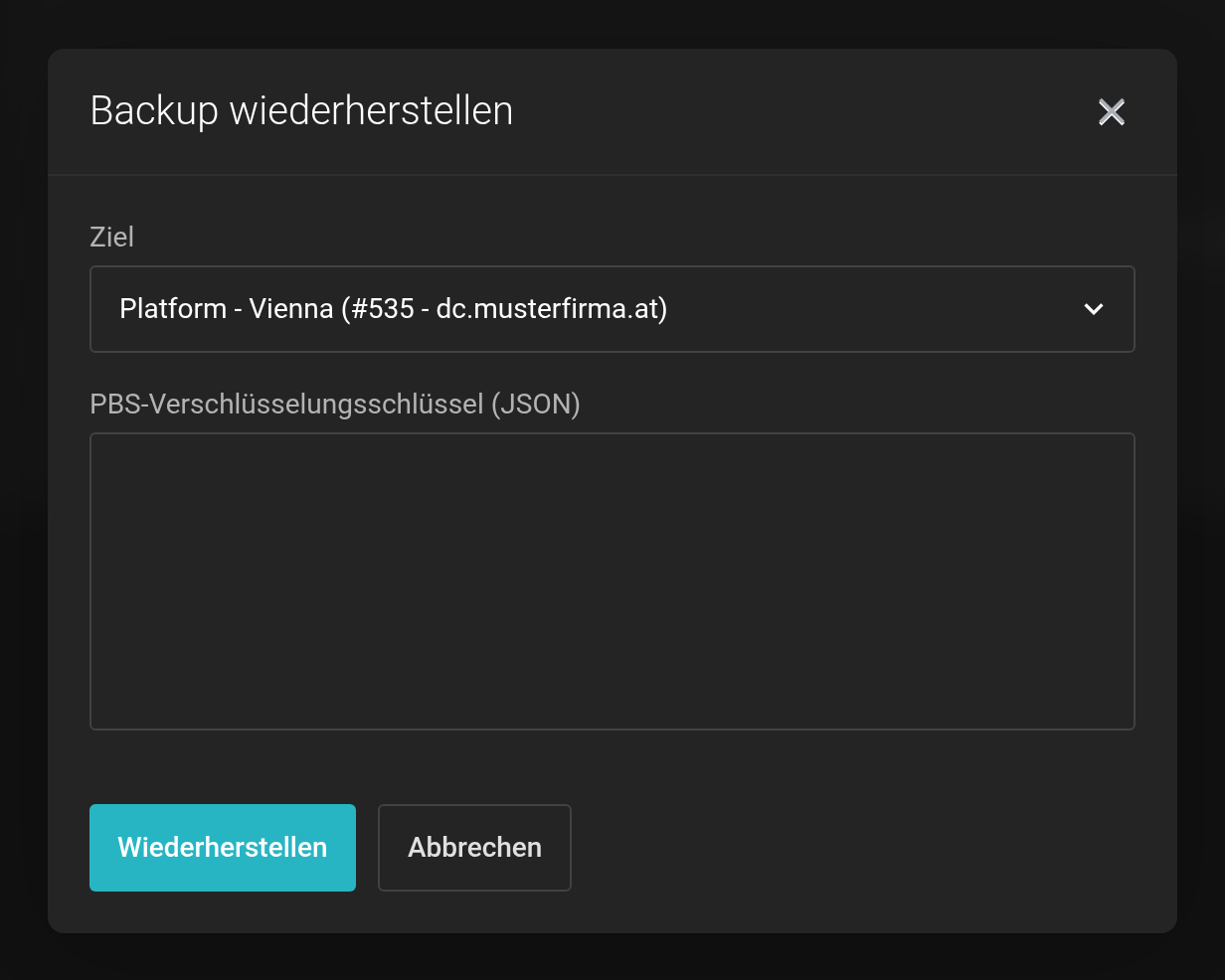 The Restore Backup dialog.
- Target
- One of your active Cloud or Server products.
- PBS Encryption Key (JSON)
- Appears only for encrypted backups. Paste the full contents of your key file — see Connecting your own Proxmox VE.
Step 3: Cloud or Server — the crucial difference
| Target | What happens |
|---|---|
| Platform (Cloud) | An additional virtual machine is created. Existing VMs are left untouched. |
| Server (VPS) | The existing virtual machine is replaced by the backup. |
With a Server product, all current data on that VM is lost. Both product types appear in the same selection list. Back up the current state before you confirm. If you only want to look at a backup, choose a Cloud product — an additional VM is created there.
Step 4: Track the progress
The restore runs in the background. You can see the history under Management → Restores. Status finished with the log Task OK means: complete.
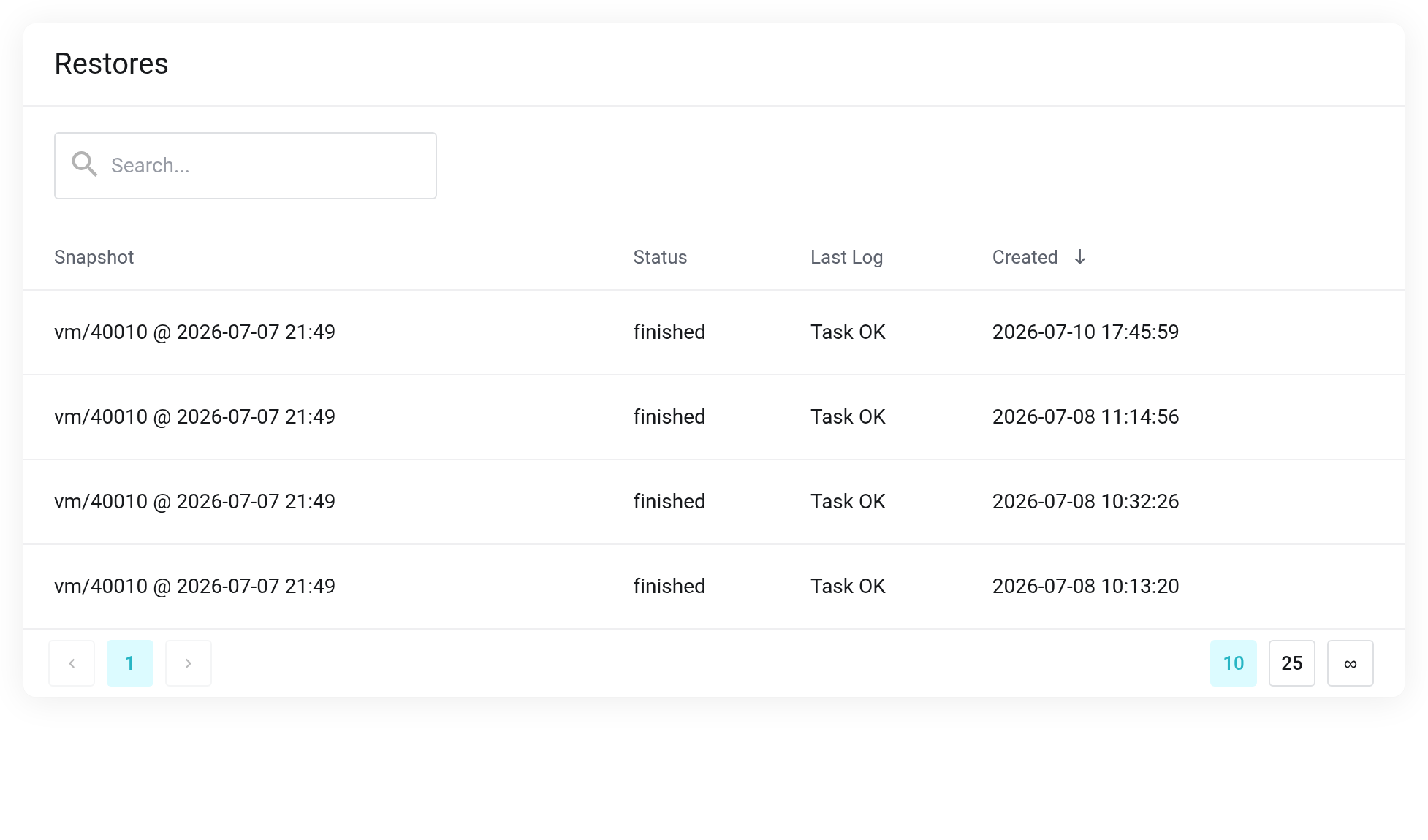
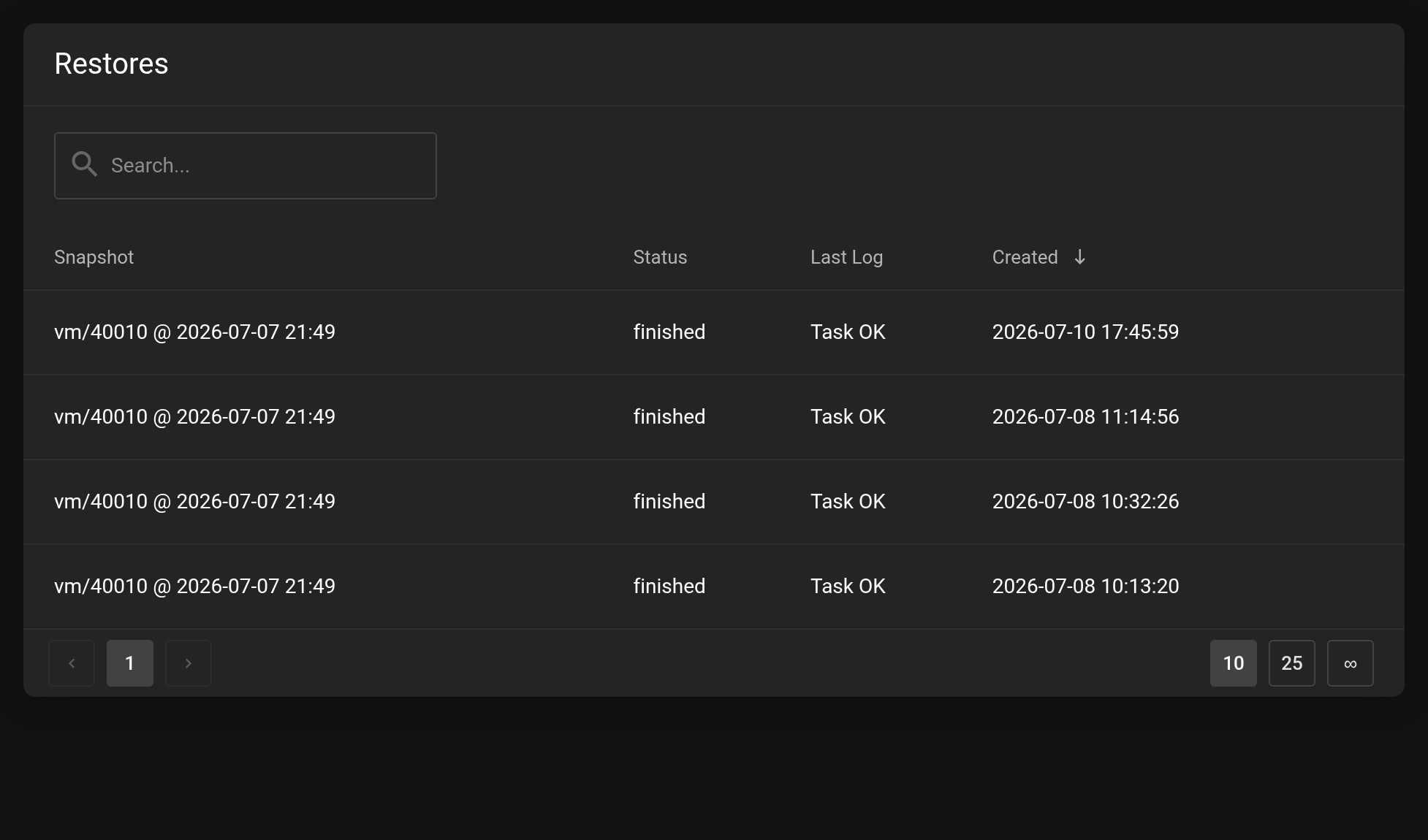 History of the restores.
If it does not work
- “This restore request has expired.”
- No more than 15 minutes may pass between selecting and confirming, and both must happen in the same browser. Start the process again from Content.
- “A restore is already running for this VPS.”
- Wait until the running process has finished.
- The restored VM does not start as expected
- Check the network configuration and IP addresses — the backup brings the settings of its original environment with it.