
Clicking the name of a virtual machine opens its management view. From here you control its operation, the network, the firewall and the backups.
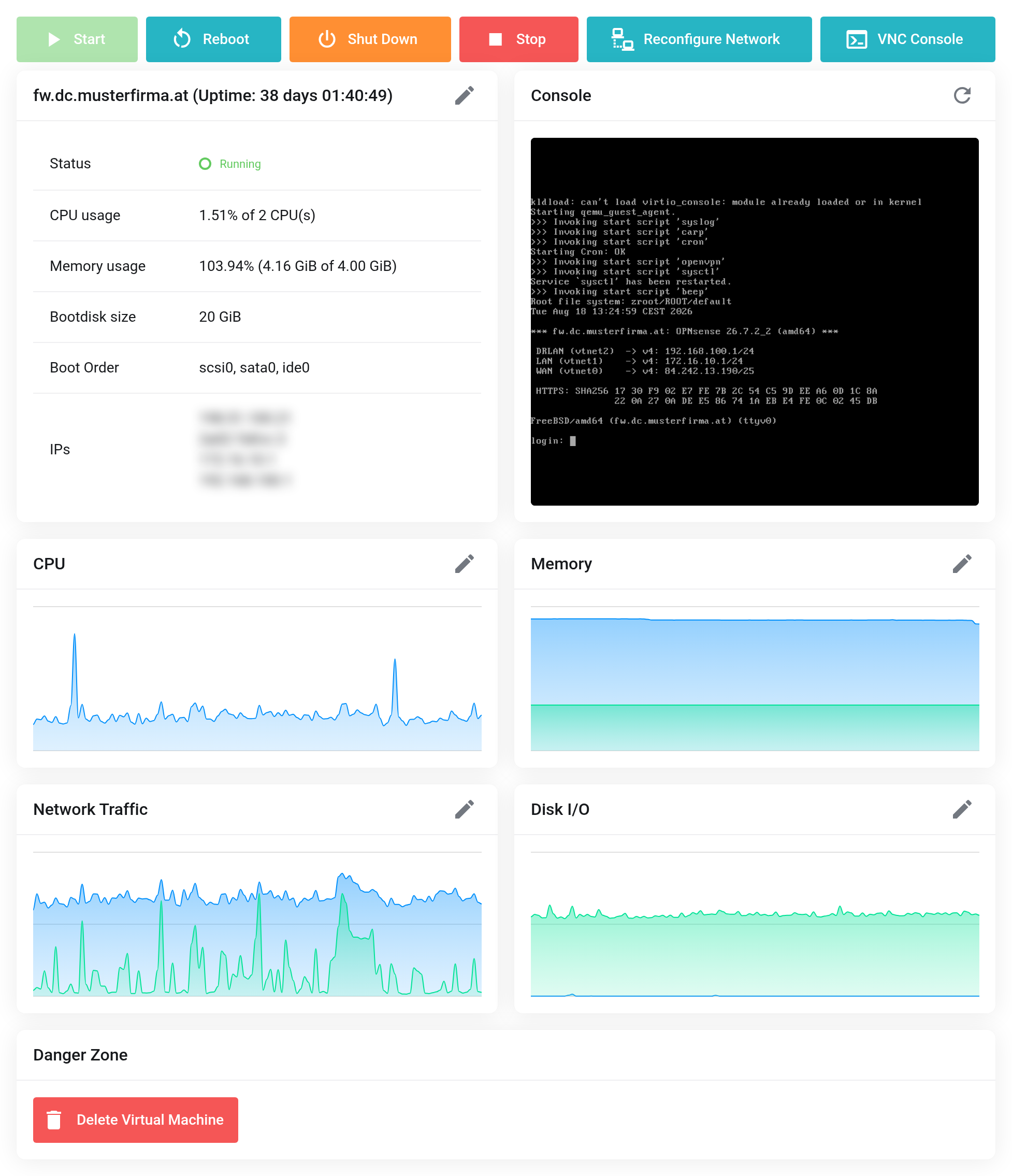
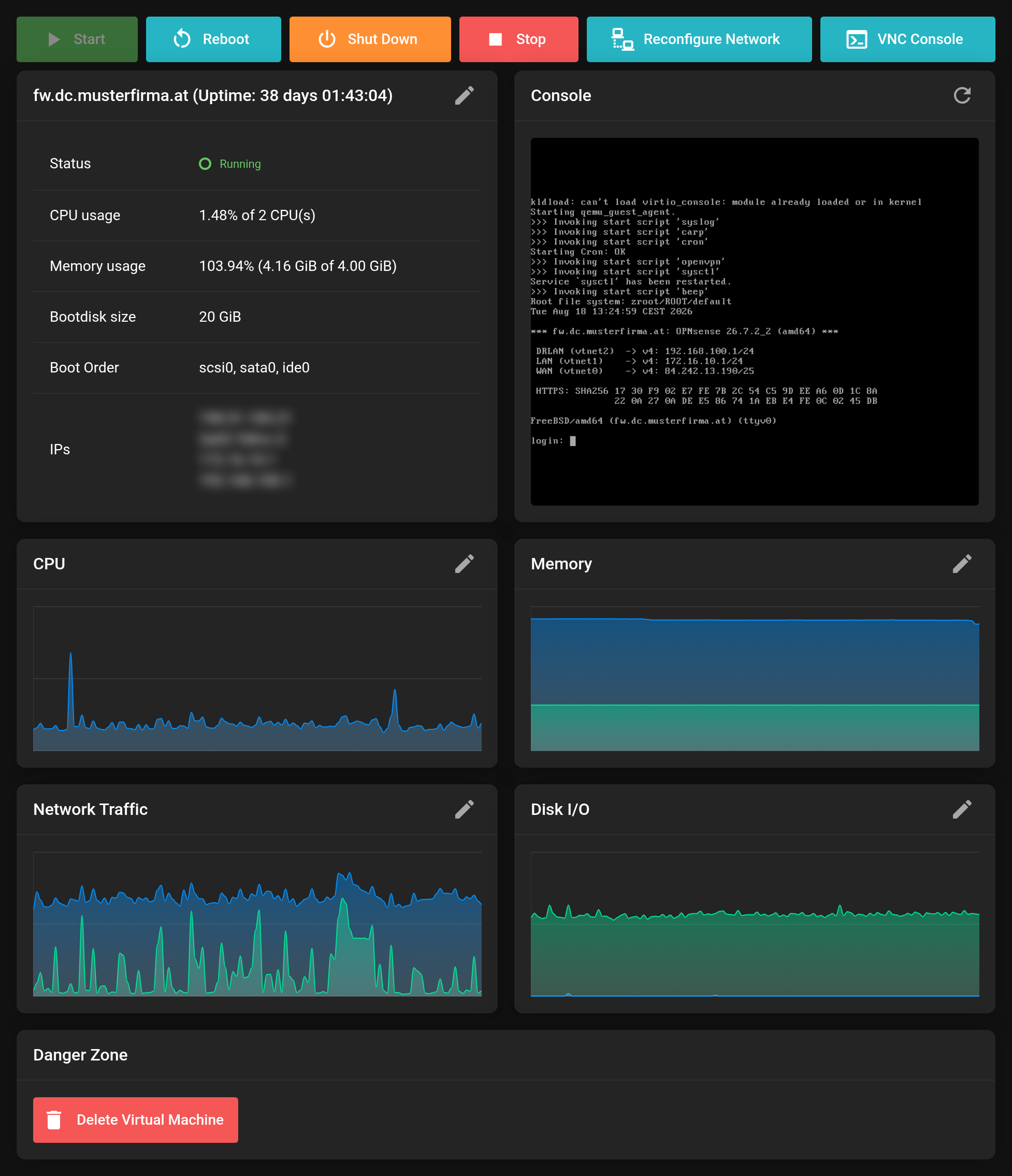 Server Summary with key figures, console preview and the buttons for controlling it.
Controlling operation
At the top you find Start, Reboot, Shut Down, Stop and Reconfigure Network.
Shut Down shuts the operating system down in an orderly way. Stop pulls the power from the VM immediately — this can lead to data loss and damaged file systems. Use Stop only when the VM no longer responds.
Always shut down through the Client Area
Your virtual machines run under high availability. If a physical server fails, the platform automatically starts the affected machines again on another one. The same monitoring also applies when a single machine stops on its own.
So never shut a VM down from inside the operating system — that is, not with shutdown or poweroff and not via Start → Shut down in Windows. High availability treats that as a failure and starts the machine up again a short time later. Use Shut Down in the Client Area instead: the system is shut down in the same orderly way, but the machine then stays off until you switch it on again with Start.
A Reboot from inside the operating system is not affected — after an update, for example. As far as the platform is concerned, the machine stays in operation throughout.
VNC Console
The VNC Console opens the screen of the VM in the browser — even when no network is running. You need it for installing from an ISO image and for troubleshooting when SSH no longer works. On the overview you see a preview image at all times.
The sections in the left-hand column
- Server Summary
- Key figures, console preview, controls.
- Network
- Virtual networks and interfaces of this VM — see Virtual networks.
- Firewall and Firewall Options
- Rules in front of the VM — see Setting up the firewall.
- Disks
- Attach, enlarge and remove disks.
- Backups and Backup Collection
- Existing backups — see Backups and snapshots.
- Snapshots
- Snapshots of the state — see Backups and snapshots.
- Reinstall
- Sets the VM up from scratch.
- Graphs
- History for CPU, memory, network traffic and disk I/O.
- VM Power Tasks
- Scheduled starting and stopping.
Reinstall and “Delete Virtual Machine” destroy all data on the VM. Deleting sits deliberately under Danger Zone at the bottom of the page. Back up whatever you want to keep beforehand.