
For your virtual machines there are snapshots and backups. A snapshot lets you quickly return a VM to an earlier state; a backup is what actually protects your data.
Snapshots and backups compared
| Snapshot | Backup | |
|---|---|---|
| What for | Going back before an update or a risky change | Restoring after a failure, deletion or encryption |
| Where it is stored | Alongside the same disk as the VM | Separately on a backup storage |
| Survives loss of the VM | no | yes |
A snapshot is not a backup. If the virtual machine is lost, its snapshots are gone with it. Always rely on backups for restoring.
Snapshots
In the management view of the VM under Snapshots, Take Snapshot creates a snapshot that you can later go back to. This is useful right before a system update. Once the change has proven itself, delete the snapshot again. Snapshots take up space and slow the VM down over time.
For several VMs at once, tick them in the list of your Platform and click Snapshot (see Managing a virtual machine).
 Snapshots of a virtual machine.
Backups require the “VM Backup” addon
You book the backups of our platform as the VM Backup addon, either when ordering or later in your service under Addons. Your VMs are then backed up daily, and you can restore the backups yourself for up to one week.
Without this addon, the backup entries in the left-hand column are hidden.
Viewing and restoring backups
In the management view of the VM under Backups, the existing backups are listed with date and size. Each row has these buttons:
- Restore
- Restores the backup into the VM.
- Browse Files
- Retrieves individual files from the backup without resetting the whole VM.
- Delete
- Removes the backup.
The Protected switch keeps a backup from being deleted automatically.
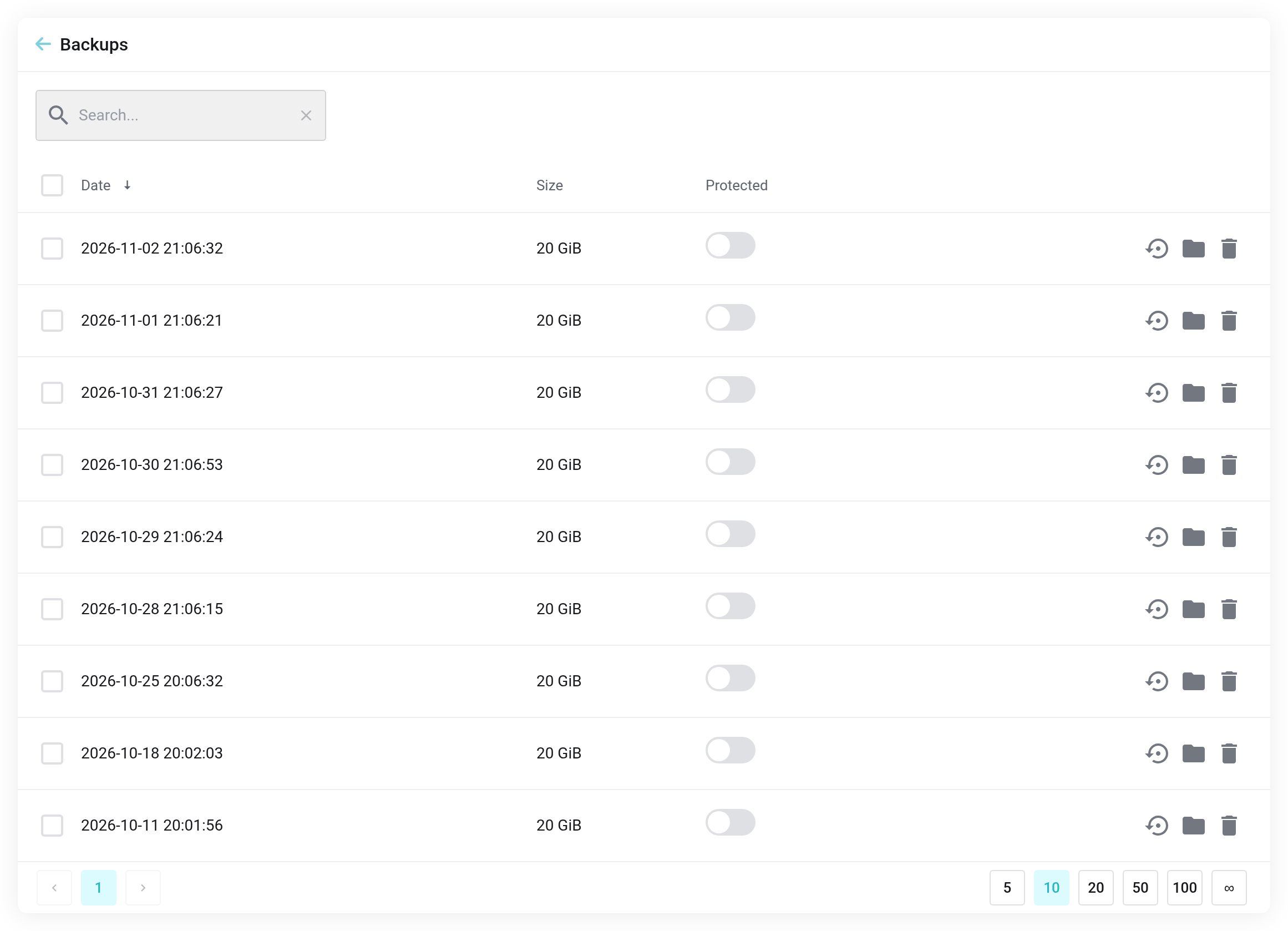
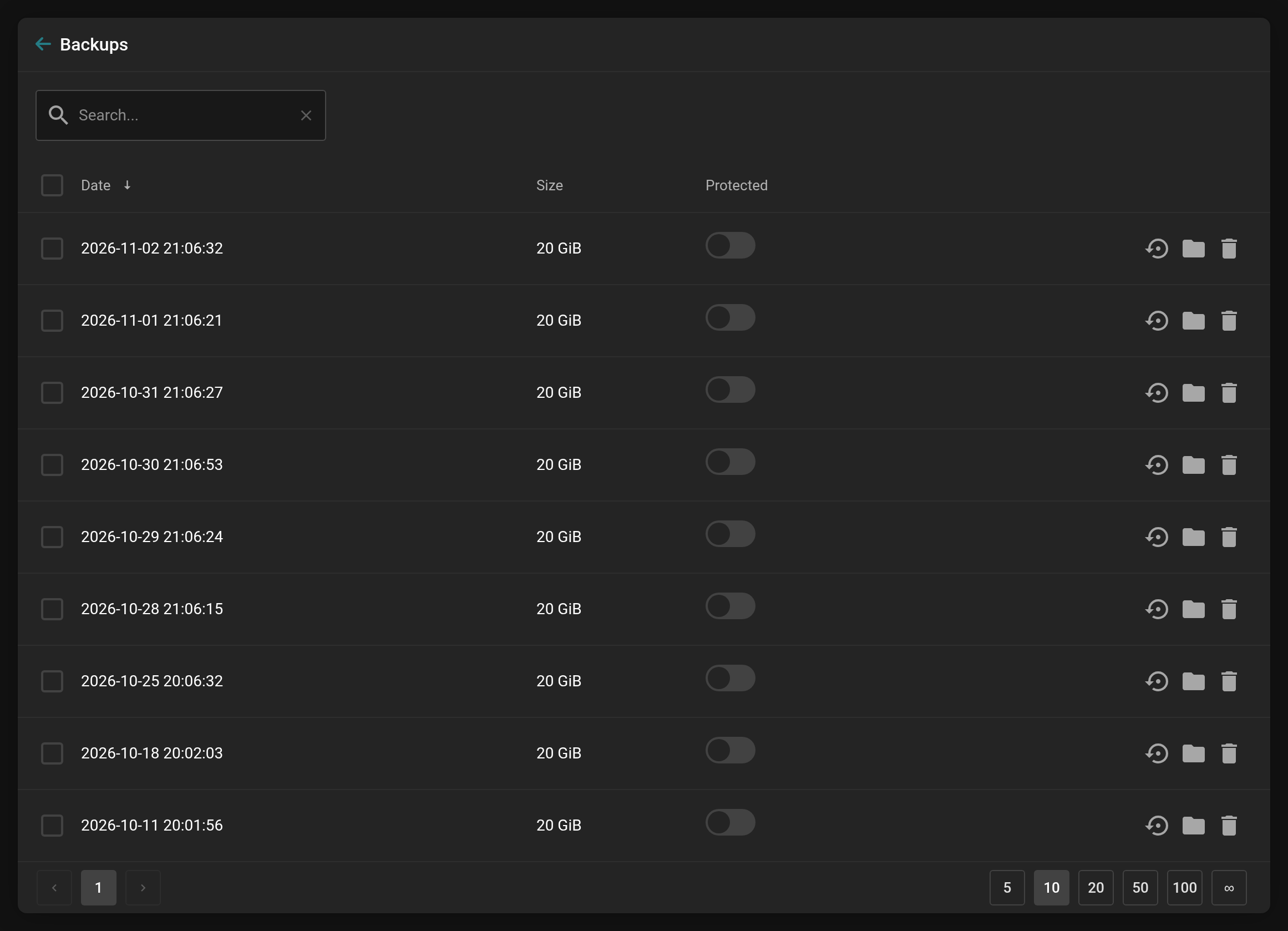 The backups of a VM, newest first.
A restore overwrites the current state of the virtual machine. Everything created since the backup is lost. If in doubt, save the current state first, for example with a snapshot.
Backup Jobs
You create scheduled backups at Platform level, in the left-hand column under Backup Jobs → Create Backup Job.
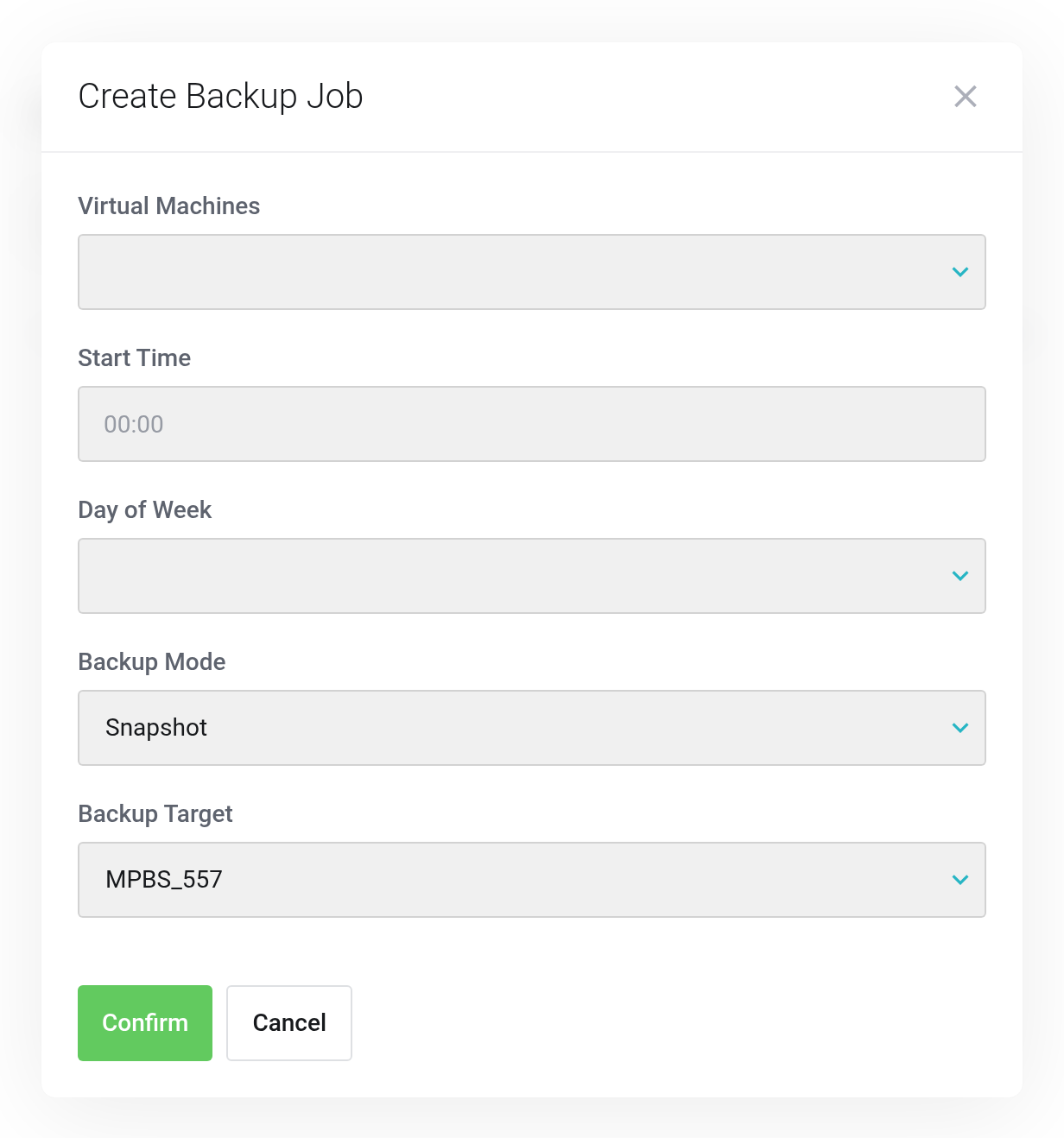
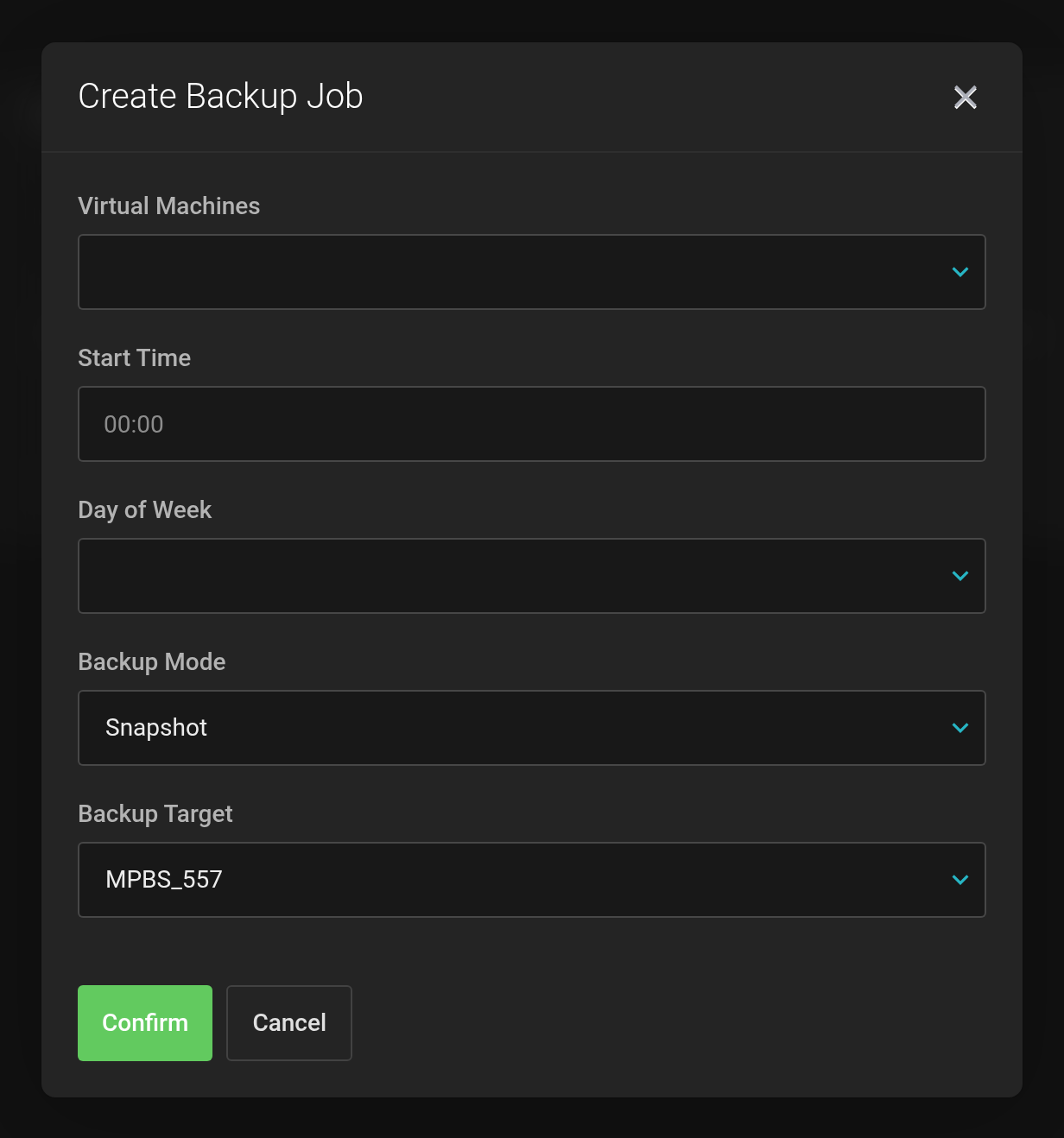 A backup job covers several VMs, a schedule, a mode and a target.
- Virtual Machines
- Which VMs are backed up. Multiple selection is possible.
- Start Time and Day of Week
- When the job runs. Schedule it outside your peak hours.
- Backup Mode
- Snapshot backs up the running VM without stopping it.
- Backup Target
- Where the backup goes. A backup server of your own appears here with its datastore, for example
MPBS_557, and, if set for the service, with its domain in brackets. This way you can tell several backup servers apart.
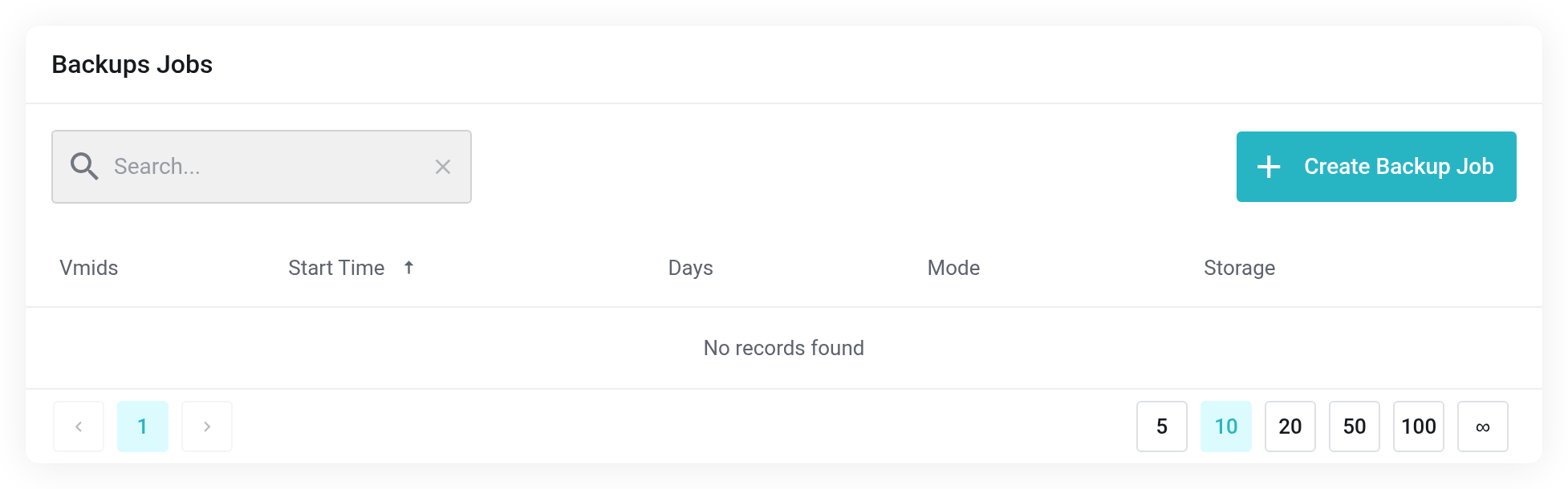
 An overview of the backup jobs you have created.
Backing up into your own Managed Proxmox Backup Server
If you have a Managed Proxmox Backup Server, choose its datastore as the Backup Target. The backups then sit in your own storage (see Storing backups of your cloud servers in the Managed Proxmox Backup Server).
From there you restore a backup into an existing VM. The VM is overwritten in place with the state of the backup. If the disk in the backup is larger than the disk of the VM, the VM's disk is enlarged as far as your allowance or plan permits. Otherwise the system refuses the restore. The procedure is described in Restoring a backup: into a Cloud or Server product.


