
On your Managed Webserver, a website is a separate area with its own folder, its own PHP version and its own address. This article shows how to create a website, connect your domain to it and get the SSL certificate.
Creating a website
- Open Websites in the left-hand column and click Add website.
- Enter your domain under Domain, for example
musterfirma.at. The field is optional: without a domain, the website is only reachable at its preview address, and you can add the domain later. - Under Aliases, enter further names under which the same website should be reachable — one per line, for example
www.musterfirma.at. - Choose the PHP version. If you are unsure, keep the default.
- Leave the Document root at
publicunless your application requires a different folder (see below). - Click Create. The website shows setting up … for a moment and then Online. The page refreshes itself.
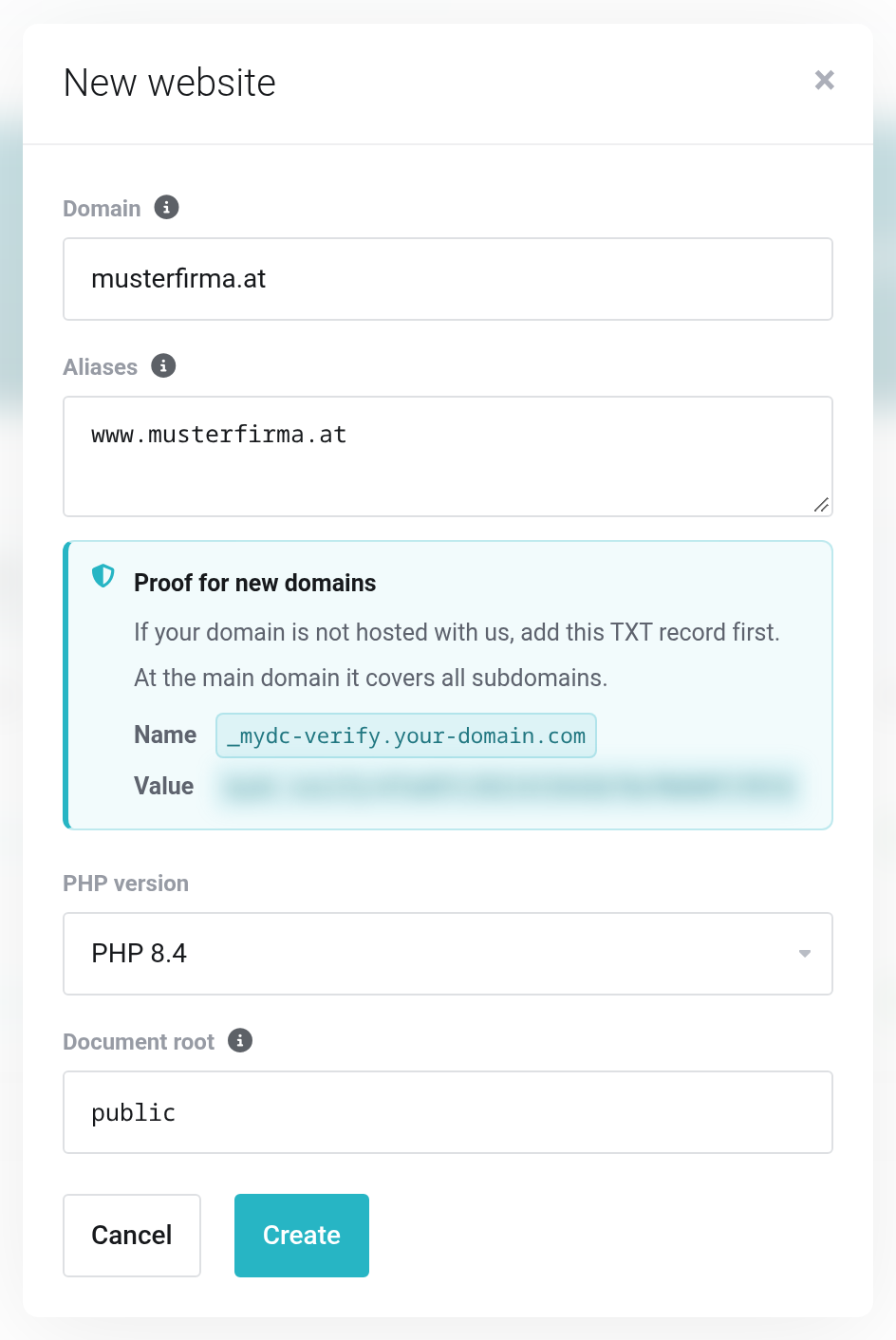
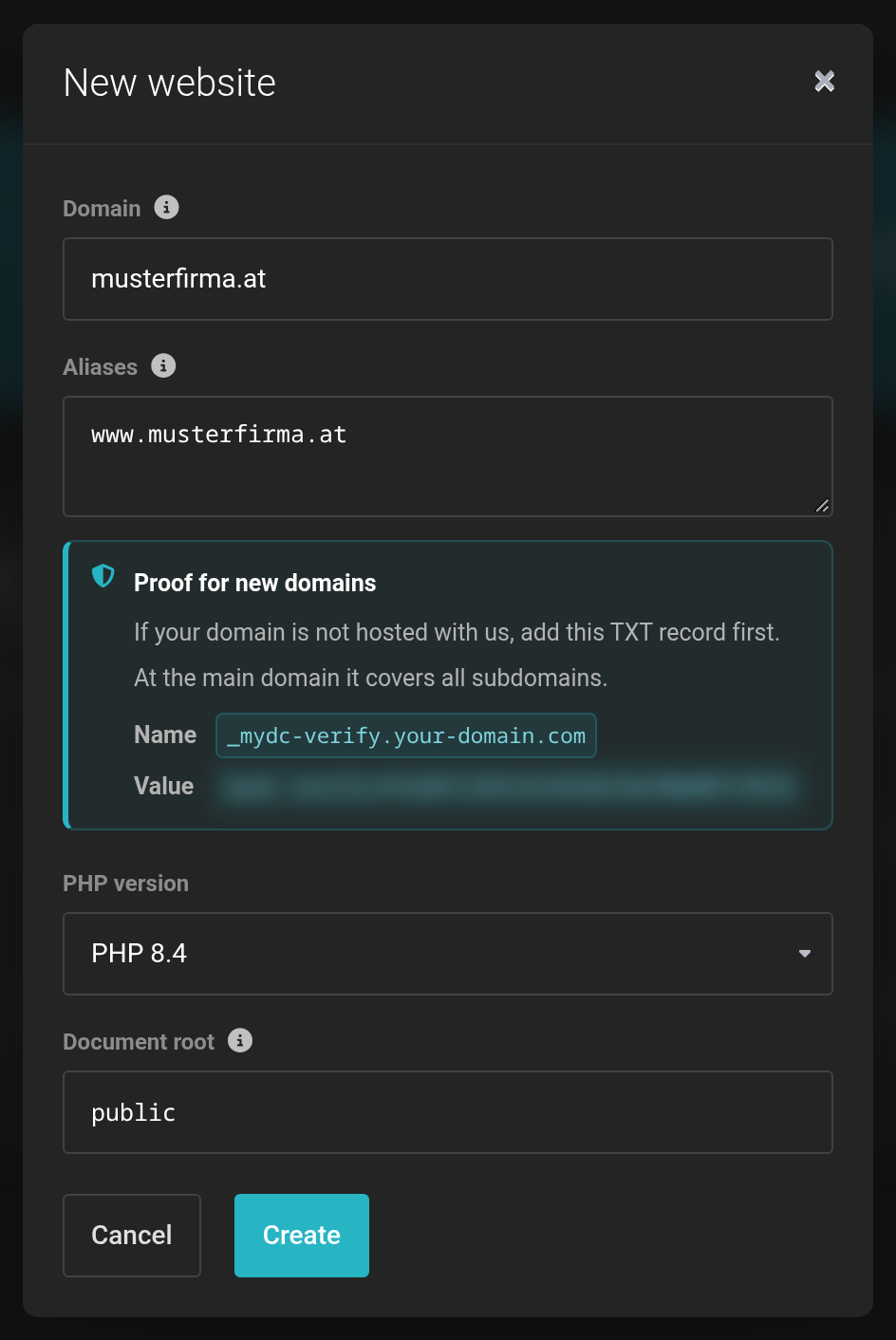 Domain and aliases are optional — without them there is only the preview address.
The preview address
Every website immediately gets its own address in the Preview column, encrypted with HTTPS. You can use it to build and test your website before you switch your domain over. The preview address stays available afterwards.
Emails cannot be sent from the preview address. Contact forms and order confirmations only work with your own domain. See Sending email from your website.
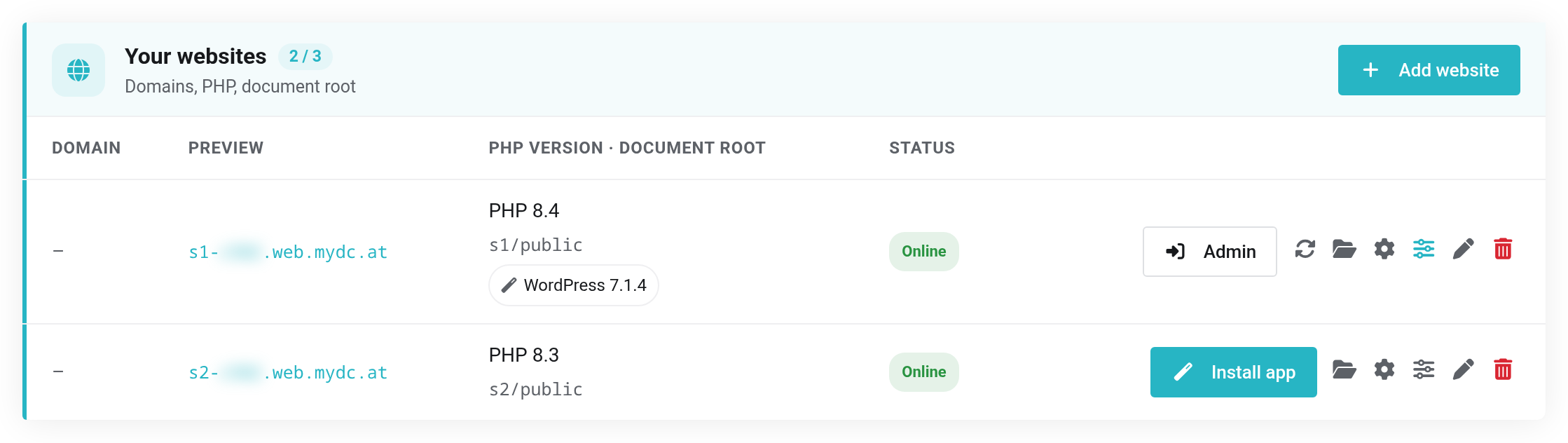
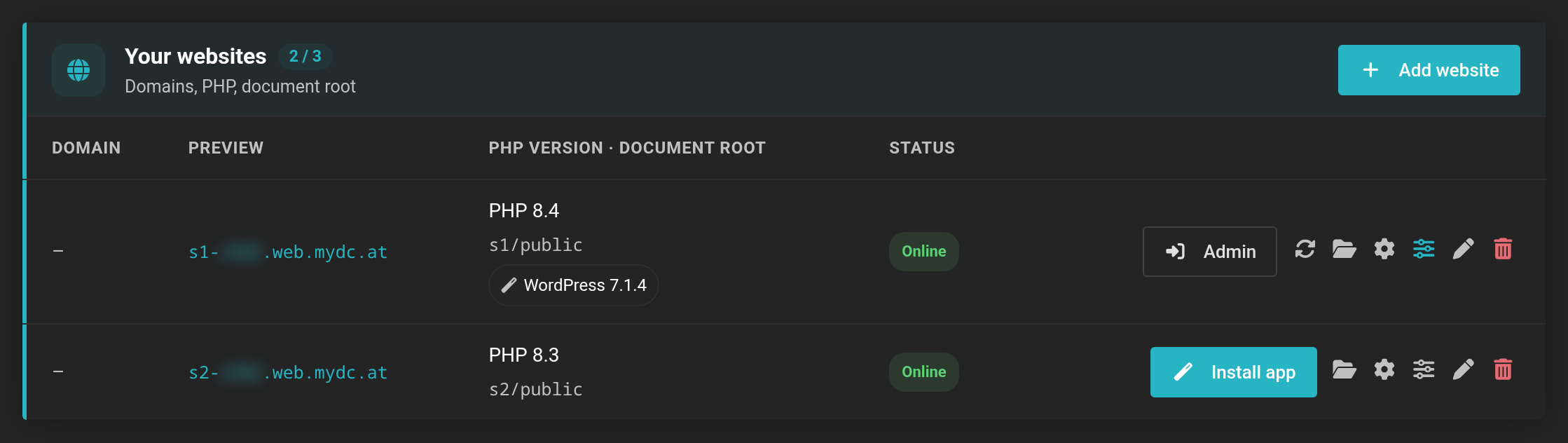 Two websites, both still without a domain of their own; WordPress is installed in the first one.
Folders and document root
Each website has its own folder: the first one s1, the second s2 and so on. Inside it is the document root — the folder visitors see in the browser, public by default. Your home page therefore belongs in s1/public/index.php or s1/public/index.html.
PHP sees the whole website folder. Put files such as configurations with passwords next to public, not inside it — there they cannot be retrieved from the internet.
Connecting your own domain
For visitors to reach your website under your domain, the domain must point to your web server in DNS. How much you have to do depends on where the domain is managed.
The domain is in our Managed DNS
If you manage the domain's DNS records in your client account with our Managed DNS, we take care of it: when you create or edit the website, we set the A record automatically.
If the name already points to another server, we leave the record unchanged. Point DNS here then appears next to the domain. Clicking it switches the record to your web server.
A website that previously ran under this name is no longer reachable after the switch. Only switch over once the new website is ready.
The domain is managed elsewhere
- Before you create the website, add a TXT record as proof with your DNS provider. Name and value are shown in the dialog under Proof for new domains: the name is
_mydc-verify.followed by your domain, the value is a string that only applies to your client account. If the record is at the main domain, it also covers all subdomains. - Create the website with your domain.
- With your DNS provider, set an A record for the domain and every alias to the IP address from Information → Connection details → IP address.
Depending on the time-to-live of the old record, it can take a few hours until the change has arrived everywhere.
SSL certificate
You do not need to apply for anything. As soon as a domain points to your web server, it automatically gets an SSL certificate, and the website is reachable over HTTPS.
The symbol next to each name in the list shows whether DNS is correct:
| Symbol | Meaning |
|---|---|
| Green check mark — DNS points here | Everything is fine; the certificate is issued automatically. |
| Warning triangle — DNS points elsewhere | The name points to another server. Change the A record. |
| Question mark — no DNS record | There is no A record for the name yet. Create it. |
Editing a website
With Edit (pen icon at the end of the row) you change the domain, aliases, PHP version and document root of an existing website. If you remove the domain, the website is only reachable at the preview address.
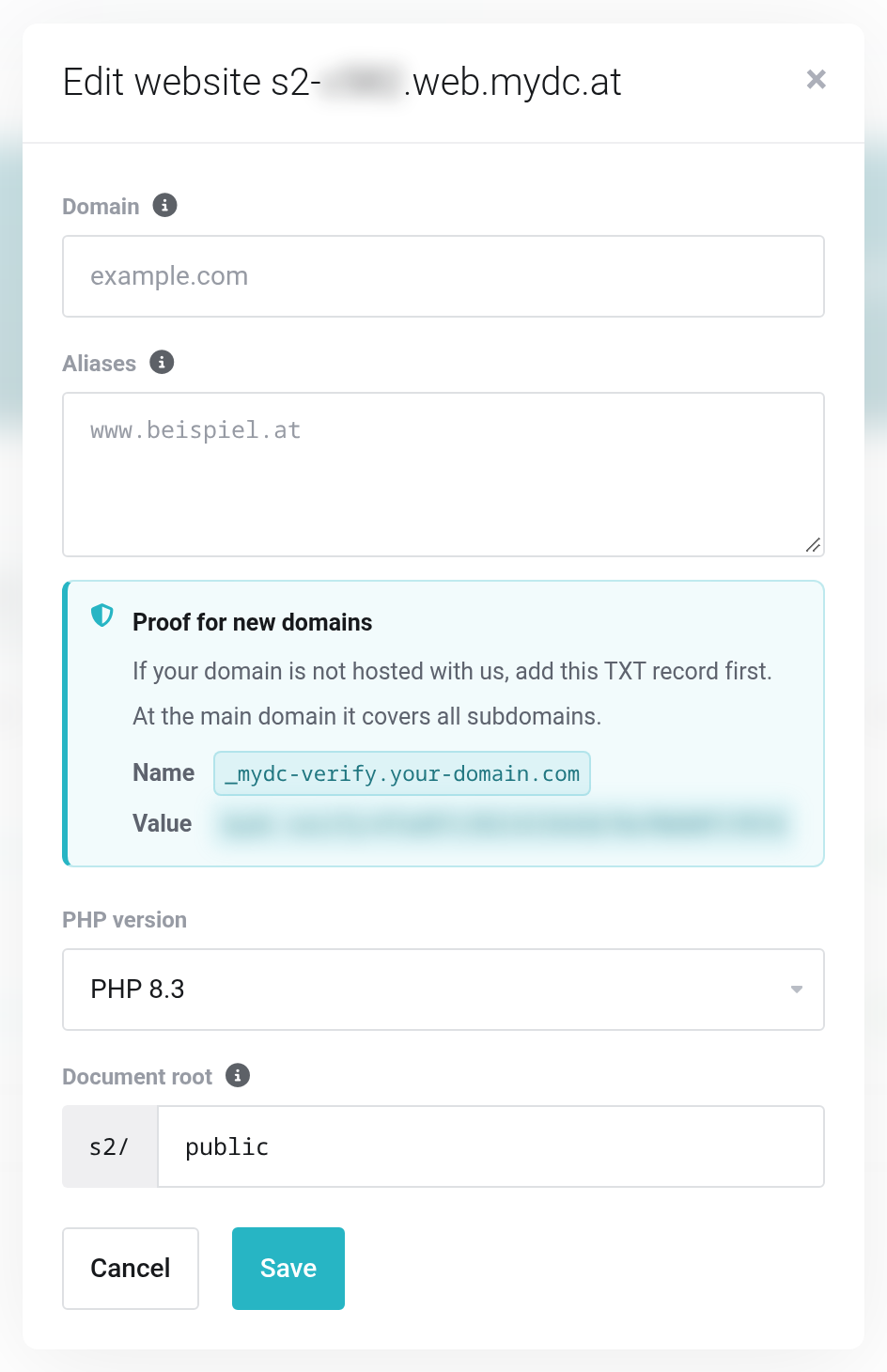
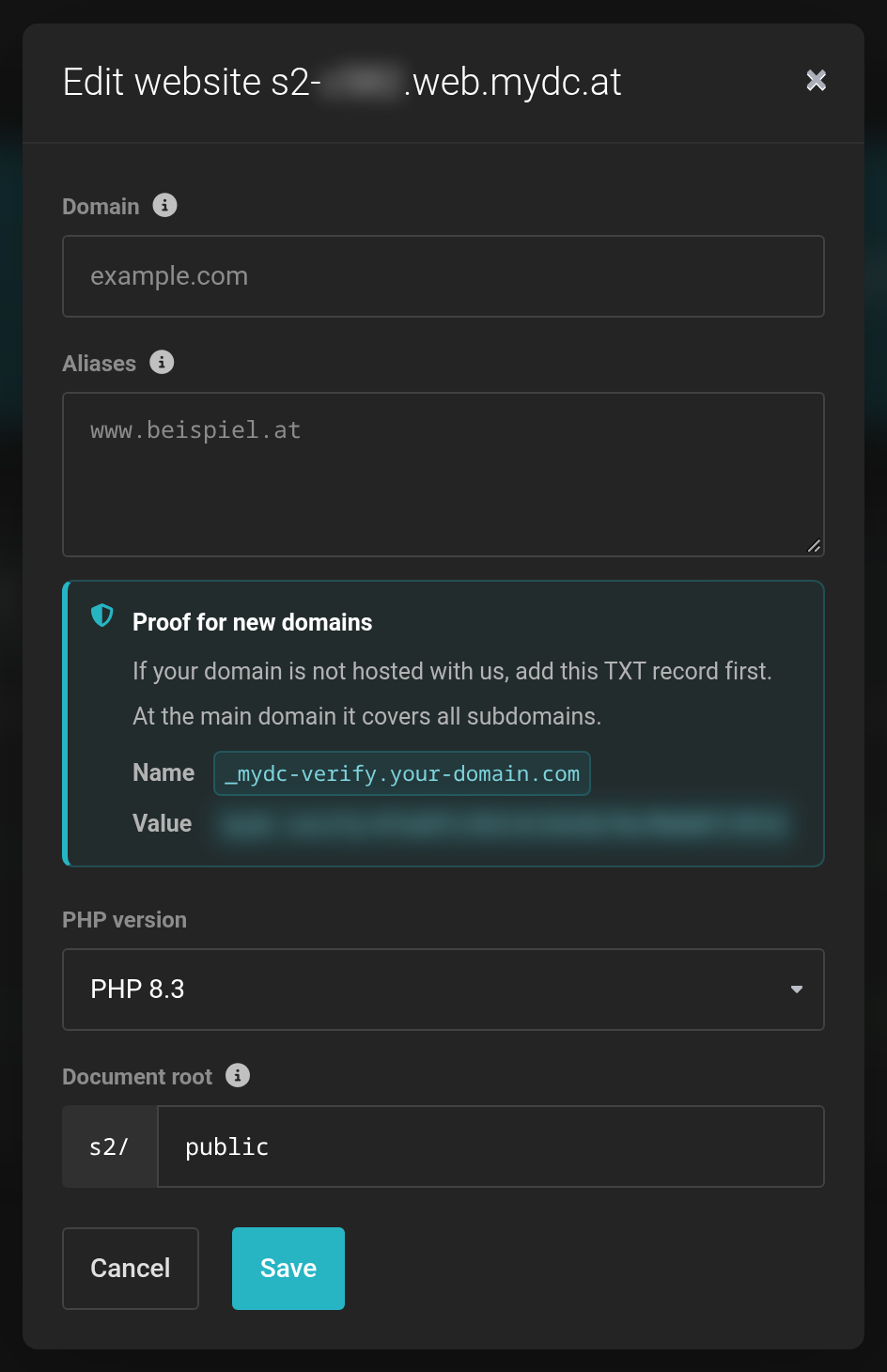 The website folder is shown in front of the document root, here s2/.
Row actions
- Install app
- Only for empty websites: installs WordPress and other applications. See Installing WordPress and other applications with one click.
- Admin and Update
- Only for installed applications: sign-in to the backend and updates.
- Files
- Opens the file manager in the website's folder.
- Settings
- Page cache, maintenance mode, web server, redirects, password protection, Git deploy and availability. See PHP settings, Apache mode and page cache and Redirects, password protection, maintenance mode and monitoring.
- PHP settings
- Limits such as upload size and execution time for this website.
- Edit
- Domain, aliases, PHP version, document root.
- Delete website
- Removes the website.
Deleting a website
Deleting removes all files of the website. The databases are kept. Download anything you want to keep first — see Restoring and downloading backups.
- Click Delete website (trash icon) at the end of the row.
- Tick Yes, delete permanently and confirm.
If it does not work
- Proof missing: TXT … = …
- The TXT record for a domain managed elsewhere is missing or not visible yet. Create it exactly as shown and try again after a few minutes.
- Domain is already assigned.
- The domain is already connected to a website — in your package or in another one. Get in touch with us if you cannot explain this.
- Plan limit: … websites.
- All booked websites are in use. Book more, see Changing resources.
- The domain shows a different or old page
- The A record still points elsewhere, or the old answer is still cached. Watch the symbol next to the name.


