
With DynDNS, a name in your domain — for example home.musterfirma.at — always points to the current internet address of your connection, even if your provider changes it regularly. Your FRITZ!Box or another router reports each new address automatically, and we update the record on both name servers within seconds.
This lets you reach your NAS, a camera, a VPN gateway or a small server at home under a fixed name while you are on the road.
Where to find DynDNS
Open your Managed DNS service or your domain and select DynDNS in the sidebar on the left.
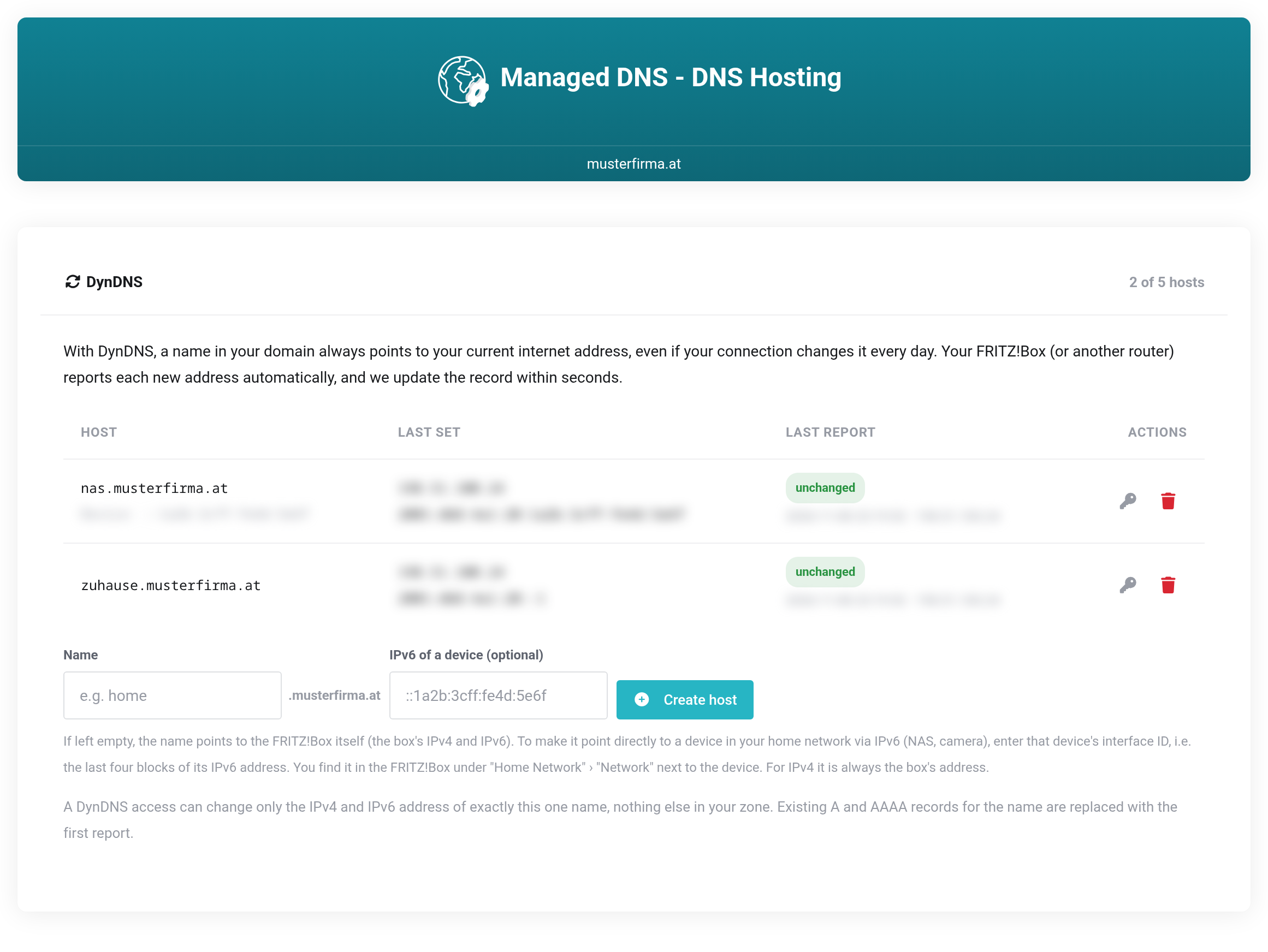
 Your DynDNS hosts with the addresses set last and the router's last report.
Creating a host
- Enter the name you want under Name, for example
home. The domain is appended automatically. - Leave IPv6 of a device (optional) empty for now. What the field is for is explained further down.
- Click Create host.
The box Access created appears with everything your router needs: update URL, domain name, user name and password. Each value has a button for copying it.
Setting up the FRITZ!Box
- Open the FRITZ!Box user interface and go to Internet → Permit Access → DynDNS.
- Tick Use DynDNS.
- Select User-defined as the DynDNS provider.
- Copy the four values from the box Access created:
| Field in the FRITZ!Box | Value |
|---|---|
| Update URL | the update URL shown, exactly as it is — the placeholders in angle brackets such as <ipaddr> belong to it, the FRITZ!Box replaces them itself |
| Domain name | the full name, e.g. home.musterfirma.at |
| User name | the full name as well |
| Password | the password shown |
- Click Apply.
The FRITZ!Box reports immediately and then whenever its address changes. In the list you see the addresses under Last set and time and result under Last report. If it says updated or unchanged, everything is fine.
Other routers and tools
DynDNS speaks the widely used dyndns2 protocol. This means OPNsense, pfSense, Synology, ddclient and many other routers work as well. There you need:
- as the server, the address from the update URL up to and including
/nic/update, - as the user name, the full name of the host,
- as the password, the password shown.
For trying it out from the command line, the box Access created contains a ready-made curl command. If no address is given, the address the request comes from is used.
IPv6 and devices in your home network
Without further details, the name points to the FRITZ!Box itself — with its IPv4 and its IPv6 address. For IPv4 this is correct: from outside you reach a device behind it through a port forwarding rule on the FRITZ!Box.
With IPv6, however, every device in your home network has its own public address. If the name should point directly to a specific device via IPv6, such as a NAS, enter that device's interface ID under IPv6 of a device (optional) when creating the host. These are the last four blocks of its IPv6 address, for example ::1a2b:3cff:fe4d:5e6f. You find it in the FRITZ!Box under Home Network → Network next to the device.
We then build the IPv6 address from the current prefix of your home network and this interface ID. If your provider changes the prefix, the record follows automatically.
What a DynDNS access may do
An access can change only the IPv4 and IPv6 address of exactly this one name — nothing else in your zone. Even if the password from the router falls into the wrong hands, your website, e-mail and all other records stay untouched.
Existing A and AAAA records for the name are replaced with the current address at the first report. The time to live (TTL) of dynamic records is 60 seconds, so a new address reaches everyone quickly. If there is already a CNAME under the name, no DynDNS host can be created there.
Deleting a host
Use the trash can in the list to delete a host. The router's access ends immediately. The Client Area then asks whether the A and AAAA records of the name should be deleted as well. If you choose Cancel, they remain with the address set last.
If something does not work
Under Last report you see the result of the last call. Hover over it to see the exact response.
| Last report | Meaning and remedy |
|---|---|
| updated | The new address has been set. |
| unchanged | The reported address was already in the zone. Everything is fine. |
| wrong credentials | User name or password is wrong. Check both, or create a new password. |
| no public IP | The router reported only a private address. This happens when the connection has no public IPv4 address of its own (DS-Lite, carrier-grade NAT). Then only the IPv6 address is set — if the router reports none either, the record stays unchanged. |
| name rejected | The reported name does not match the access, or there is a CNAME under the name. |
| blocked | The service or the domain is not active. |
| too many changes | The limit for changes per hour has been reached. The router tries again later. |
If a host shows waiting for the first report, the router has never reported. Check the values in the FRITZ!Box and its DynDNS messages under System → Event Log.


