
A Verify Job regularly checks the checksums of all chunks in your datastore and reports silent data corruption. You will find it under Management → Verify-Jobs.
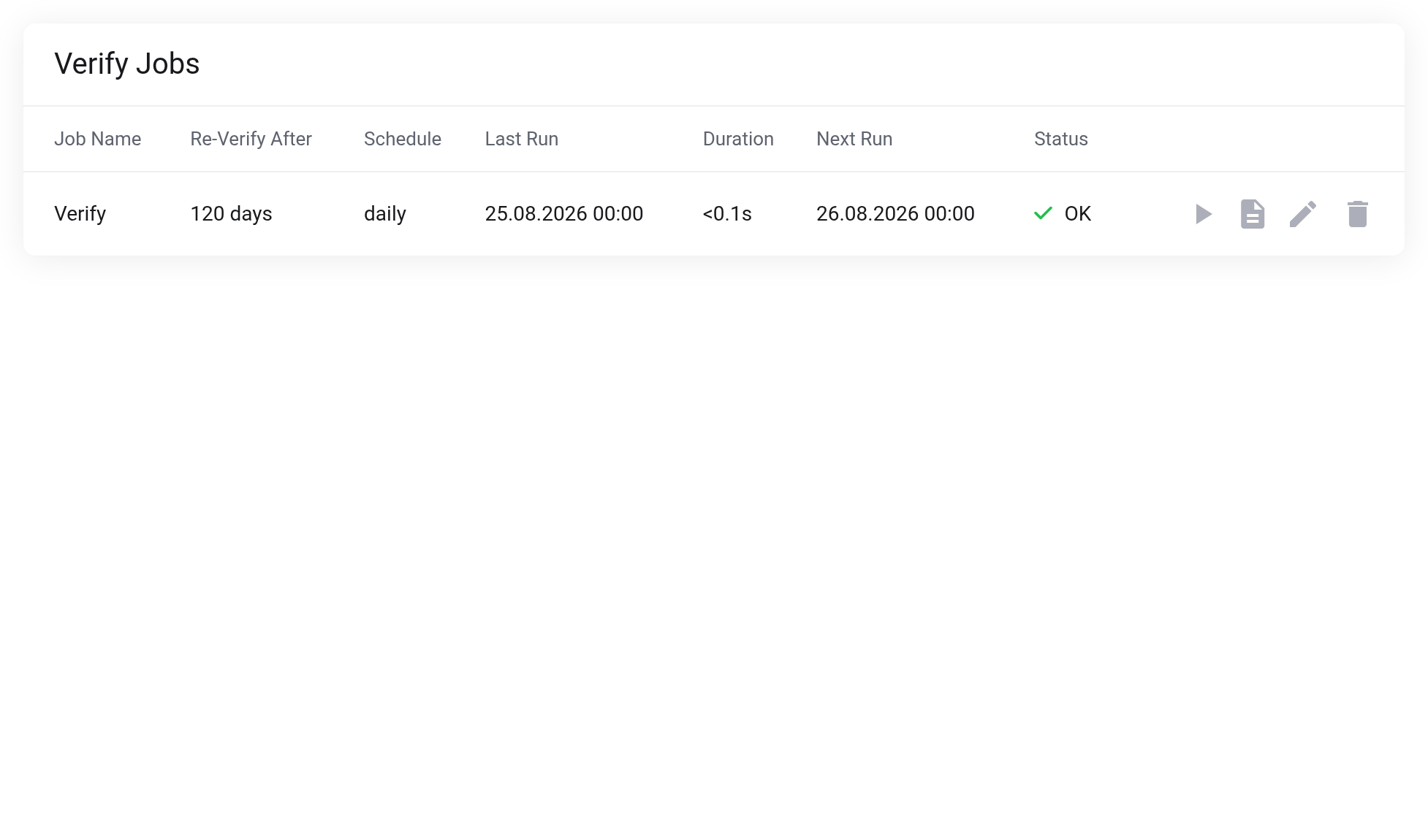
 A configured Verify Job with status OK.
Creating the job
Click New Verify Job in the top right:
- Job Name
- Required field, at most 16 characters, letters, digits, underscore and period. No hyphen. Example:
verify. - Re-Verify after (days)
- How long a successful check remains valid. The job skips backups that have already been checked. Default 30, less than 30 is not allowed.
- Schedule
- never, daily, weekly, monthly or yearly. Proven in practice: daily with 30 days — the job runs every day, but checks each backup at most once a month.
One Verify Job per service is intended. As soon as one exists, the button for creating one disappears. It reappears when you delete the job.
Row actions
- Run Verify Job now — starts the job immediately.
- Stop Verify Job — only visible while a run is in progress.
- Show latest job log — if an error occurs, this is where you find the affected backup.
- Edit Verify Job — change the re-verify period and the schedule; the name stays fixed.
- Delete Verify Job — not possible during a run.
The Status column shows OK, Error, None (never run) or running.
If verification fails
- Open the log and note the affected Backup ID.
- Under Content, check whether there are newer, successfully verified backups of the same VM.
- Get in touch with us with the Backup ID and the time — we check the storage layer.
Do not delete the faulty backup prematurely; it is needed for root cause analysis.