
You can change the allowance of your Private Cloud Computing – Platform – Vienna yourself at any time – CPU cores, memory, storage, IPv4 addresses, virtual networks and bandwidth. More capacity is available after the change; less capacity lowers the amount from the change onward.
Server – Vienna: the resources of the Server product cannot be changed in self-service. Write to us if you need more or less capacity.
How to change the capacity
- Open your Platform service and, on the left under Actions, click Upgrade/Downgrade Options.
- For each option you see the Current Configuration on the left and the New Configuration on the right. Choose the new value on the right. Leave anything you do not want to change at No Change.
- Click Click to Continue >>. You see an overview with the amount before anything becomes binding.
- Confirm the overview. What happens next is described in the following section.
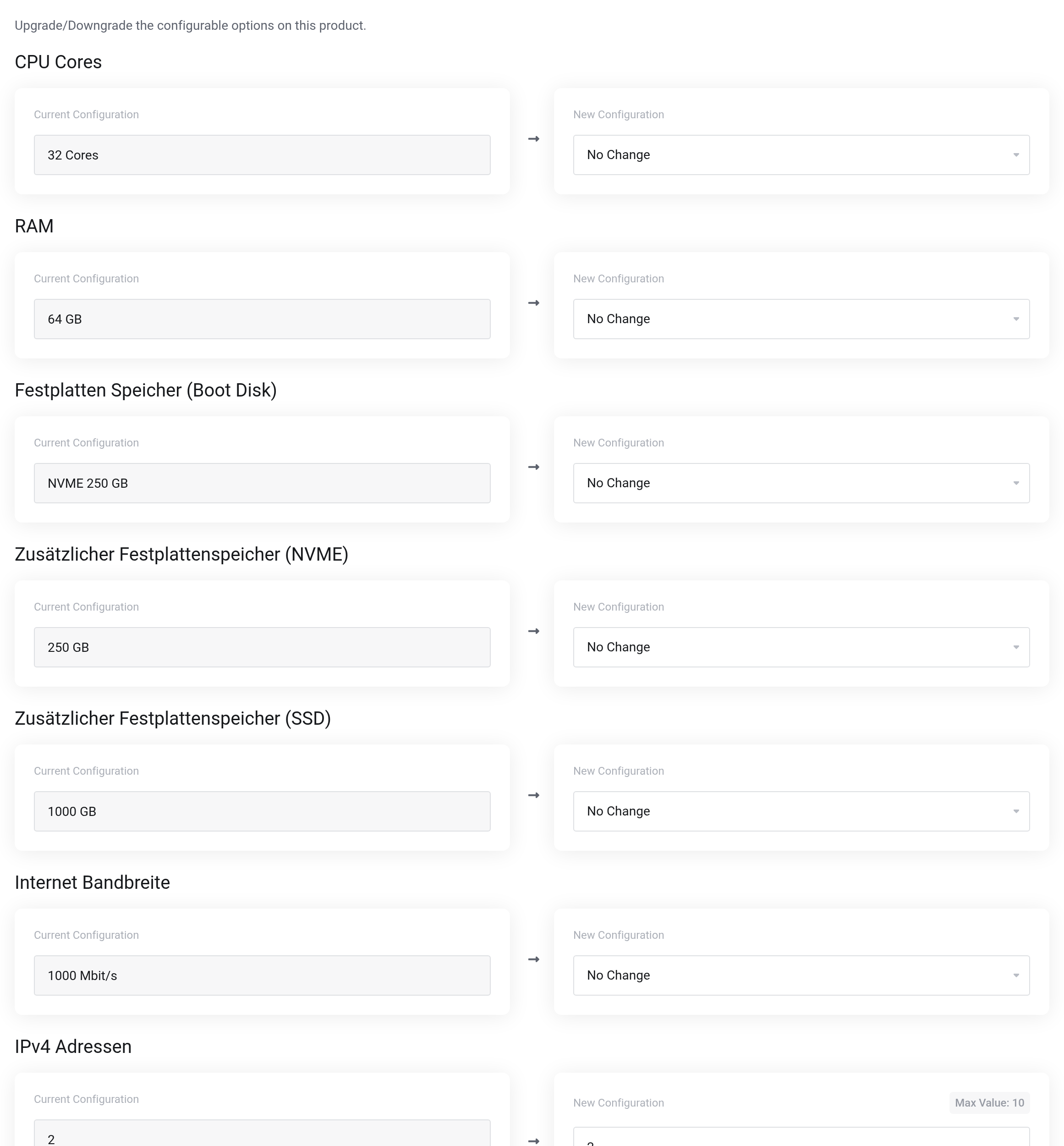
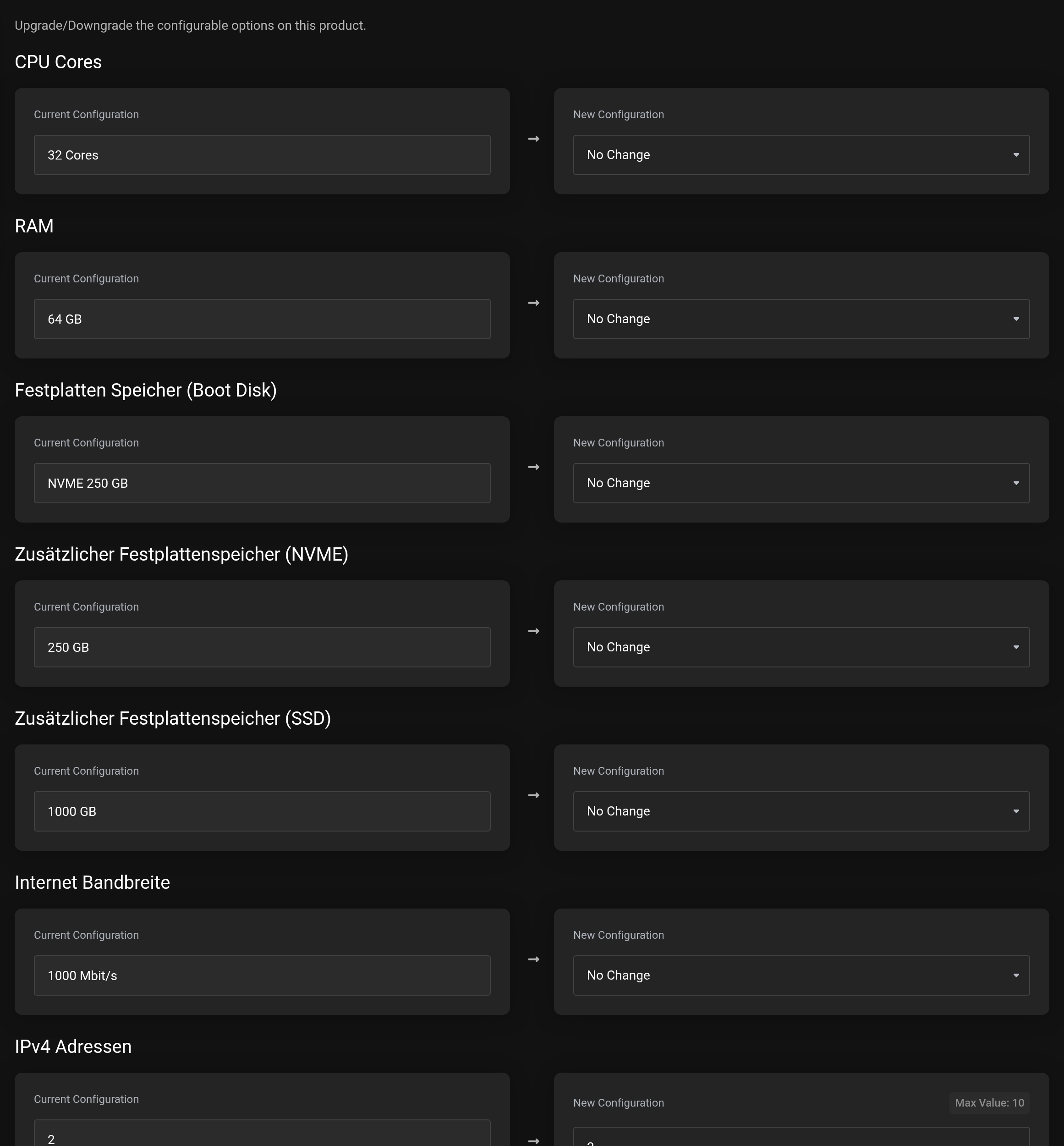 Today's values on the left, the new value is chosen on the right.
How it is charged
Only the rest of the current billing period is charged – pro rata by days. All amounts are net, plus VAT.
Usually: an invoice for the change
After you confirm, you receive an invoice for the pro rata amount. The new capacity is available as soon as this invoice is paid. If you reduce the capacity, the difference is credited to you.
With direct debit or a monthly consolidated invoice: shown on the next invoice
If you pay by direct debit or through a monthly consolidated invoice – or have a corresponding agreement with us – the page shows above the selection: “You can change your configuration at any time. The difference is not due immediately — it appears on your next regular invoice.” The Confirm change view then lists every item separately:
- Your change
- What you changed, old and new.
- Pro rata for the current billing period
- The amount for the remaining days of the current period.
- Additional charge for …
- If the invoice for the next period has already been created, the difference for that period.
- Will appear on your next invoice
- The total. If it is negative, it is credited to you.
- New amount per billing period
- What your service regularly costs from now on.
Confirm change (chargeable) applies the change immediately. Back to selection cancels without changing anything.
After the change
More capacity extends your allowance. Your virtual machines do not grow automatically: distribute the new allowance yourself, for example in the Details dialog of the VM (the pencil next to the name in the Server Summary). You can only change memory and CPU there while the VM is stopped.
When a change is not possible
- An invoice is still open.
- If the invoice for the next period of your service has already been created, the page blocks the change: “You cannot currently upgrade or downgrade this product because an invoice has already been generated for the next renewal.” Pay this invoice first. The same applies while an earlier change has not been paid yet. With direct debit or a monthly consolidated invoice this block does not apply – only once an invoice is more than 30 days overdue.
- You want to go below what your VMs use.
- Less capacity is only possible as long as your virtual machines fit into it. Otherwise a message appears – currently in German only – that begins with “Downgrade nicht moeglich. Die angeforderten Limits liegen unter den aktuell genutzten Ressourcen” and lists the used and the requested value. First shrink the VMs or delete what you no longer need – an additional disk, for example – and then change the allowance.
- The change lowers a limit for backups or snapshots.
- If a change lowers the allowed number or size of backups or snapshots below what you already have, the system refuses it – for example with “Not enough Snapshots resources available to perform the upgrade.” Delete older backups or snapshots first. Changes that do not lower these limits are not affected.


