
The reverse DNS record (also called PTR record) assigns a name to an IP address – the opposite direction of normal DNS. You set it yourself in the Client Area for the public IPv4 addresses of your cloud product. This matters above all for mail servers: many recipients only accept mail from servers whose IP address carries a matching name.
Requirements
- A Private Cloud Computing – Platform – Vienna or Server – Vienna service.
- A name you want to enter, for example
mail.example.com. - The A record first: in DNS, the name must point to exactly this IP address. Mail servers check both directions and reject mail if they do not match. You create the A record wherever your domain is managed – with us, see Creating and editing DNS records.
Setting the record
- Open your service. Next to every public IPv4 address there is a pencil – in the list of virtual machines, in the Server Summary of a VM and on its Network page.
- Click the pencil next to the address. The dialog Reverse DNS (PTR) for your address opens.
- Under Current record you see what is entered today. The note (data centre default) means you have not changed anything yet.
- Under Hostname (FQDN), enter the full name, such as
mail.example.com. - Click Save. This can take up to a minute. Afterwards “Saved. The record reaches DNS in about 1–2 minutes.” appears.
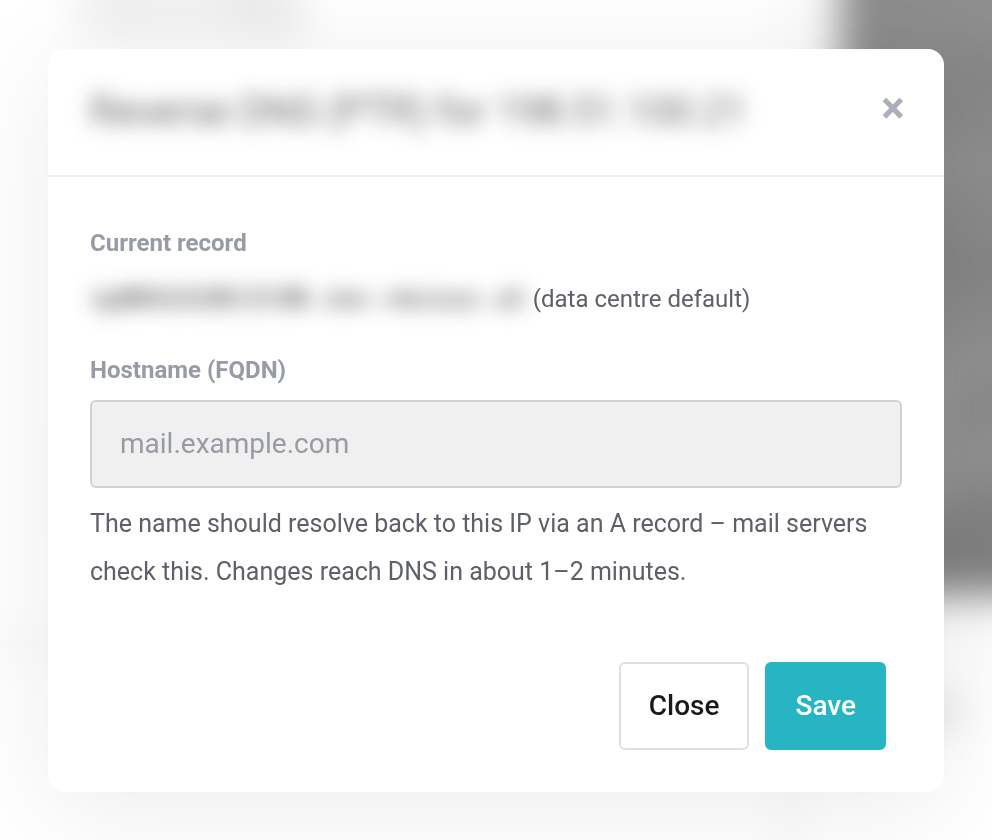
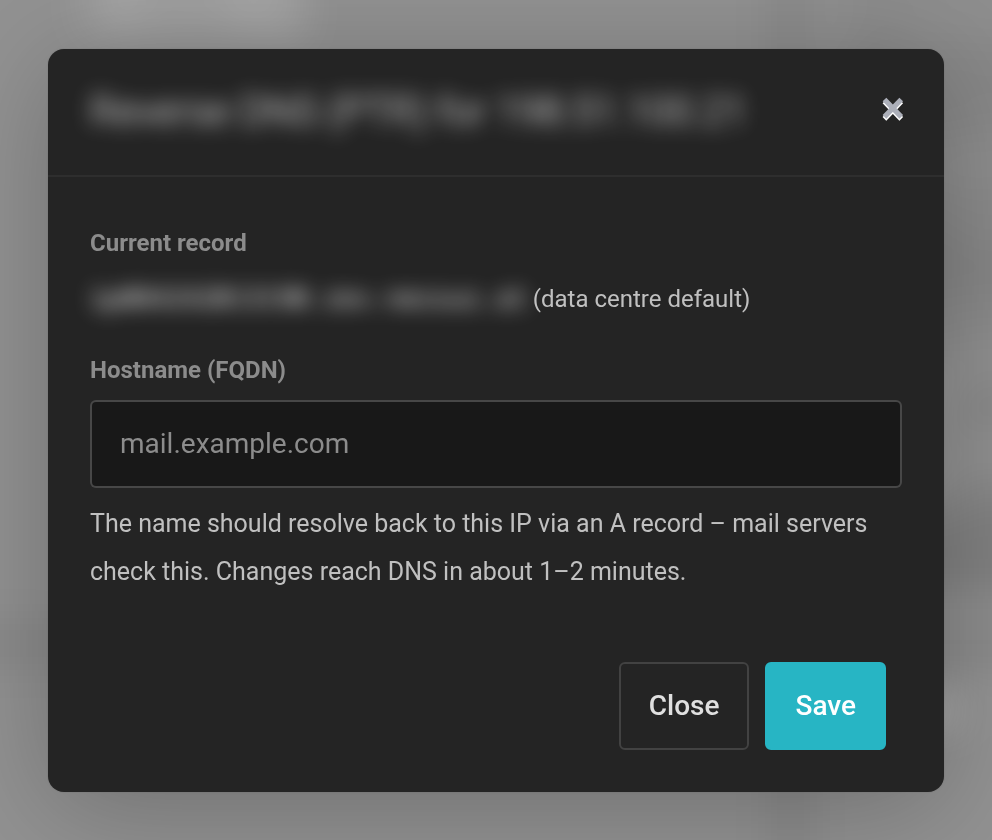 The reverse DNS dialog. The address and the current name are blurred in this picture.
If your name does not point to the IP address yet, the dialog tells you: “Note: … does not resolve to … via an A record.” Create or correct the A record in that case.
Back to the default
Once you have set a name of your own, the dialog also shows Reset. It restores the data center's default name.
Checking
To check whether the record has arrived, run this on your computer, for example (replace <IP address> with your address):
nslookup <IP address>The answer should show your name.
If it does not work
- “Please enter a valid hostname, e.g. mail.example.com.”
- The name is incomplete or contains characters that are not allowed. Enter the full name including the domain.
- “Too many changes today. Please try again tomorrow.”
- Each client account can make 30 changes a day.
- There is no pencil next to an address.
- The pencil only appears next to public IPv4 addresses of your service, not next to private addresses and not next to IPv6.


