
With a scheduled restore, your Managed Proxmox Backup Server automatically restores a backup into an existing virtual machine of your Cloud or Server product — once at a fixed time, or on a regular schedule. A typical use is a standby machine that is brought up to the state of the newest backup every night. At the same time, this proves that your backups can really be restored.
Requirements
- An active Private Cloud Computing – Platform or – Server product in the same client account. Without such a product the Restores menu item does not appear.
- The target machine already exists. The automation never creates a new machine. On a Cloud product you therefore create the standby machine yourself beforehand, as usual.
- The backup is a virtual machine (backup ID
vm/…). Containers cannot be restored this way. - For encrypted backups: your PBS key file.
Warning: the contents of the target machine are completely replaced on every run. All data that exists only on that machine is lost. Never choose a machine you work on as the target — use a separate standby or test machine.
Creating a restore
- Open Management → Restores.
- Above the Scheduled restores table, click Schedule a restore.
- Fill in the fields (see below).
- Switch on Confirm overwriting and Active.
- Click Save.
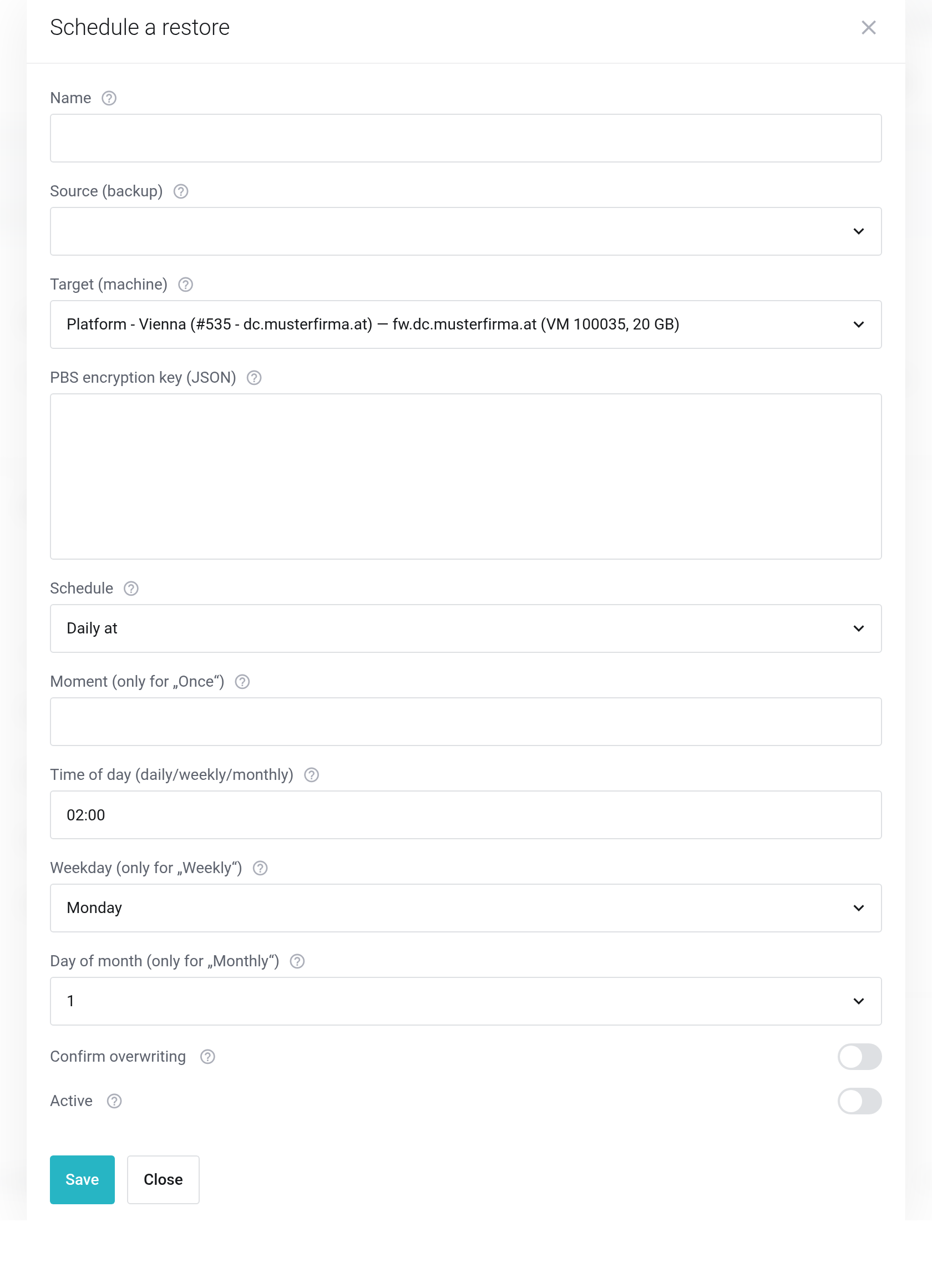
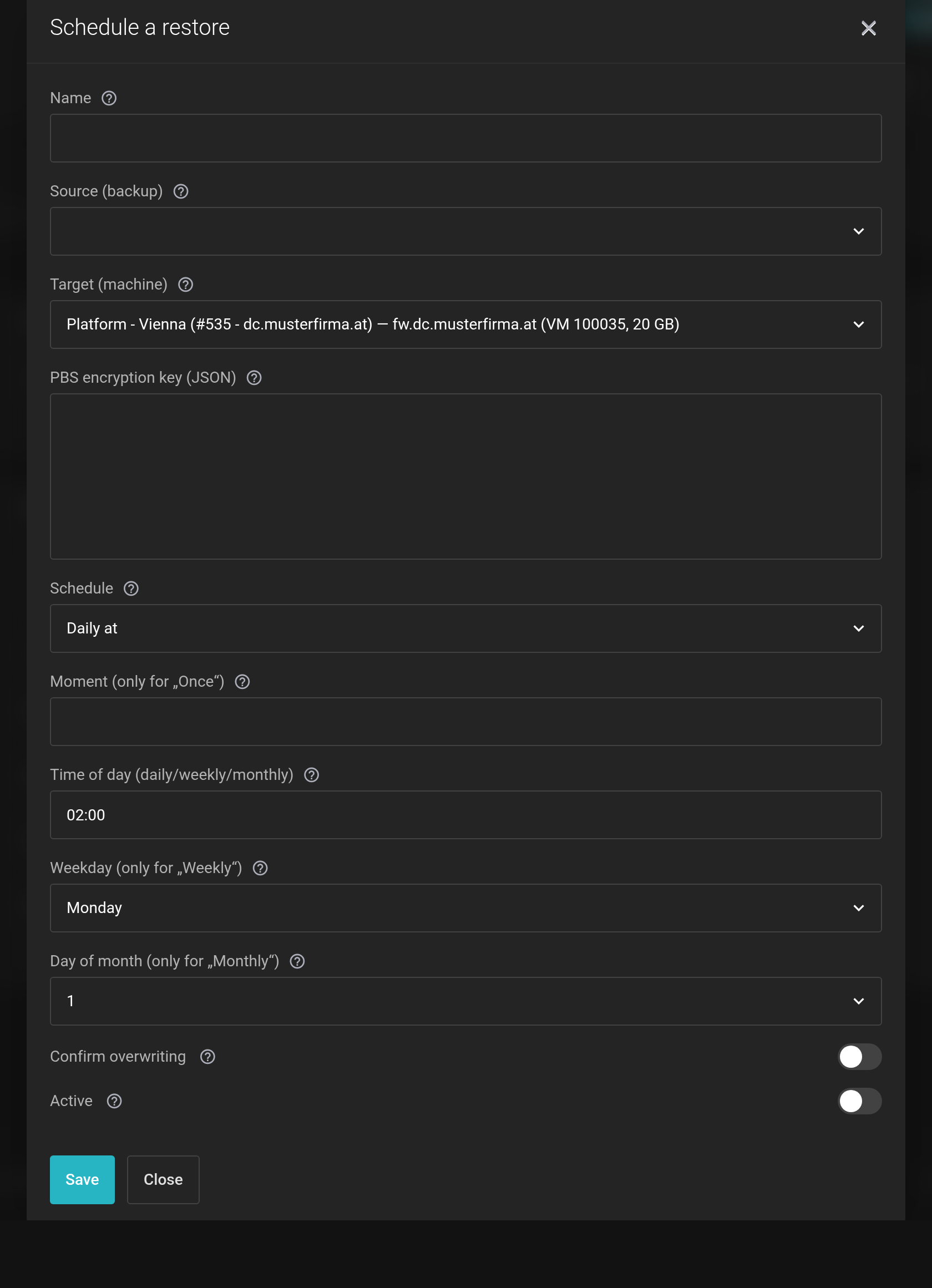 The Schedule a restore dialog. The demo account has no backup yet, which is why the source is empty.
- Name
- A name of your choice, such as
Standby firewall. It appears in the history and in the email. - Source (backup)
- The backup group, that is, all backups of one machine. Next to the backup ID you see the note of the backup, usually the host name, and the label encrypted where that applies. What is restored is always the newest complete backup at the time of the run.
- Target (machine)
- The existing machine to restore into, shown as “product — machine”.
- PBS encryption key (JSON)
- Only for encrypted backups. Paste the full contents of your key file. The key is stored encrypted and never shown again. When editing, leave the field empty to keep the stored key. If you do not want to store your key with us, keep restoring encrypted backups by hand via Content.
- Schedule
- Once on, Daily at, Weekly or Monthly on the.
- Moment (only for „Once“)
- Date and time in the format
DD.MM.YYYY HH:MM, for example21.11.2026 22:00. The moment must be in the future. - Time of day (daily/weekly/monthly)
- Format
HH:MM. The run starts a few minutes after that time. - Weekday / Day of month
- Only for weekly or monthly runs. The latest possible day of the month is the 28th, so that February is reached as well.
- Confirm overwriting
- Required. You confirm that the target machine is replaced by the backup on every run.
- Active
- The schedule only starts active restores. Run now also works for an inactive one.
Each backup service can hold up to 20 scheduled restores.
What happens during a run
- Right before the start, we check again: does the target machine still belong to your account, is there a complete backup, does the key match?
- The target machine is shut down.
- The newest complete backup is restored into the machine.
- If the machine was running before, it is started again afterwards.
- CPU and memory stay those of the target machine, even if the backup comes from a larger or smaller machine. The machine also keeps its network connections.
- Disk: if the disk in the backup is larger than the one of the target machine, the target disk is enlarged — as far as your plan or the quota of your Cloud product allows. It is never shrunk.
- Depending on its size, a restore takes from a few minutes to several hours. Schedule it for a quiet time.
The overview
The Scheduled restores table shows source, target, schedule, status, last run and next run for each task. At the end of the row you find Run now, Edit and Delete. An orange stop icon in the Status column means: inactive. A one-time restore switches itself off after its run and then shows the result of that run.
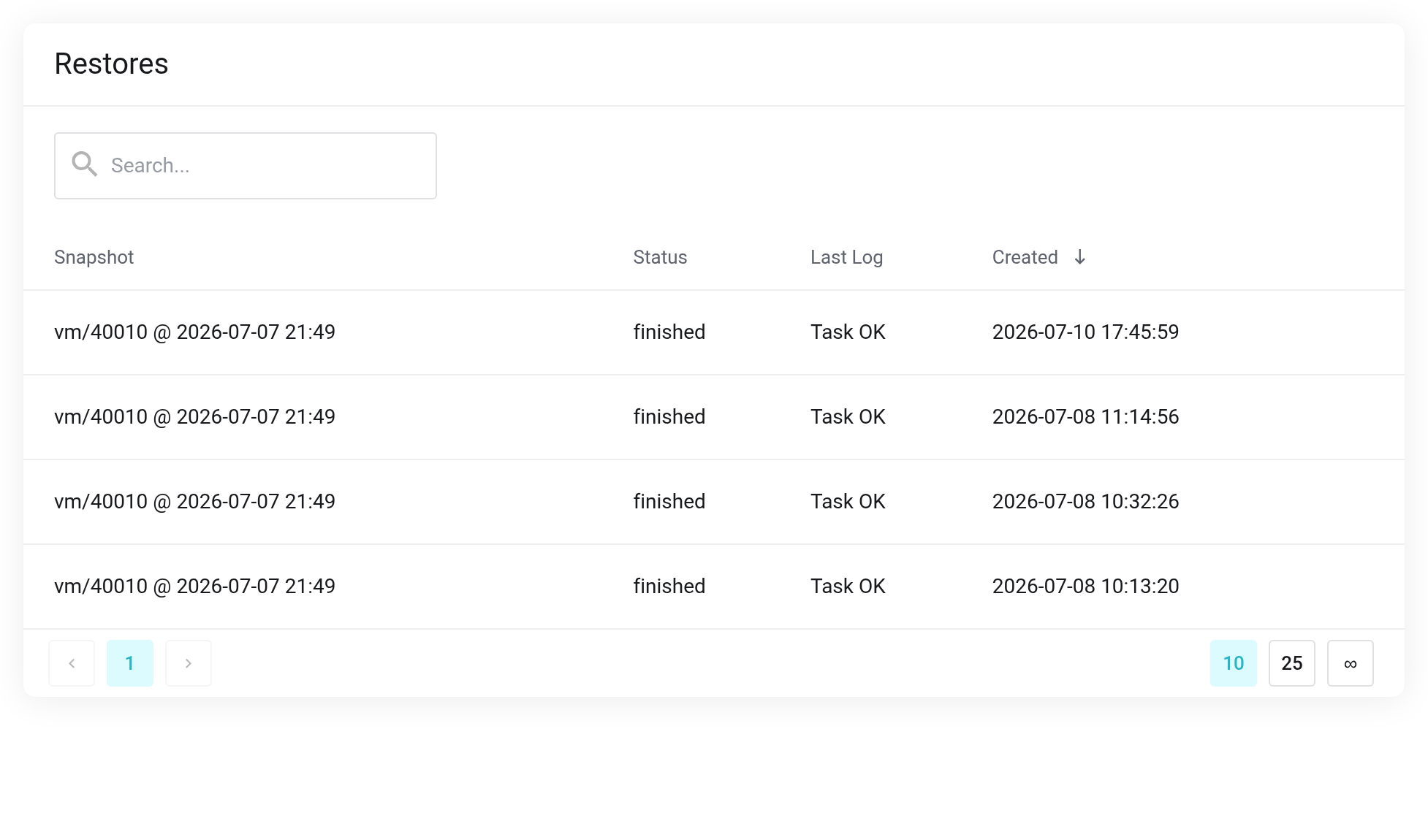
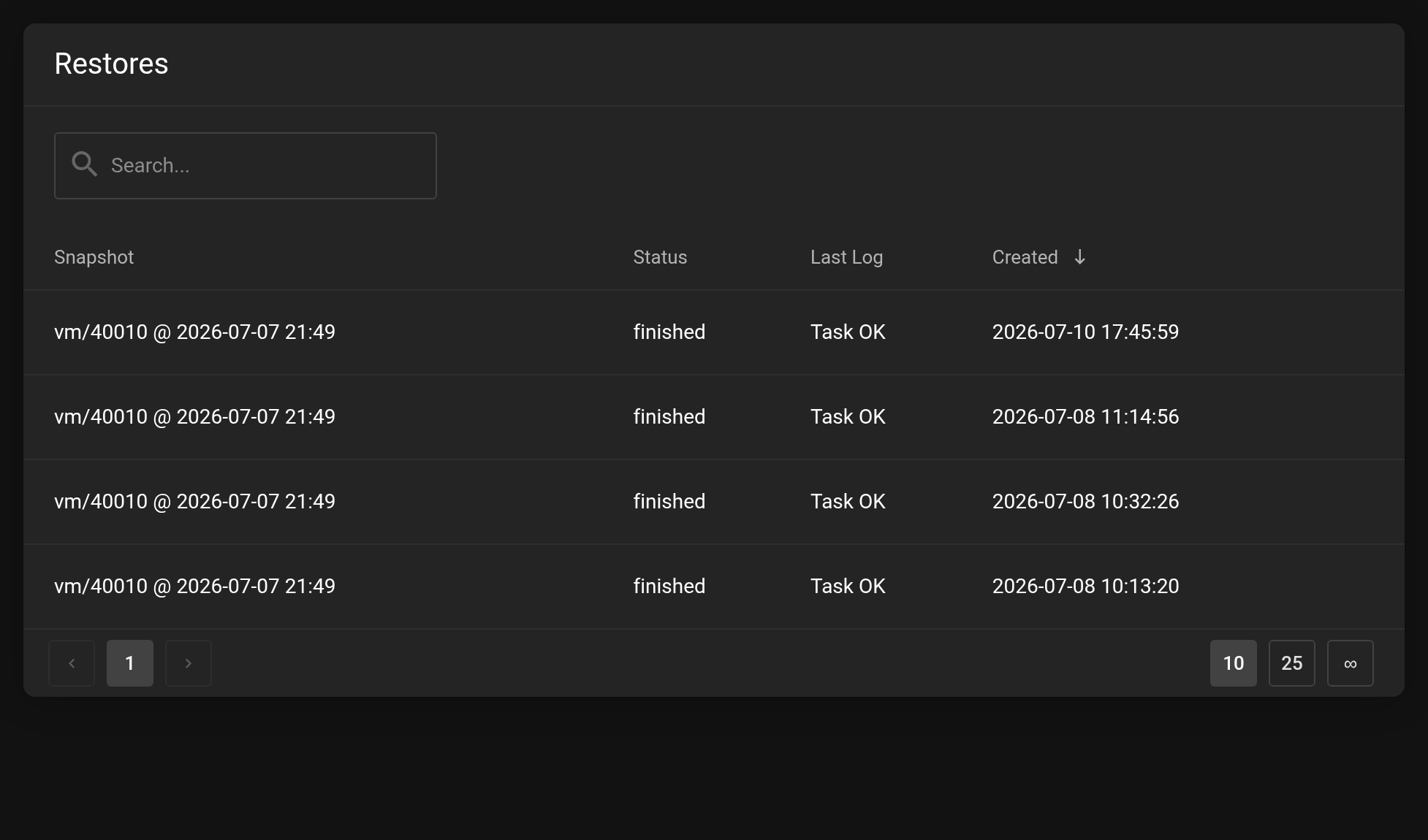 The scheduled tasks at the top, the history of all restores below.
Below it, the Restores table shows the history — restores started by hand and scheduled ones in a single list. The Trigger column tells you how a run began: Manual, Started manually (via Run now) or Schedule. A green check mark means success, a red cross means failure; you can read the reason in the Last Log column.
You can get the result of every run by email: switch on the Restores event under Notifications.
When a run fails
- "Not enough resources: the backup needs more disk than your plan has left."
- The target disk would have to be enlarged, but your plan has no room left for it. Free up storage on another machine or extend your product.
- "The backup is encrypted and no key is stored with this task."
- Edit the task and paste the PBS key.
- "No complete backup was found for the selected source."
- The backup group holds no finished backup. Check under Content whether your backups are running.
- "Another restore is already running for the target product."
- Only one restore can run per product at a time. The next scheduled run starts normally again.
- "The scheduled time was missed by more than six hours, so this run was skipped."
- A missed run is not caught up hours later, so that a machine is not overwritten unexpectedly. The next run takes place as scheduled.


