
On the settings page of a website you redirect old addresses, protect areas with a password, show visitors a notice page during maintenance and get warned by email if the website goes down. You need neither .htaccess nor plugins for this.
You reach the page under Websites with Settings (gear icon) in the row of your website.
Redirects
A redirect automatically sends visitors and search engines from an old address to a new one — for example after you have restructured your website.
- In the Redirects section, enter the old address under Path, for example
/old. - Enter the new address under Target: a path on the same website such as
/newor a full address starting withhttps://. - Choose the Type: 301 permanent if the old address will not come back (search engines then adopt the new one), or 302 temporary.
- Tick Subpaths if everything below should move as well:
/old/pagethen becomes/new/page. - Click Save.
Empty lines are ignored. To remove a redirect, clear its line and save.
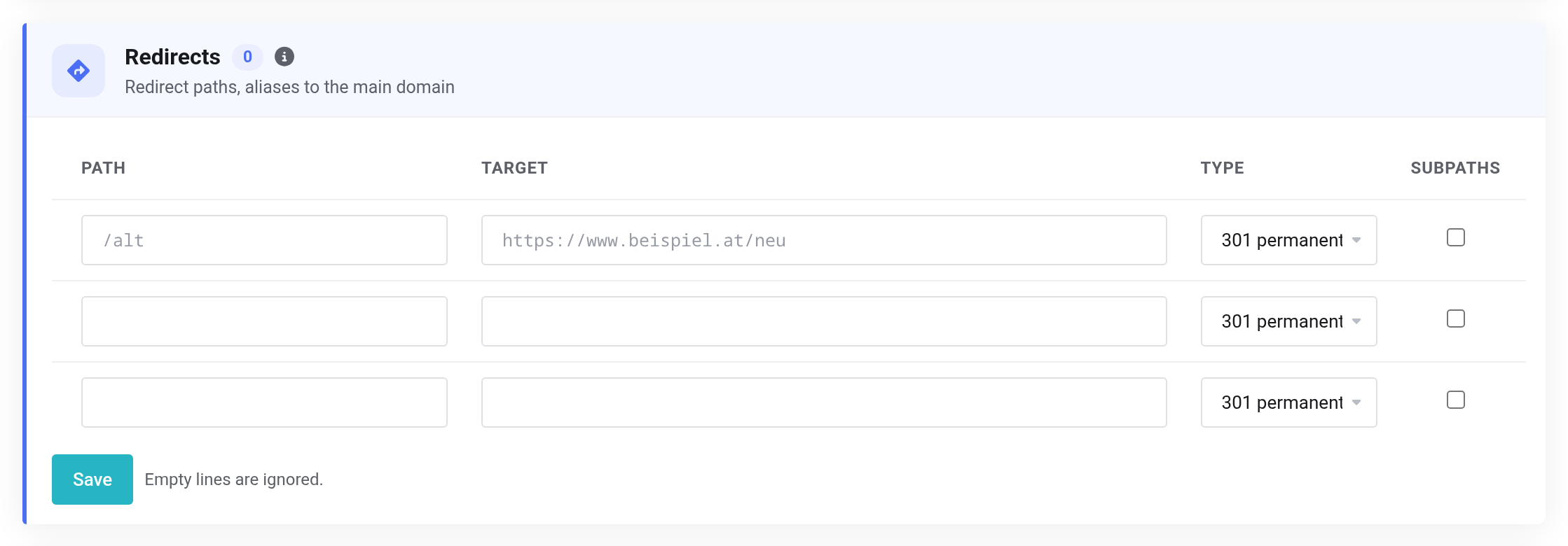
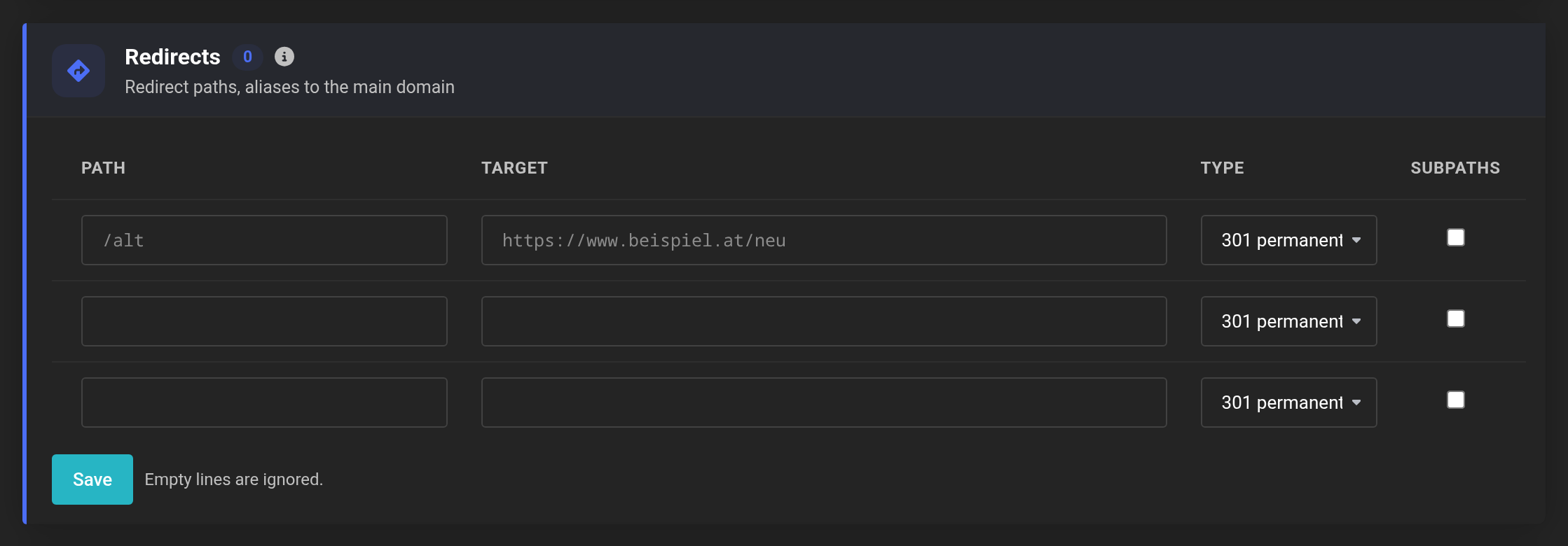 One redirect per line.
If the website has a domain and at least one alias, you also get the option to redirect all aliases permanently to the main domain (301). Visitors then always reach your website at musterfirma.at, for example, even if they type www.musterfirma.at.
Password protection
With password protection, the browser asks for a user name and password before opening an area — handy for a test version or an internal section.
- In the Password protection section, enter the path, for example
/intern/. With/you protect the whole website. - Choose a user name and a password with at least 8 characters.
- Click Add.
The protection covers the path and everything below it. You can create several logins for the same path, for example one per person.

 A login consists of path, user name and password.
Maintenance mode
In maintenance mode, visitors see a notice page instead of your website. You keep working undisturbed, because allowed addresses see the website as usual. Search engines learn that the interruption is only temporary.
- In the Maintenance mode section, enter the addresses that should still see the website under Allowed IPs/networks — one per line. Your own address is shown below it at Your current address.
- Enter what visitors should read under Notice text (optional).
- Click Enable maintenance mode.
Disable makes the website reachable for everyone again. You will find a screenshot in PHP settings, Apache mode and page cache.
Monitoring availability
We check your website every 2 minutes and send you an email when it goes down and when it is reachable again. The message goes to the email address of your client account.
- In the Availability section, enter the path to be checked under Address.
/is the home page. - Click Monitor.

 Outages are reported to the email address of the client account.
An outage means the website does not answer twice in a row, takes longer than 20 seconds or returns a server error (5xx). We also get in touch if server errors pile up for your visitors. Monitoring pauses while maintenance mode is on.
Once monitoring is on, the section shows how long the current state has lasted, the availability over the last 24 hours and the last 60 checks as bars.
If it does not work
- Invalid target “…” (https://… or /path).
- The target of a redirect must start with
/or withhttps://. - Duplicate path: …
- There are two redirects for the same path. Remove one of them.
- Not a valid IP address: …
- The list of allowed addresses contains something that is not an IP address. Enter only addresses or networks, one per line.
- Password: 8–128 characters.
- The password for password protection is too short.


