
Instead of uploading and setting up an application by hand, you install it on your Managed Webserver with one click. We set up the database, the credentials and the recurring background tasks at the same time.
These applications are available
| Application | What it is for |
|---|---|
| WordPress | Website and blog. Three themes are available: WordPress default, Astra and Kadence. All three are installed; the selected one is active. |
| Joomla | Content management |
| TYPO3 | Content management for larger websites |
| Nextcloud | Files and collaboration |
| MediaWiki | Wiki |
| Shopware | Online shop. Requires at least 2 CPU cores and more than 2 GB RAM; with smaller packages the option is disabled. |
Requirements
- An empty website with the document root
public. Only then does the Install app button appear in its row. Create a separate website for each application — see Creating a website and connecting your domain. - A free database slot in your package. The installation creates a database, and it counts towards your booked databases.
- For Nextcloud, Shopware and MediaWiki: Apache mode is off for the website.
Installing an application
- Open Websites and click Install app in the row of the empty website.
- Choose the application; for WordPress, choose the theme as well.
- Under Admin user, enter the name you will sign in with later. Names such as
admin,administratororwebmasterare not allowed because attackers try them first. - Check Admin e-mail, Site title and Language.
- Click Install.
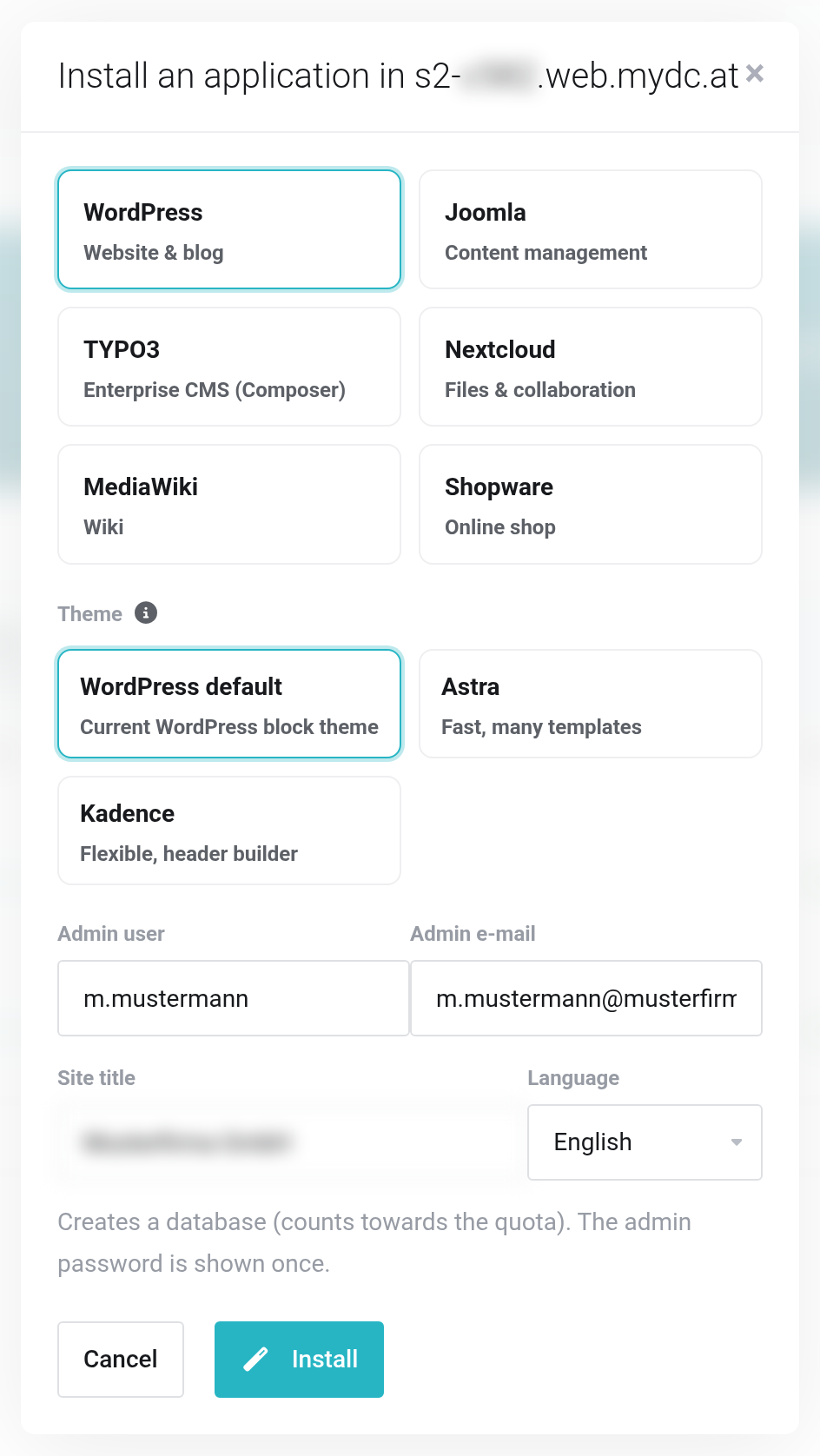
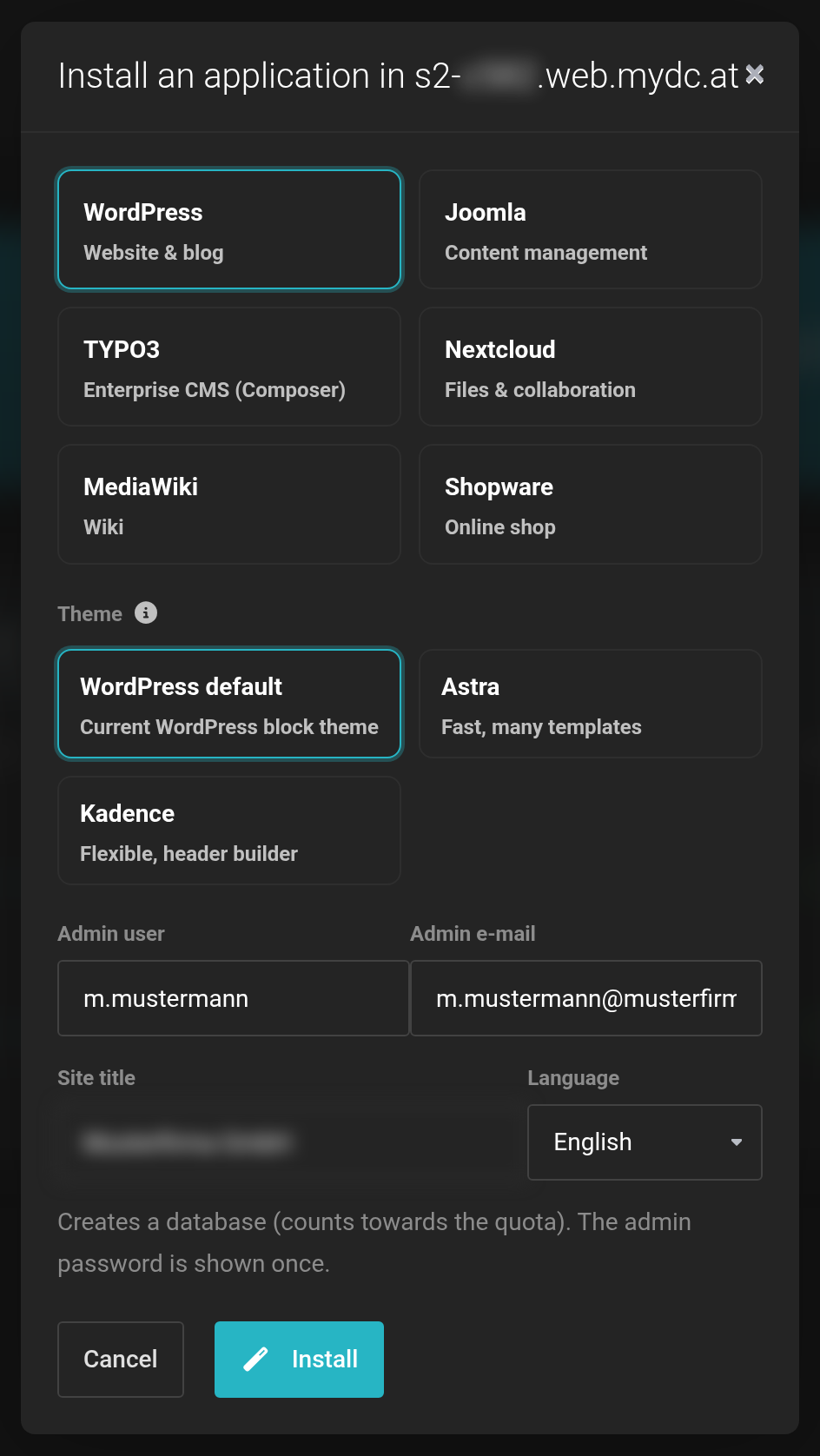 Choose the application, set the admin user, install.
The admin password is shown only once. Right after the installation starts, a box Application credentials appears at the top with the user, the password and the address of the backend. Copy the password into your password manager with Copy before you leave the page.
The installation runs in the background and takes a few minutes depending on the application. Afterwards the row shows the application's name and version.
What we set up along with it
- The database including its user; it appears under Databases.
- A cron job every 5 minutes for the application's background tasks, if your package still has a free cron job.
- For WordPress, Joomla and Nextcloud, Redis as a cache, if your package includes the Memcache & Redis option.
Signing in to the backend
Click Admin in the website's row. For WordPress and MediaWiki you are signed in right away, without a password — the link works only once. For the other applications the sign-in page opens, and you sign in with your admin user.
Updates and update reminder
We regularly check whether there are updates for your application, its plugins and themes. If there is one, the row shows Update available.
- Click Update available or Update (icon with the circling arrows).
- The dialog shows what will be updated: core, plugins and themes with installed and new version. Check now checks again immediately.
- Keep Back up first ticked. We then back up all websites and databases of your package before the update.
- Click Update in the dialog.
The website stays online in the meantime; some applications briefly enter maintenance mode. Update third-party extensions for Joomla in the Joomla backend.
With the box Email me when updates are available ticked, you get a message at most once a week when something is pending. The box is saved immediately. Once an update has run, Update log shows what happened.
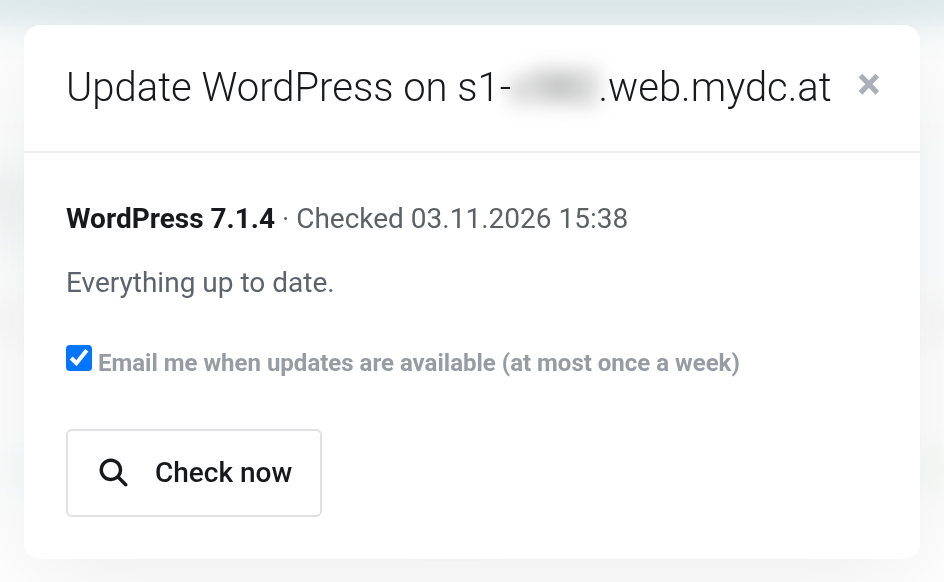
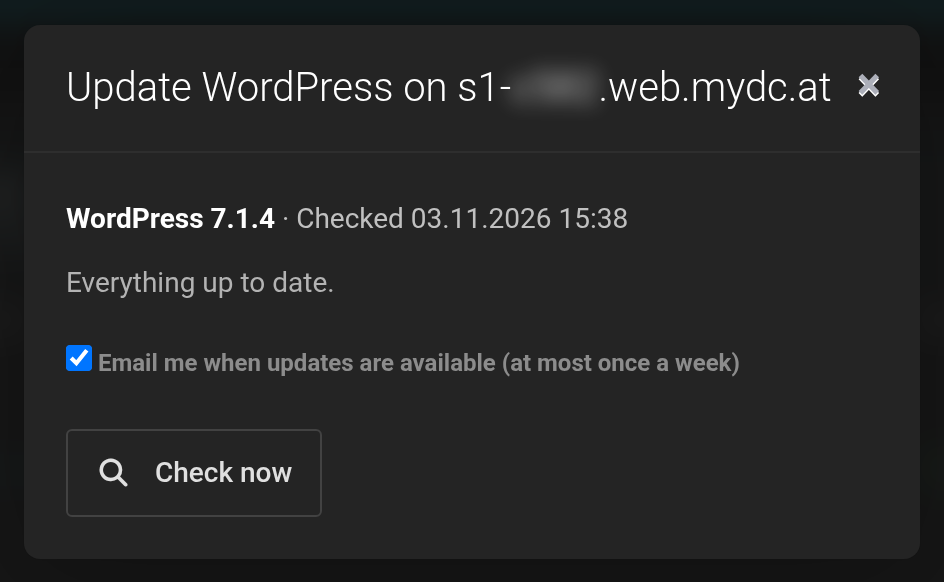 Everything is up to date here; the email reminder is switched on.
If it does not work
- The Install app button is missing
- The website is not empty, has a document root other than
publicor runs with Node.js or Ruby. Create a new website. - No free database slot (max. …).
- All booked databases are in use. Delete one you no longer need or book more — see Changing resources.
- “admin” and similar are not allowed.
- Choose a different admin user, for example your first name.
- Requires at least 2 cores and more than 2 GB RAM.
- Applies to Shopware. Increase the cores and memory of your package.
- The installation failed
- The row shows Error. Log shows what went wrong. If that does not help, get in touch with us.
Where to go next
- Sending email from your website — so that contact forms arrive
- Creating and using databases
- Restoring and downloading backups


