
Damit Ihre virtuellen Maschinen untereinander kommunizieren können, brauchen Sie ein virtuelles Netzwerk. Es entspricht einem eigenen LAN, das nur Ihnen gehört.
Netzwerk anlegen
Öffnen Sie Ihre Plattform-Übersicht und klicken Sie auf Virtuelles Netzwerk erstellen. Sie vergeben:
- Name
- Zur Wiedererkennung, etwa
LANoderDMZ. - Pool und CIDR
- Der Adressbereich, zum Beispiel
172.16.10.0/24. - Gateway
- Die Adresse des Übergangs, üblicherweise die erste Adresse des Bereichs.
- VLAN
- Die Kennung, über die das Netz von anderen getrennt wird. Vergeben Sie jede Kennung nur einmal.
Anschließend steht das Netzwerk unter Virtuelle Maschine erstellen und in der Netzwerkverwaltung jeder VM zur Auswahl.
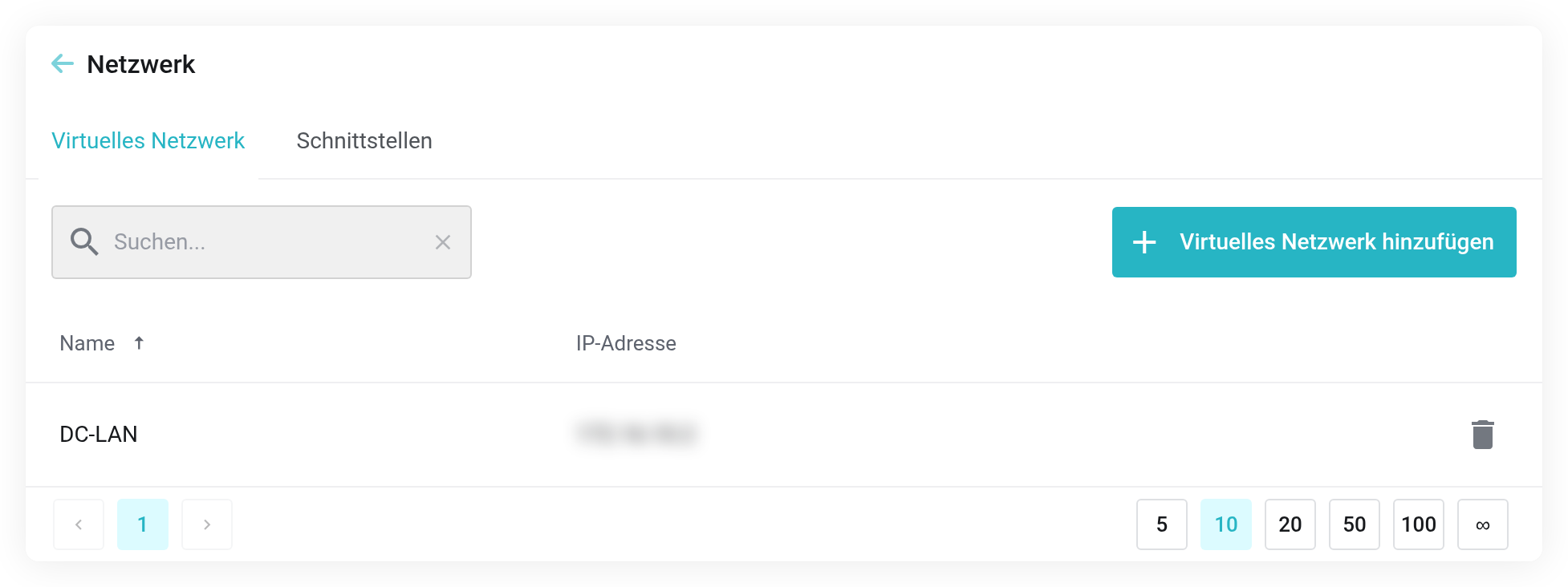
 Netzwerkseite einer VM: zugewiesene Netzwerke und Schnittstellen.
Netzwerk einer VM zuweisen
In der Verwaltung der VM unter Netzwerk fügen Sie über Virtuelles Netzwerk hinzufügen eine Karte hinzu und vergeben die IP-Adresse. Im Reiter Schnittstellen sehen Sie die Karten der VM.
Nach Änderungen genügt in der Server-Übersicht die Schaltfläche Netzwerk neu konfigurieren, damit die VM die neue Zuordnung übernimmt.
Netzwerke anderer Dienste mitbenutzen
Beim Anlegen einer virtuellen Maschine können Sie im Feld Quelle von Aus diesem Service auf Aus allen Services wechseln und die Maschine direkt in ein Netzwerk eines anderen Ihrer Cloud-Dienste hängen. Einzelheiten in Netzwerke anderer Dienste mitbenutzen.