
There are two separate tools for your virtual machines: Snapshots for going back quickly and Backups for real protection.
The difference
| Snapshot | Backup | |
|---|---|---|
| What it is for | Going back to an earlier state before an update or a risky change | Restoring after a failure, deletion or encryption |
| Where it is stored | On the same disk as the VM | Separately, on backup storage |
| Survives loss of the VM | no | yes |
A snapshot is not a backup. If the virtual machine is lost, its snapshots are gone with it. For restoring, always rely on backups.
Snapshots
In the management view of the VM, under Snapshots, you take a snapshot and later go back to it. This is worthwhile right before a system update. Delete snapshots again once the change has proven itself — they take up space and slow things down over time.

 Snapshots of a virtual machine.
Backup Jobs
You create scheduled backups at the platform level: left-hand column, Backup Jobs → Create Backup Job.
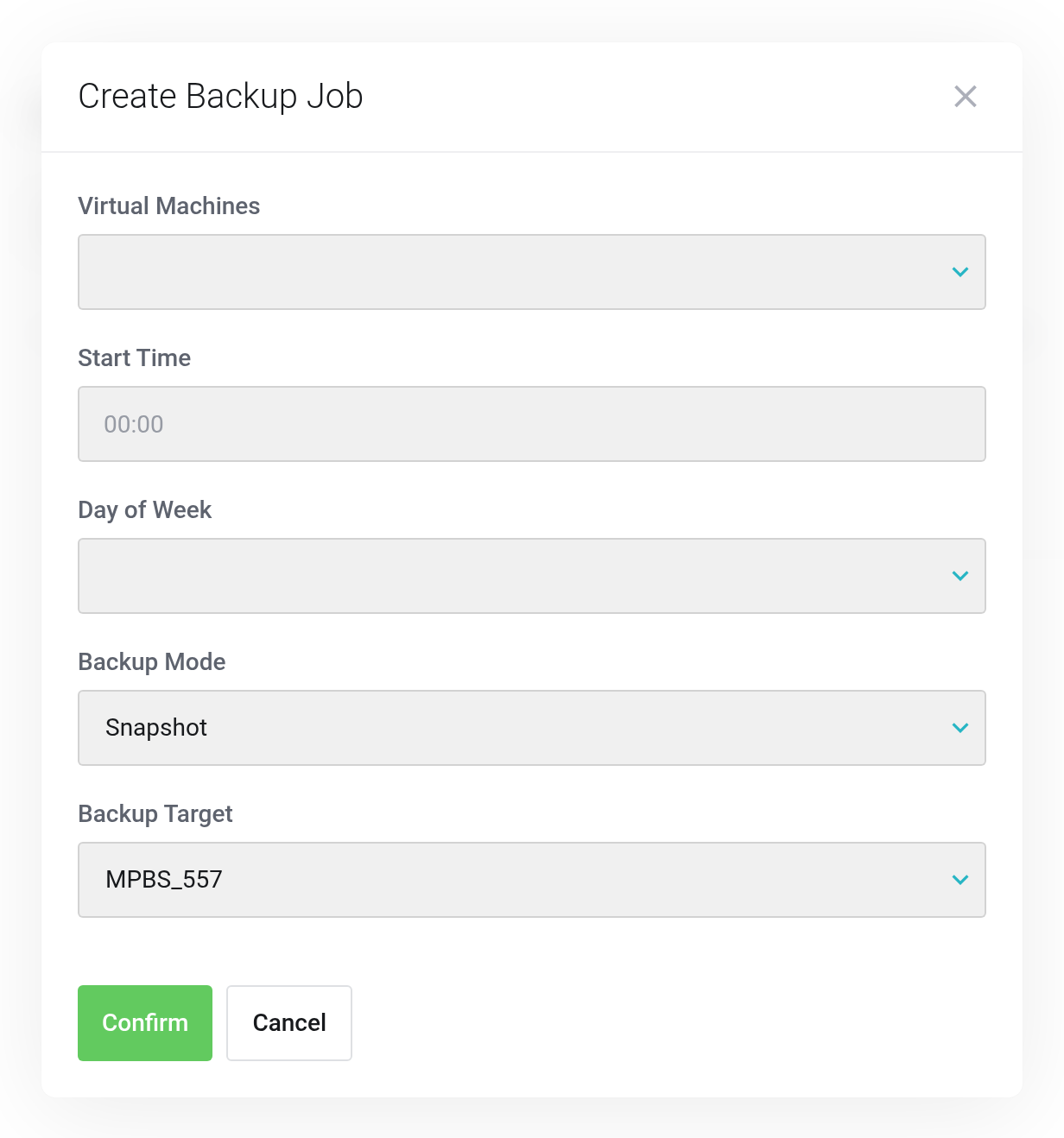
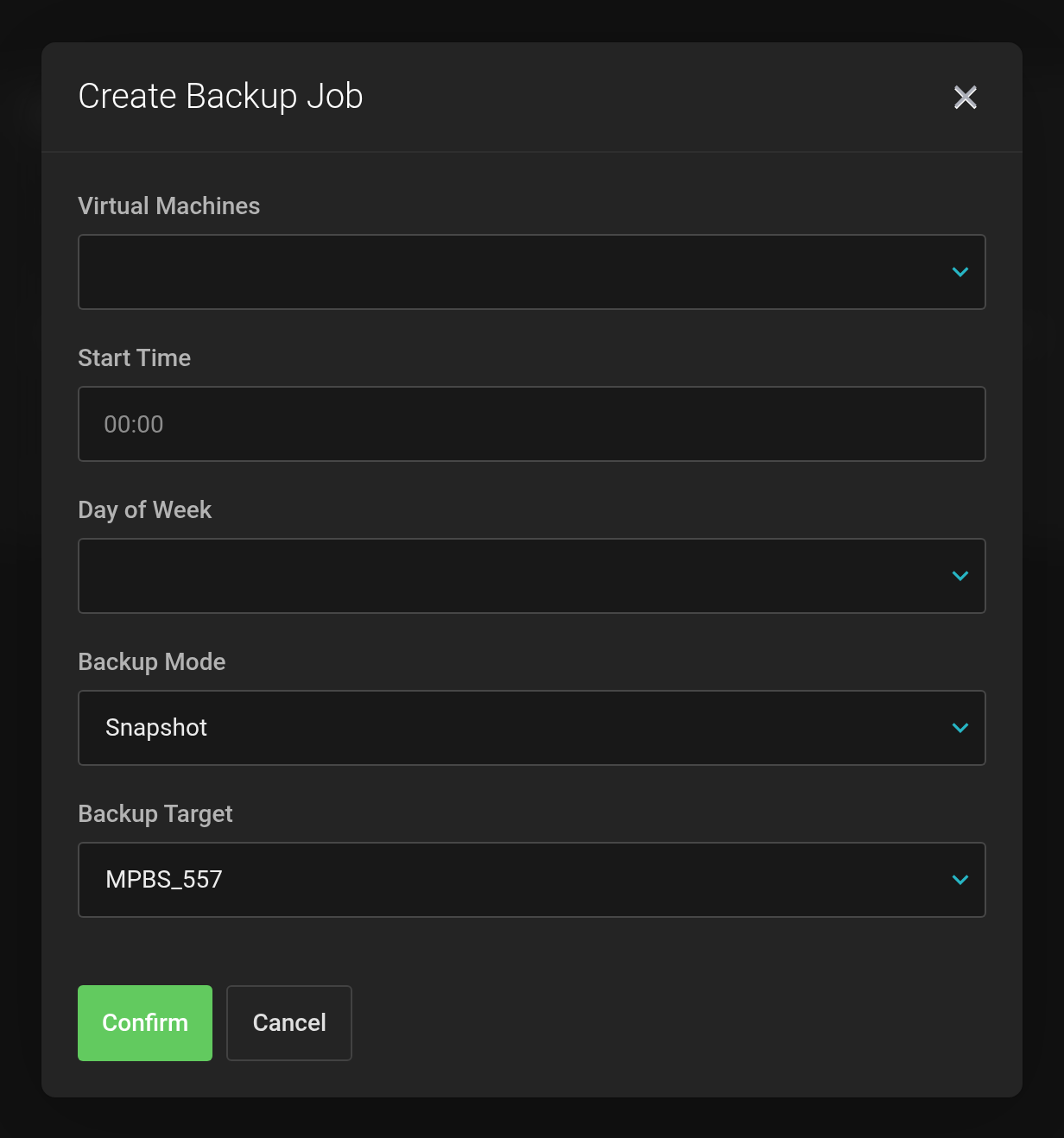 A backup job covers several VMs, a schedule, a mode and a target.
- Virtual Machines
- Which VMs are backed up. You can select more than one.
- Start Time and Day Of Week
- When the job runs — put it outside your peak load hours.
- Backup Mode
- Snapshot backs up the running VM without stopping it.
- Backup Target
- Where the backups are written.
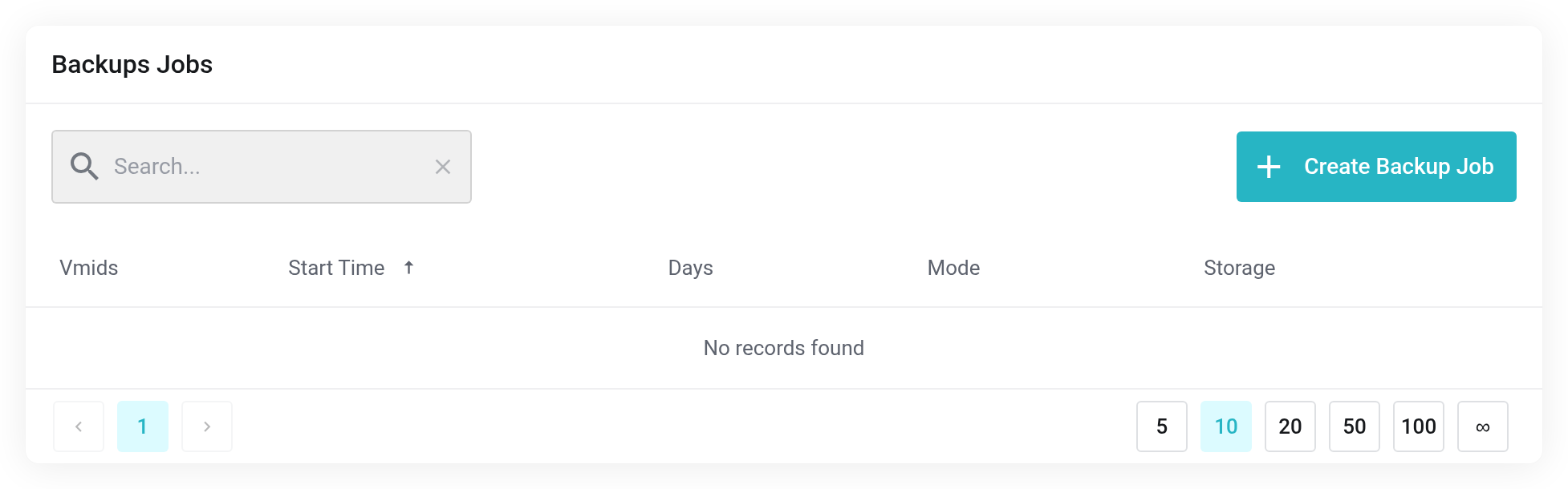
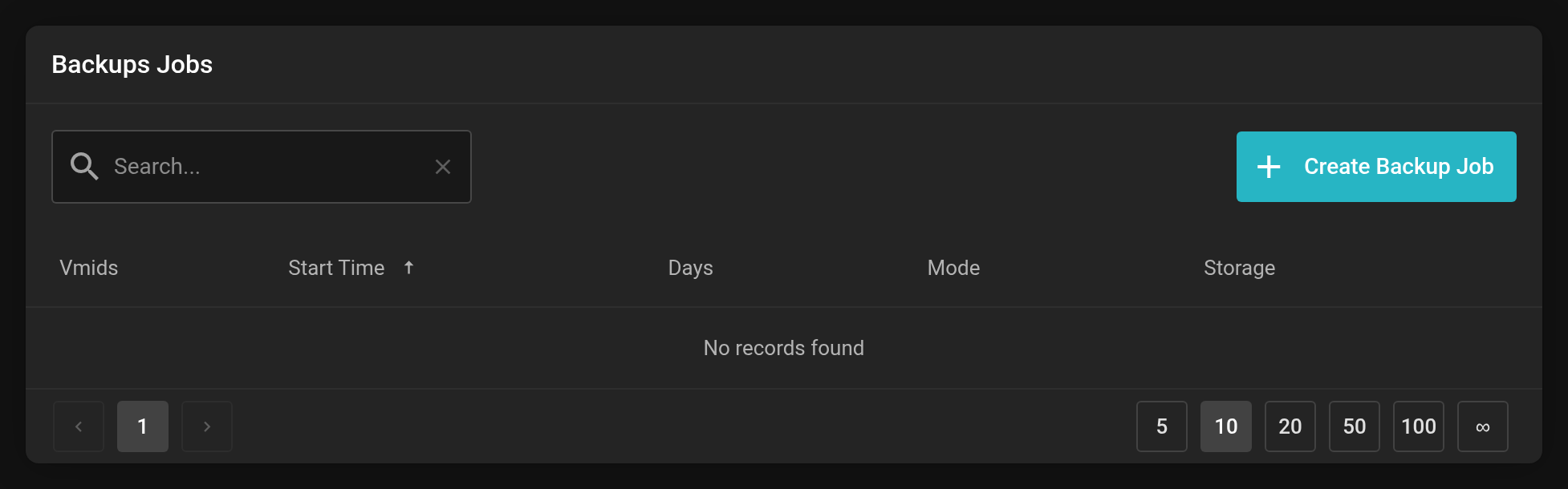 An overview of the backup jobs you have created.
Backing up to your own backup server
If you have ordered a Managed Proxmox Backup Server, its datastore appears here as a backup target. Your backups then sit in your own storage, and from there you can also restore them back into a Cloud or Server product.
Restoring
You find the existing backups of a VM in its management view under Backups. From there you restore a saved state.
A restore overwrites the current state of the virtual machine. Everything that has been created since the backup is lost. If in doubt, back up the current state first.