
The VNC Console shows the screen of your virtual machine in the browser – as if you were sitting in front of a monitor. It works even when the network of the VM is down. You need it for installing from an ISO image and for troubleshooting when SSH or Remote Desktop no longer work.
Opening the console
Open the virtual machine. You then have three ways:
- the VNC Console button in the bar at the top,
- a click on the preview image in the Console box of the Server Summary,
- the VNC Console entry in the left-hand column.
The console opens in a window of its own, 800 × 600 pixels. As soon as the connection is up, the window adapts to the screen resolution of the VM.
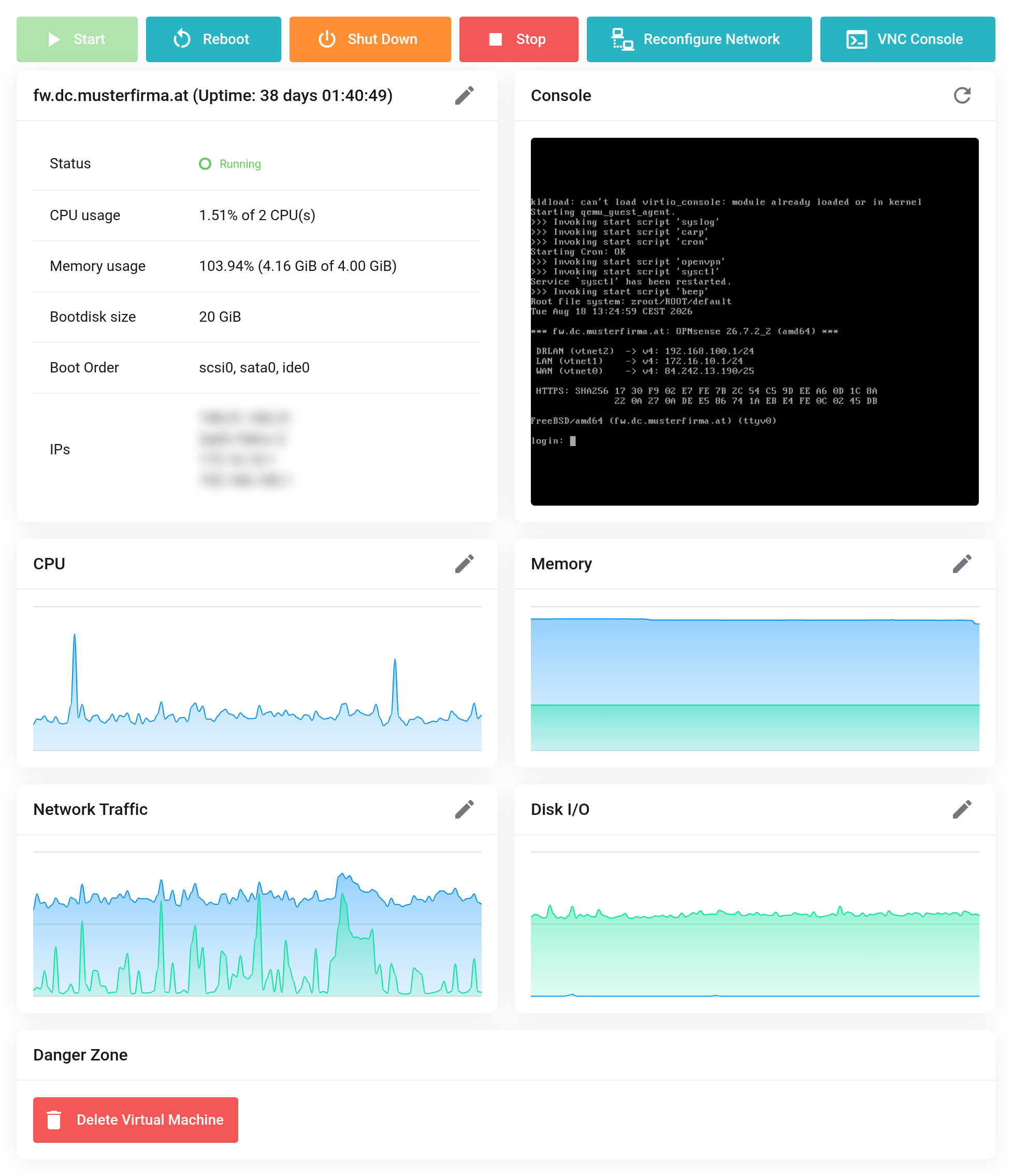
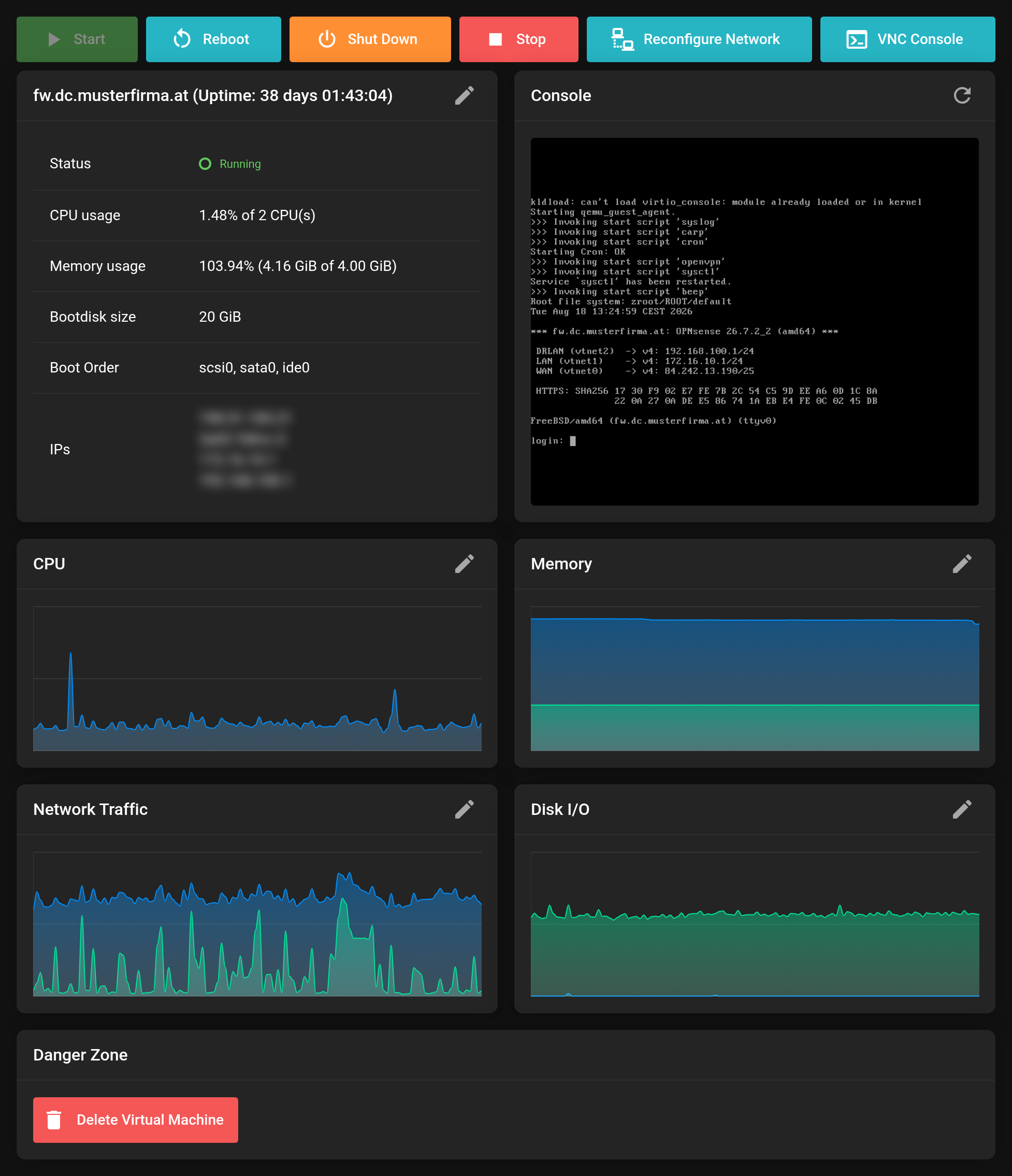 The VNC Console button at the top, the preview image on the right. The screen content is blurred in this picture.
No window opens? Your browser has blocked the pop-up. Allow pop-ups for the Client Area and click again.
The bar at the edge of the console window
A bar on the left edge of the console window can be expanded and collapsed. Its labels follow the language of your browser. It contains:
- Extra keys
- Ctrl, Alt, the Windows key, Tab, Esc and Ctrl+Alt+Del. Use them for key combinations your own computer would otherwise catch – for example Ctrl+Alt+Del for the Windows sign-in.
- Paste text (type)
- Types a text into the VM, see below.
- Full screen
- Shows the console across the whole screen.
- Settings
- Scaling, image quality and compression. Under Window size you choose Fit to VM (default), Maximized or Unchanged. Your browser remembers the choice.
Pasting text, such as a password or a command
A VM does not share a clipboard with your computer. Paste text (type) helps: the console types the text character by character, as if you entered it on the keyboard.
- Copy the text to the clipboard on your computer.
- Click into the console so that the input field of the VM is active, for example the password prompt.
- Click Paste text (type) in the bar (clipboard icon). If your browser asks for access to the clipboard, allow it – or paste the text into the field that opens instead.
- The console shows how far the typing has got. Clicking the same button again cancels it.
Mind the keyboard layout of the VM. The characters arrive the way the keyboard layout in the operating system of the VM translates them. Umlauts and special characters are therefore only correct if the layout of the VM matches. Check the result for passwords – or use a password of letters and digits for the first access.
If the connection drops
If an established connection drops unexpectedly – during a brief network outage or a reboot of the VM, for example – the console reconnects on its own after three seconds. It tries this at most three times within five minutes. After that, “Connection lost repeatedly – please reopen the console later” appears. Close the window and open the console again.
If you disconnect yourself, the console does not reconnect.
If it does not work
- The console stays black.
- Many systems switch the screen off after a while. Press a key in the console, for example Shift.
- The console does not connect.
- Check in the Server Summary whether the VM is running. A stopped VM has no screen. Start it with Start and open the console again.


