
If your domain is with another provider, you can transfer it to us. This article shows what to prepare, how to order the transfer and how your website and email keep running without interruption.
Before you start
- Check with your current provider that the domain is released for a transfer. Many providers have a lock for this that you need to remove first.
- Ask them for the authorization code. It is also called auth code or EPP code and works like a password for your domain.
- Write down the name servers your domain currently uses. You need them if the domain is already in use — see below.
- If DNSSEC is enabled at your current provider, have it disabled there. A signature that no longer matches after the move makes the domain unreachable for many users.
- Check that your account details contain a phone number. Without it, the registry does not accept the holder.
Ordering the transfer
- Open Store → Register a New Domain and, on the left under Actions, Transfer Domains to Us.
- Enter your domain under Domain Name and click Order Now.
- The Authorization Code window opens. Enter the code and click Confirm.
- Set up the domain in the Domains Configuration step — just as for a registration, see Registering a domain — and complete your order.
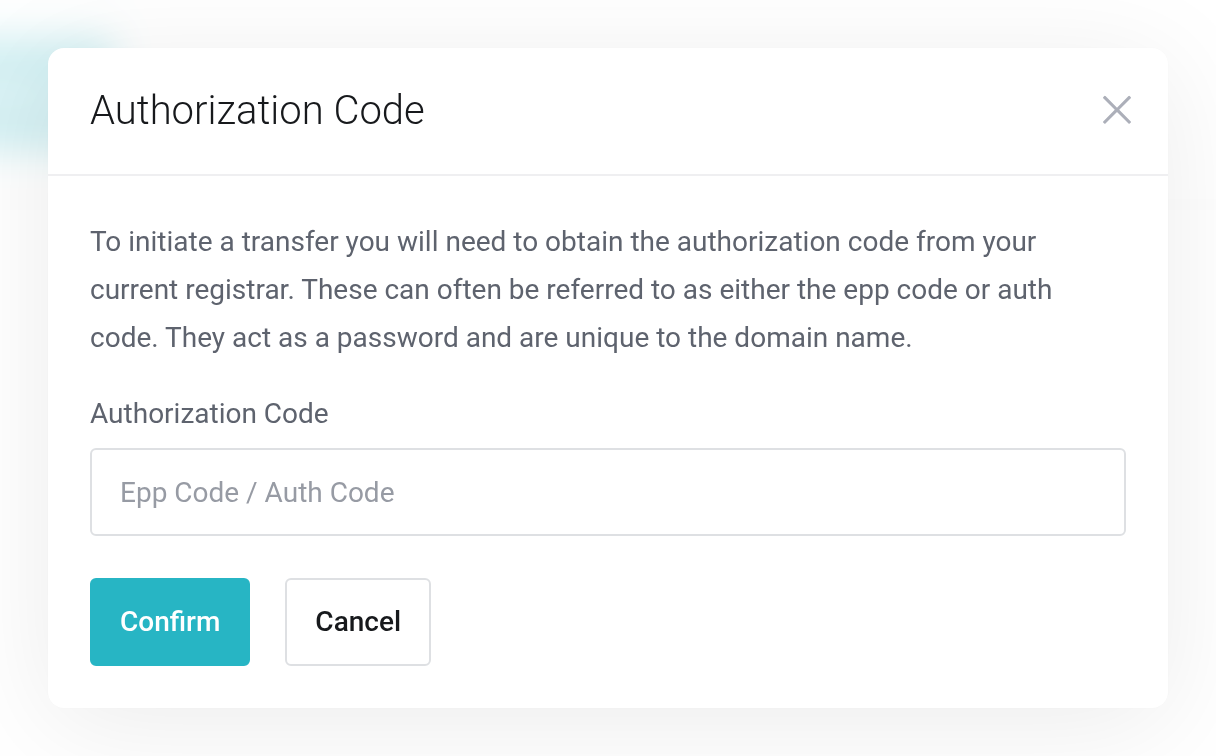
 You get the authorization code from your current provider.
The transfer usually extends your domain by one year. Some extensions and recently renewed domains are excluded.
Transferring a domain in use without interruption
Our name servers are pre-filled in the cart. For a new domain, that is correct. If a website or email already runs on the domain, however, we do not bring its DNS records along automatically: the zone on our name servers starts out empty.
- In the Domains Configuration step, enter your domain's current name servers under Nameservers instead of ours.
- Wait until the transfer has completed and the domain is active.
- Open DNS management on the domain, create the zone and enter your records there — see DNS management on the domain.
- Only then switch the name servers to ours — see Changing name servers.
Ask your current provider how long they keep serving the records after the transfer. Until you switch the name servers, they still come from there.
Special case: .uk domains
Domains ending in .uk (also .co.uk, .org.uk and others) have no authorization code, so the window for it does not appear. Instead, the Domains Configuration step shows the notice No auth code needed with the tag (Nominet tag) your current provider has to change the domain to. Ask them to do so. The transfer completes as soon as the tag has been changed.
If something doesn't work
- Instead of the authorization code window, a message appears
- The domain cannot be transferred this way — for example because it is not registered at all. Check the spelling.
- The transfer gets stuck
- Usually the authorization code is wrong or the domain is still locked at your current provider. Ask them for a new code and get in touch with us.
- DNS management says it only becomes available after the transfer
- That is intended. You can change records as soon as the transfer has completed.


