
Many websites store their content in a database — WordPress, for example, keeps posts, pages and settings there. On your Managed Webserver you create MariaDB databases in a few clicks and edit them right in the browser when needed.
If you install an application with Install app, we create the database automatically. You need this article if you upload an application of your own or move an existing website.
Creating a database
- Open Databases in the left-hand column and click Add database.
- Enter a Name: lowercase letters and digits, at most 32 characters. We automatically put your client prefix in front, for example
c1234_. Soshopbecomesc1234_shop. - Click Create.
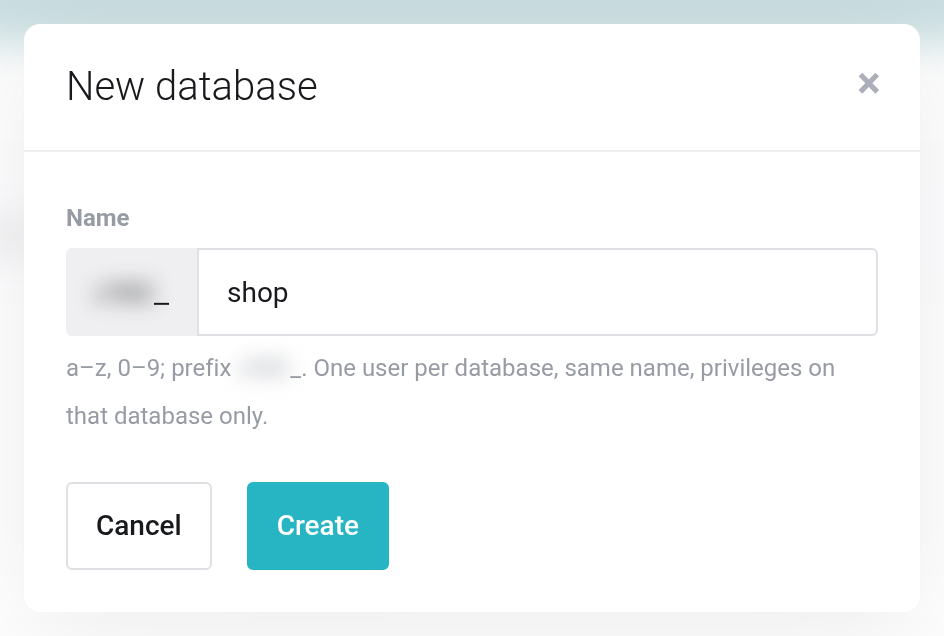
 We add the client prefix in front of the name automatically.
The database password is shown only once. After creation, the box New database – credentials appears at the top with database, user and password. Copy the password with Copy before you leave the page. If you missed it, simply generate a new one (see below).
Connection details for your application
Your application asks for these details during setup. They are shown under Connection for your applications:
| Setting | Value |
|---|---|
| Database name | the name from the list, for example c1234_shop |
| User | same as the database name — each database has its own user that may only access this database |
| Password | the password shown at creation |
| Host | localhost |
| Socket (if asked) | /run/mysqld/mysqld.sock |
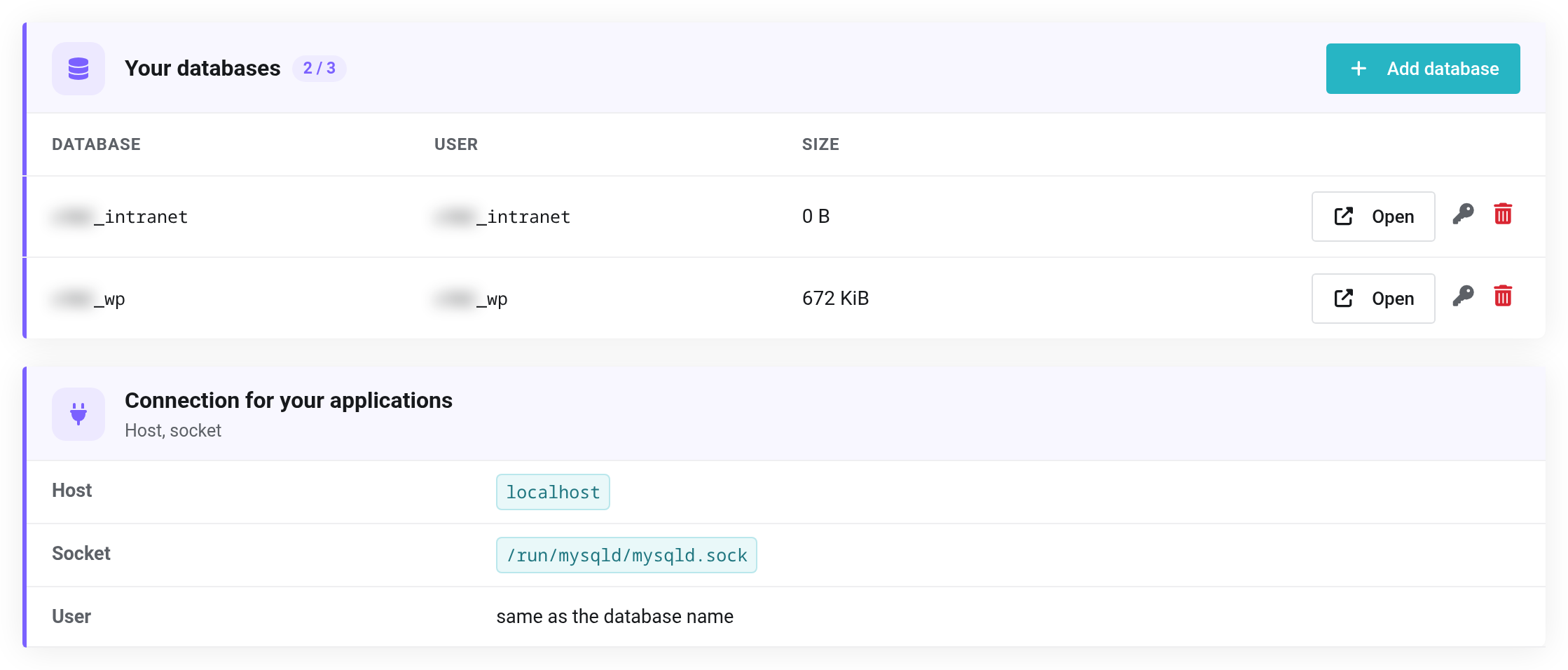
 Two databases; the connection details are below them.
The databases can only be reached by your websites. You cannot connect to them from outside, for example from your own PC — that is what Open is for.
Opening a database in the browser
Open in the database's row starts the database interface Adminer in a new tab — without a password, valid for 8 hours. There you see the tables, search for entries, change values and import or export SQL files.
If your browser blocks new tabs, click the link If nothing happens: click here.
Generating a new password
- Click Generate new password (key icon) in the database's row and confirm.
- Copy the new password from the box at the top.
- Enter it in your application, for WordPress in the file
wp-config.php.
The current password stops working immediately. Until you have entered the new one in your application, the website cannot load any data.
Storage
Databases count towards your web space. The Size column shows how large each one is; you see the total under Information and under Usage.
Deleting a database
Deleting removes all tables and data. A website that uses the database stops working. A deleted database can be restored from a backup — see Restoring and downloading backups.
- Click Delete database (trash icon) in the database's row.
- Tick Yes, delete permanently and click Delete.
If it does not work
- Name: a–z, 0–9, max. 32 characters.
- The name contains capital letters, hyphens, spaces or special characters. Use lowercase letters and digits only.
- Plan limit: … databases.
- All booked databases are in use. Book more — see Changing resources.
- The application reports “Access denied”
- User or password are wrong. The user has the same name as the database. If in doubt, generate a new password.


