
Contact forms, order confirmations, password links: almost every website has to send emails. On your Managed Webserver this works without a mail server of your own — your websites send through our sending service. This article shows what works without any setup, when you need SMTP credentials and how your emails arrive reliably.
You find everything under Services in the Email sending section.
Without any setup: mail() from the website
In every package, your websites can send emails with the PHP function mail() and with sendmail. You do not need to set anything up. The top right of the section then shows Basic; the limit is 50 emails per day and 10 per minute.
Direct connections to other mail servers are blocked. An SMTP plugin that sends through another provider therefore does not work — use our credentials instead (see below).
Who is allowed as sender
Senders may use the domains of your websites, including subdomains — so office@musterfirma.at, for example, if one of your websites is called musterfirma.at. In addition, Senders lists an address of your package's own that always works.
Emails cannot be sent from preview addresses. Connect your own domain to the website first — see Creating a website and connecting your domain.
With the Email sending add-on: SMTP for WordPress and co.
Many applications and plugins such as WP Mail SMTP require an SMTP server with credentials. You get these with the Email sending add-on; the limit then rises to 200 emails per hour and 1,000 per day. Without the add-on, the section shows the Order add-on button.
Once it is booked, the top right shows Email sending, and the section shows the credentials:
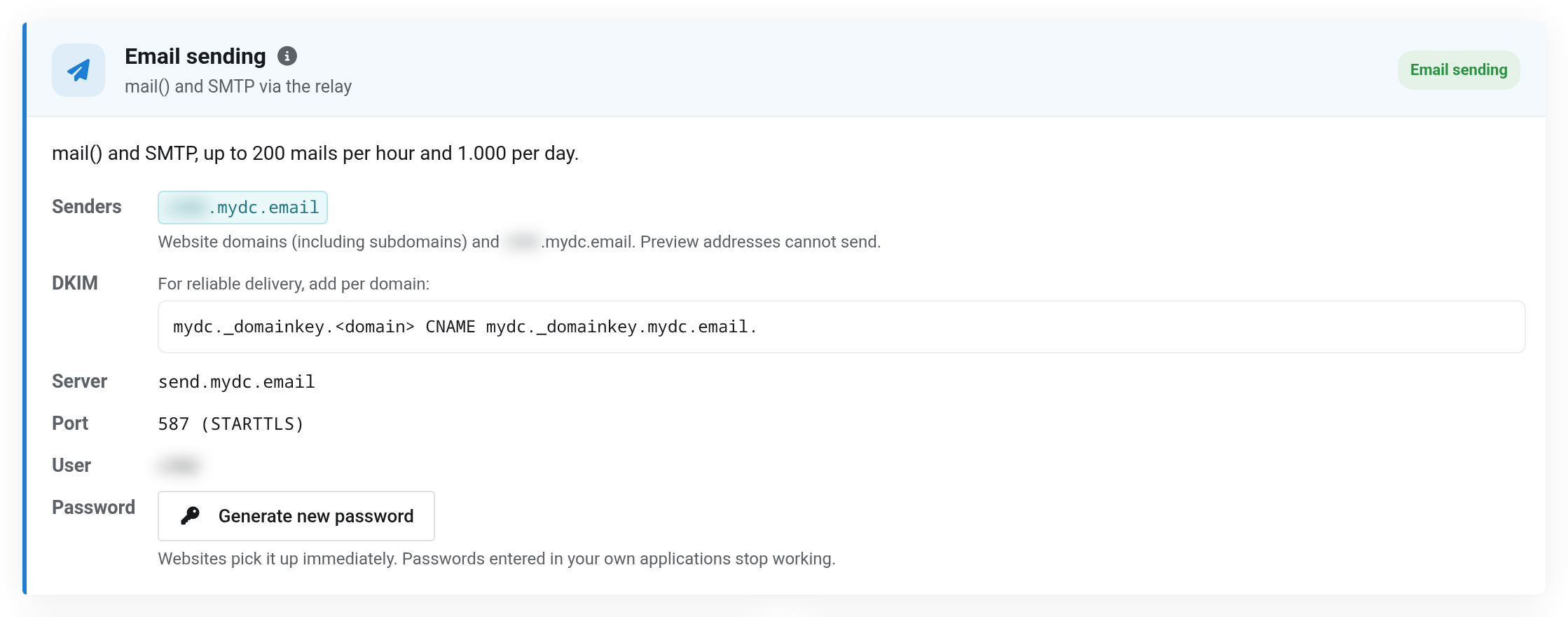
 Enter server, port and user in your application.
| Setting in your application | Value |
|---|---|
| SMTP server | send.mydc.email (shown under Server) |
| Port | 587 |
| Encryption | STARTTLS (called “TLS” in some plugins) |
| Authentication | yes |
| User | the value under User |
| Password | create it with Generate new password |
| Sender | an address with your website's domain |
- In the Email sending section, click Generate new password.
- Copy the password from the box at the top of the page. It is shown only once.
- Enter the values from the table in your application and send a test email.
A new password replaces the old one immediately. Your websites pick it up automatically for mail(). In applications where you entered the password yourself, you have to enter it again.
Making sure your emails arrive: DKIM
Recipients check whether an email really comes from your domain. For this, we sign every email digitally (DKIM) — as soon as you have created this record once in your domain's DNS zone:
| Name | Type | Target |
|---|---|---|
mydc._domainkey | CNAME | mydc._domainkey.mydc.email. |
Create the record for every domain you send emails from. The section shows the exact record under DKIM. If you manage your domain in our Managed DNS, create it there — see Creating and editing DNS records.
You do not need an SPF record for sending through us. If your domain has a DMARC policy, however, the DKIM record is mandatory — without it, many recipients reject your emails.
If it does not work
- The website reports the email as sent, but it does not arrive
- First check the recipient's spam folder. Without the DKIM record, emails end up there more often or are rejected.
- The contact form does not send anything
- The sender address does not belong to one of your websites' domains, or the website only runs at its preview address.
- The SMTP plugin reports a sign-in error
- The password is no longer valid, for example because a new one was generated. Generate a new one and enter it.
- Beyond a certain number, nothing arrives
- The daily limit has been reached. The Email sending add-on allows 1,000 emails per day. Each email may have at most 50 recipients.


