
When your website grows, you simply book more for your Managed Webserver: CPU cores, memory, storage, more websites and databases, or the Memcache & Redis option. You can also reduce cores and memory again. This article shows how this works and which limits apply.
Changing resources
- Open your Managed Webserver and click Upgrade/Downgrade Options under Actions in the left-hand column. Under Usage, Get more resources also leads there.
- Your current configuration is on the left; choose the new one on the right: CPU Cores, RAM, Speicher (storage), the number of Websites and Datenbanken (databases), and Memcache & Redis.
- Click Click to Continue >>. The next page shows the price of the change, and you confirm the order.
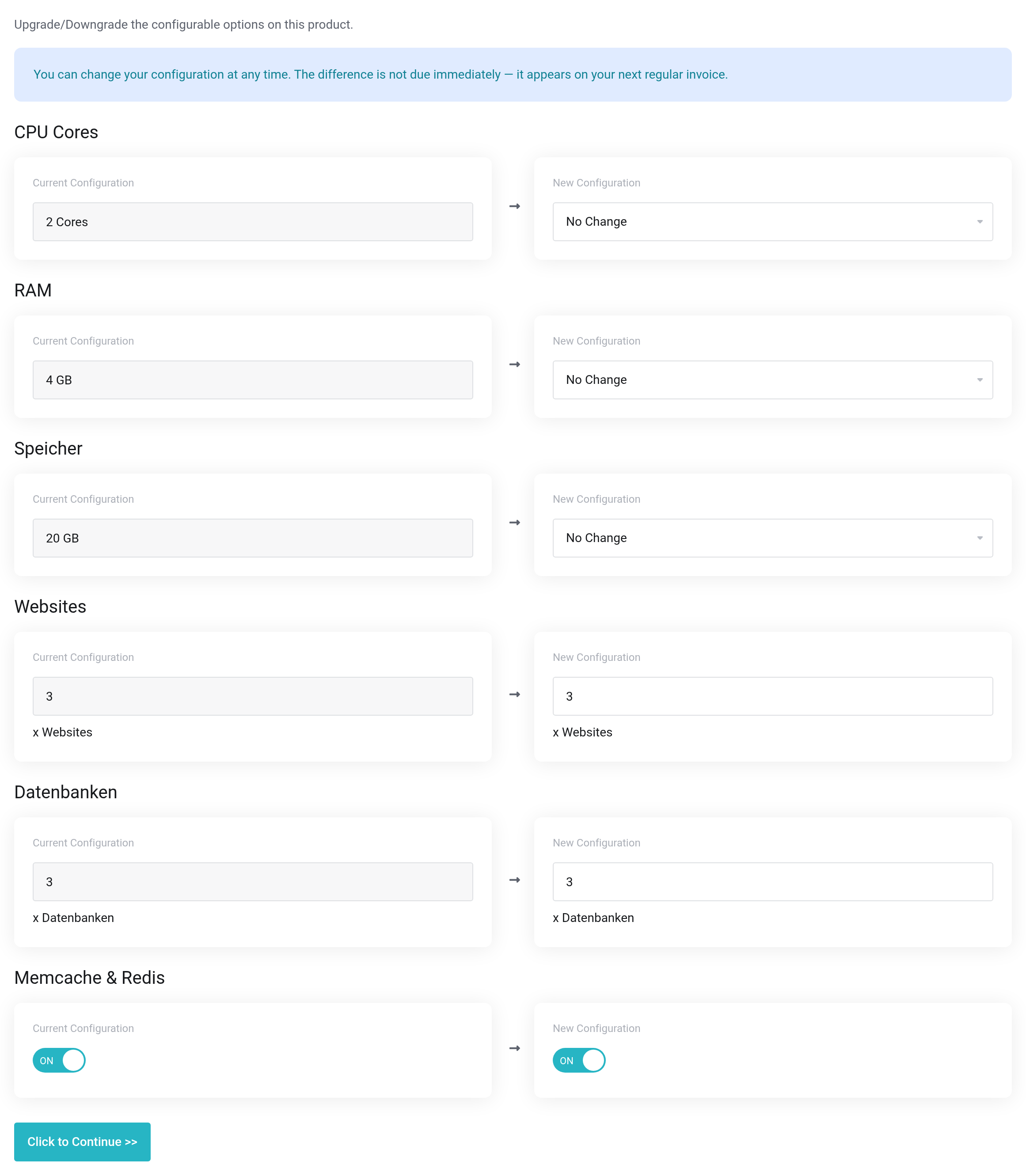
 Current configuration on the left, new configuration on the right.
After the order, we change your package automatically. With the Shared Webhost, your websites keep running. With the Dedicated Webhost, we resize your own server and restart it; your websites are unreachable for a few minutes.
What can be changed — and what cannot
| Option | More | Less |
|---|---|---|
| CPU cores and RAM | any time | any time |
| Memcache & Redis | any time | any time; running services are switched off when you remove the option |
| Websites and databases | any time | only down to the number you currently use |
| Storage | any time | not possible |
Storage can only be increased, not reduced. So do not choose more than you foreseeably need when increasing it.
If you want to book fewer websites or databases than you currently use, delete the surplus ones first — see Creating a website and connecting your domain and Creating and using databases.
Switching between Shared Webhost - Vienna and Dedicated Webhost - Vienna is not possible on this page. Get in touch with us for that.
How much do I need?
The Usage page is a good guide: if the CPU or memory peak is often at the limit, or a throttling notice appears there, more resources make sense. Shopware requires at least 2 cores and more than 2 GB RAM. See Keeping an eye on usage.
If it does not work
- Storage cannot be reduced – please choose at least … GB (currently booked).
- Choose at least the storage you currently have booked.
- You currently use … websites – please choose at least … websites or delete websites first.
- First delete the websites you no longer need. The same applies to databases.
- The page does not allow any change
- If a renewal invoice for your package is unpaid, a change is only possible after it has been paid.


