
Private Cloud Computing – Platform is your own virtual data center: you create as many virtual machines as you like, connect them through your own private networks and manage everything yourself in the Client Area.
All virtual machines run with high availability: if a physical server fails, they automatically start again on another one. To switch a machine off, therefore always use Shut Down in the Client Area and not the command inside the operating system — see Managing a virtual machine.
Your allowance
You order an allowance and distribute it freely across your virtual machines:
- CPU Cores and RAM
- Disk space for the boot disks, plus additional disk space on NVMe or SSD that you order separately
- Virtual networks and public IPv4 addresses
- Internet bandwidth and internal LAN bandwidth
You can see the usage at any time at the top of the product page. If the allowance is no longer sufficient, you extend it under Actions → Upgrade/Downgrade Options.
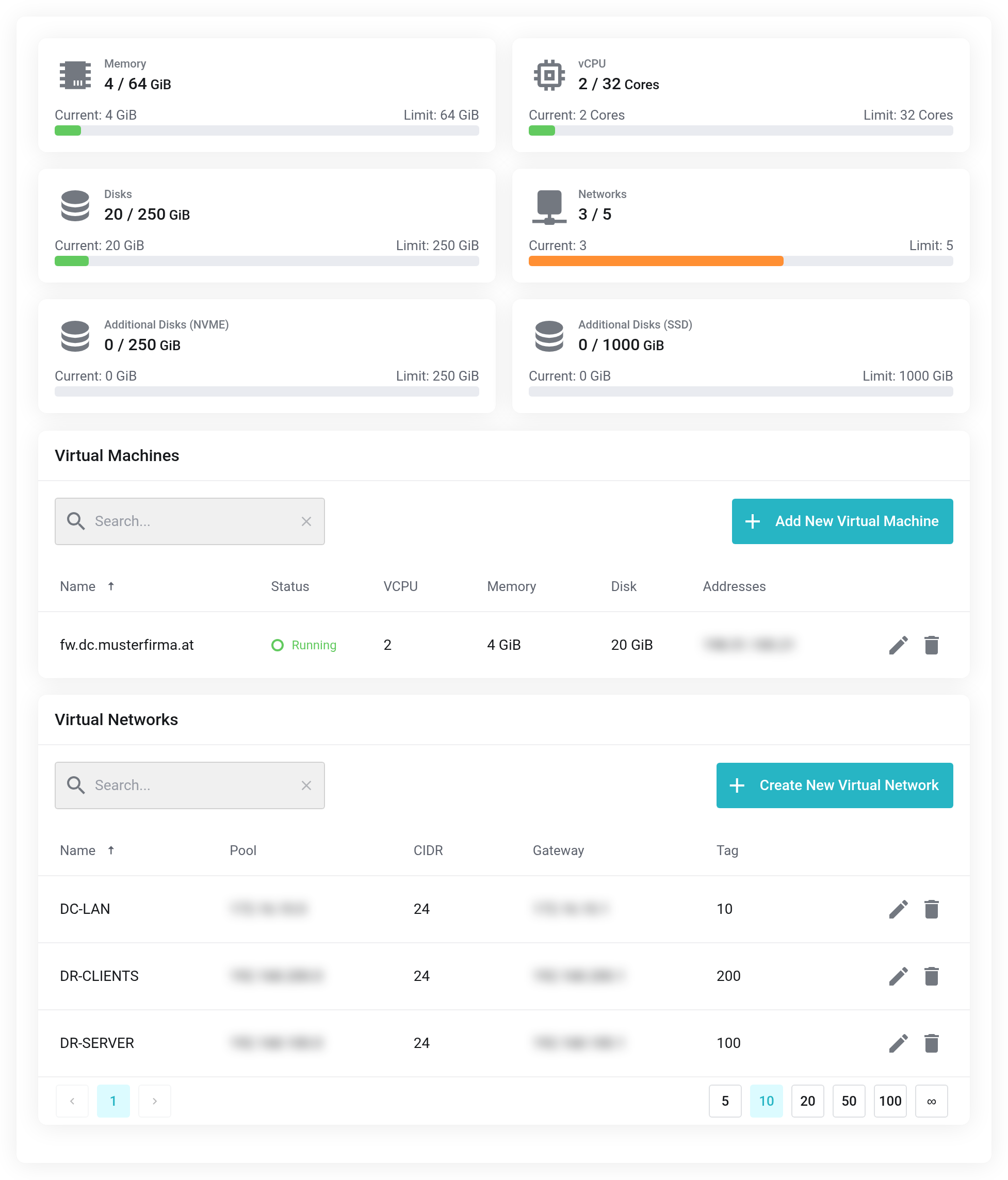
 At the top the allowance, below it your virtual machines and networks.
What you can do here
- Add New Virtual Machine
- Create a new VM from a template or from an ISO image.
- Create New Virtual Network
- Private networks through which your VMs communicate with each other.
- Managing a virtual machine
- Clicking the name of a VM opens its management view: Console, Network, Firewall, Snapshots, Reinstall.
- Backup Jobs
- Scheduled backups of your virtual machines.
First steps
- Creating a virtual network — most setups need one before the first VM is created.
- Creating your first virtual machine.
- Setting up a backup job.