
With the Managed Webserver you run your websites without having to look after a server. We operate the web server, PHP, databases, certificates and backups — you create a website, upload your files or install WordPress with one click.
This article shows what your package includes, where to find everything and in which order you bring your first website online.
Shared or Dedicated
The Managed Webserver comes in two versions. You use both in exactly the same way in the Client Area.
| Product | For whom | Resources |
|---|---|---|
| Shared Webhost - Vienna | For most websites. Several customers share one web server, each in their own isolated environment with fixed limits for computing power and memory. | 1 to 8 CPU cores, 1 to 16 GB RAM, 2 to 200 GB storage |
| Dedicated Webhost - Vienna | For projects with high resource needs. You get your own web server that works for you alone. | 4 to 16 CPU cores, 8 to 64 GB RAM, 100 to 1,000 GB storage |
With the Dedicated Webhost we set up your own server after you order. Until it is ready, the product page shows Your Dedicated Web Host is being set up. This usually takes a few minutes; the page refreshes itself.
What your package includes
- Websites — as many as you have booked. Each website has its own preview address and, if you like, your own domain with an automatic SSL certificate.
- Databases (MariaDB) — as many as you have booked.
- Web space — the storage for files and databases together.
- Resources — the booked CPU cores and memory (RAM).
- PHP 8.3 and 8.4, selectable per website, plus Node.js and Ruby.
- One-click installation of WordPress, Joomla, TYPO3, Nextcloud, MediaWiki and Shopware.
- Up to 10 access accounts for SFTP and FTPS, optionally with an SSH shell, and a file manager in the browser.
- Up to 10 cron jobs, that is, commands that run automatically at fixed times.
- Daily backups on a separate backup server.
- Memcache and Redis, if you have booked the Memcache & Redis option.
- Sending email from your websites; SMTP credentials for WordPress & co. come with the Email sending add-on.
Where you manage the service
Client Area → My Products & Services → your Managed Webserver. The left-hand column contains these sections:
- Information
- The overview: usage, quick access and connection details.
- Websites
- Create websites, connect domains, choose the PHP version, install applications. See Creating a website and connecting your domain.
- Databases
- Create and open databases. See Creating and using databases.
- Access
- Accounts for SFTP, FTPS and SSH. See Uploading files: SFTP, FTPS, SSH and file manager.
- Services
- Email sending, Memcache, Redis, cron jobs, Node.js and Ruby. See Cron jobs, Memcache, Redis, Node.js and Ruby.
- Backups
- Restore and download backups. See Restoring and downloading backups.
- Usage
- CPU, memory, storage and visitors. See Keeping an eye on usage.
- File manager
- Your files right in the browser.
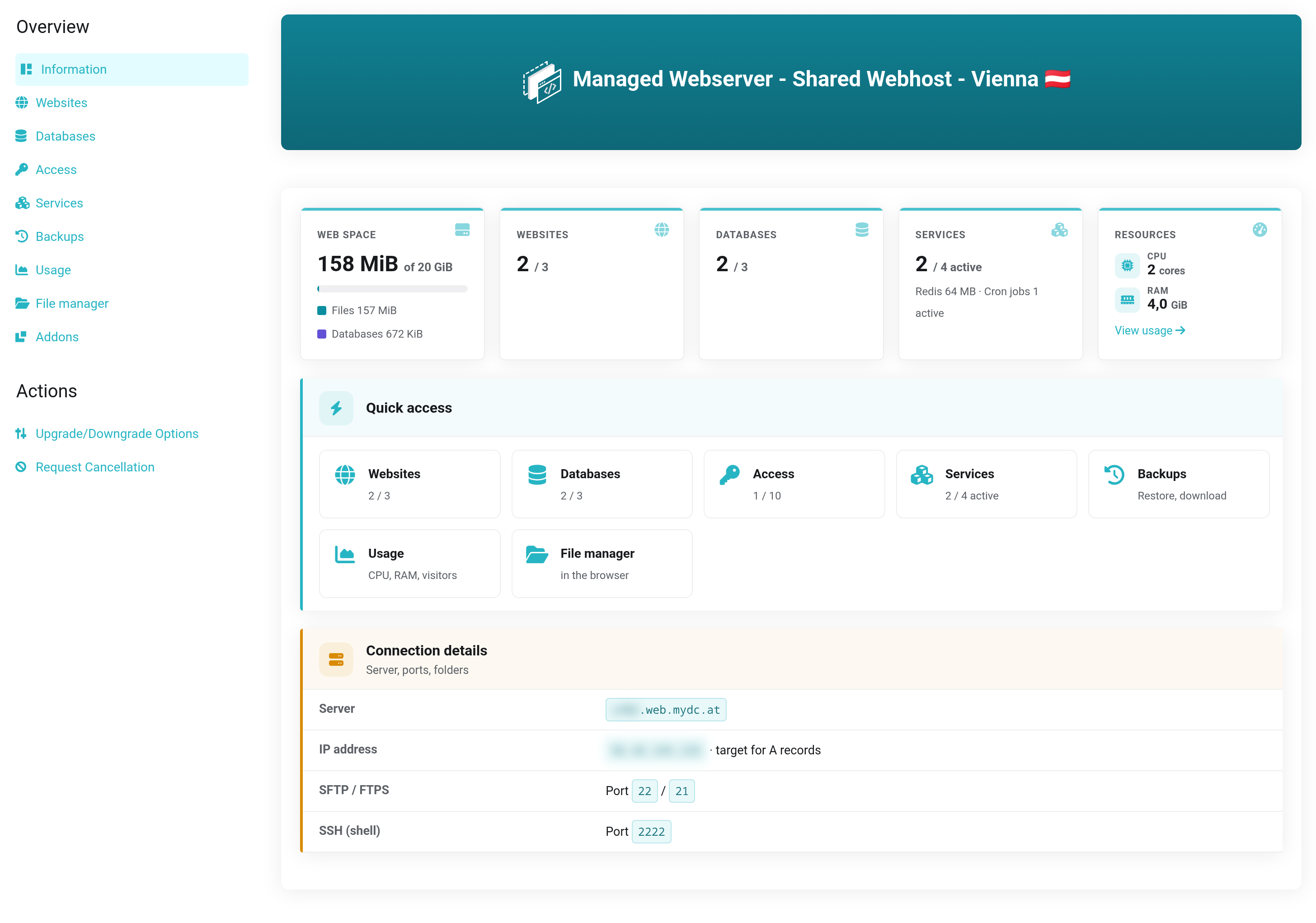
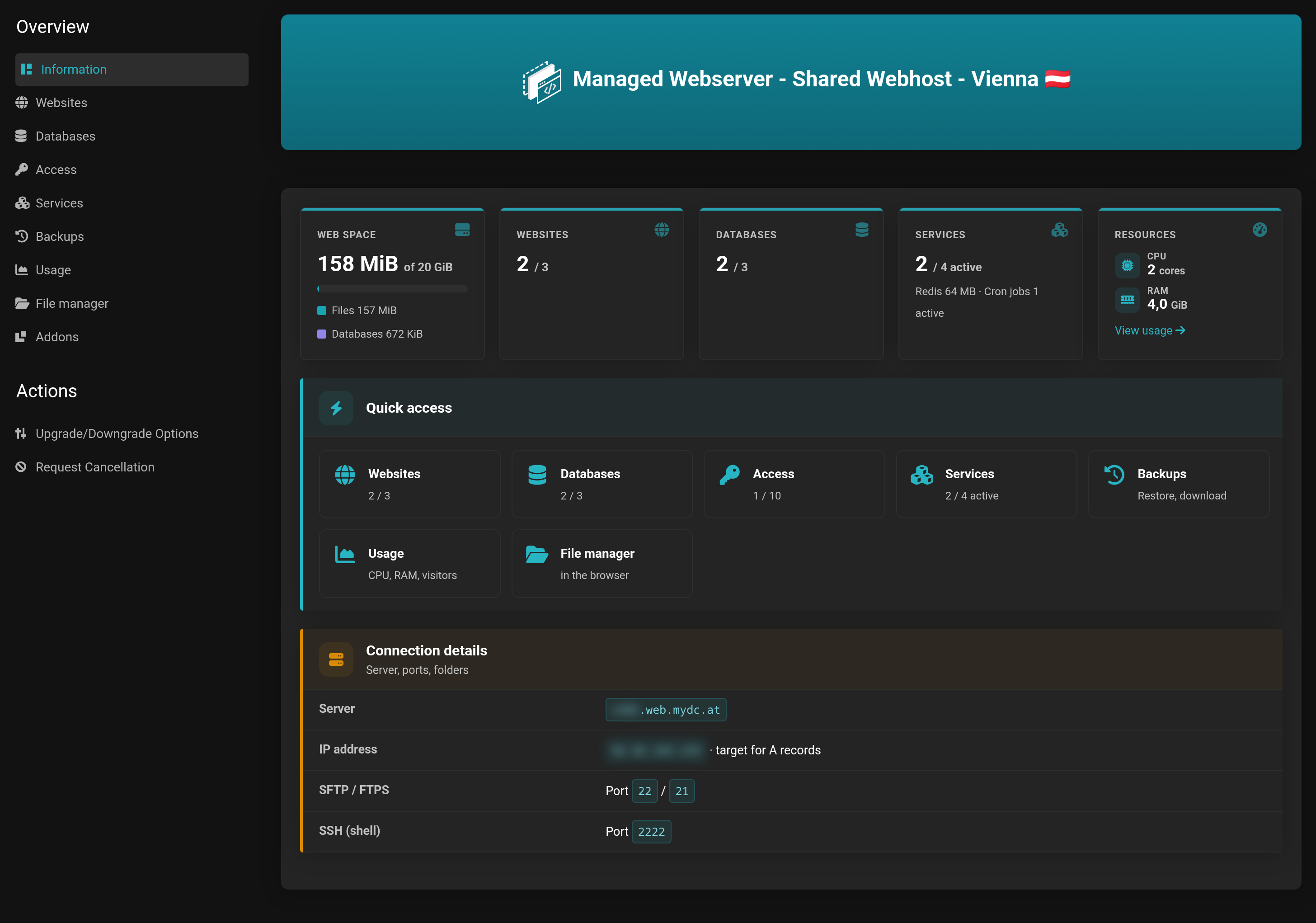 The sections are on the left in the navigation; the overview shows how much of your package you use.
What the Information page tells you
- The tiles at the top show your usage: Web space (files and databases), Websites and Databases compared with your package, the active Services and, under Resources, your CPU cores and memory.
- Quick access takes you to every section with one click.
- The Connection details name the server for your access accounts, the IP address for your domains and the ports for SFTP, FTPS and SSH.
First steps
- Under Websites, create your first website with Add website. You do not need a domain for this yet — every website is reachable at its preview address right away.
- Put content on the website: use Install app to install WordPress, for example (see Installing WordPress and other applications), or upload your files with the file manager or via SFTP.
- If your website needs a database, create it under Databases. A one-click installation does this automatically.
- Once everything is in place, connect your own domain to the website.
- Check under Backups that the daily backup is running.
When the service is suspended
If your service is suspended, for example because of an unpaid invoice, your websites show a notice page. Your data is kept. You cannot make changes in the Client Area during that time.


